
Troubleshooting Gravity Search
- Introduction
- Start with Search Readiness
- Before You Begin
- No Results Are Displayed
- Search Form Filters Are Not Working
- Location Source Fields Are Missing
- Location Synchronization or Import Is Not Working
- Proximity Search Is Not Working
- The Map Is Not Showing
- Map Markers Are Not Showing
- The Details Page Is Not Working
- Shortcodes Are Not Working
- Troubleshooting Checklist
- Helpful Links
Introduction
This guide covers common Gravity Search issues and the current settings to check first. Most problems can be traced
to an item in Search Readiness, an unavailable Search or Target Form, a filter or location-source configuration,
missing stored locations, a page layout, or Details routing.
Start with Search Readiness
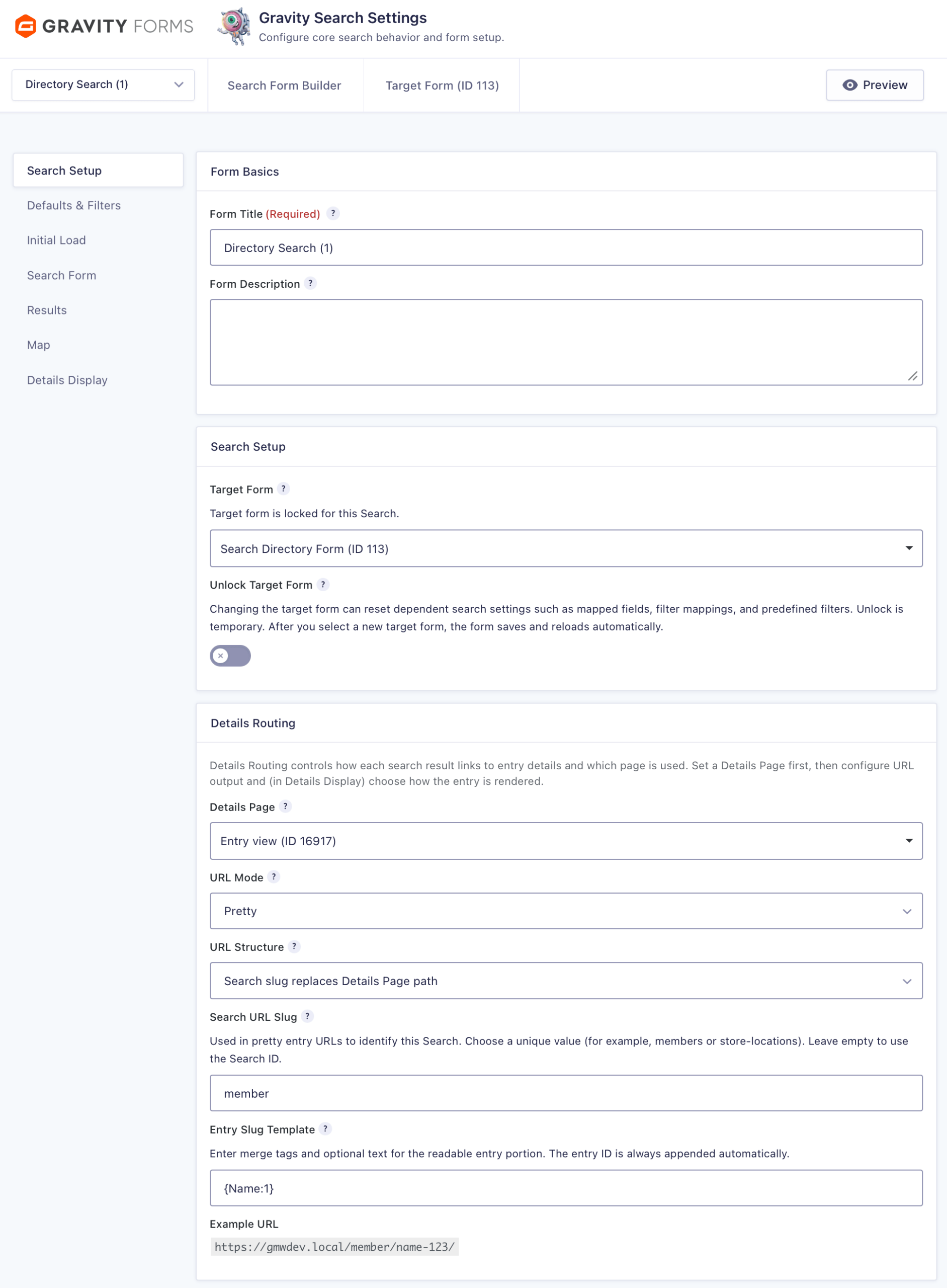
Open the Search and review Search Readiness at the top of Search Settings. Expand the panel and use
its action links to open the setting that needs attention. The panel summarizes all seven settings tabs using the
Search's saved configuration.
- Search is ready: The core configuration is usable.
- Search is ready with items to review: A configured feature or saved reference needs attention.
- Search needs setup: A required connection or results-loading path is missing.
- Not in use: An optional feature such as a map, proximity search, or Details Page is not enabled.
Search Readiness evaluates configuration. It does not scan entries or location records, test your API key, or replace
previewing the Search on its WordPress page. After resolving its messages, continue with the relevant section below.
Before You Begin
Before troubleshooting a specific feature, confirm that:
- The Search is active, is not in Trash, and is connected to the intended Target Form.
- The Target Form still exists outside Trash and contains the entries you expect to search.
- The relevant Search Settings tab was saved before you tested the frontend.
- The page uses the Search ID, not the Target Form ID.
- The page containing the Search was updated and any page or website cache was cleared.
An inactive or trashed Search is not available publicly. An inactive Target Form can still expose its existing entries
to Search because deactivation stops new submissions; Search Readiness nevertheless flags that state for review.
No Results Are Displayed
If the Search loads but no entries appear, check the following:
- Confirm that the correct Target Form is selected and that it contains entries with the expected status.
- Review predefined target-field, entry-meta, creator, status, and location constraints that may exclude entries.
- Temporarily broaden visitor-entered values to identify an overly restrictive mapped filter.
- Confirm that Filter Mappings point to the intended Target Form fields and use compatible operators.
- If location scope is active, confirm that the expected entries have stored locations for a selected source.
- If proximity is active, test a valid origin with a larger radius.
Match Any Rule (OR) applies only to populated visitor Filter Mappings. Predefined filters, entry-meta
filters, creator filters, status rules, and location requirements remain mandatory constraints.
Check Initial Load
Open Initial Load and review Load results on initial page load. When it is disabled,
results do not appear until the visitor submits the frontend search form.
For a directory without visitor controls, enable Initial Load, disable the Search Form, and keep the full
[gfgeo_search id="123"] shortcode on the page. Results and map component shortcodes alone do not
initialize an initial-load Search.
Search Form Filters Are Not Working
When a visitor-facing field does not affect the results, the most common cause is an incomplete mapping, an
incompatible operator, or a source field with no submitted value.
- Open the Search and select the Search Form tab.
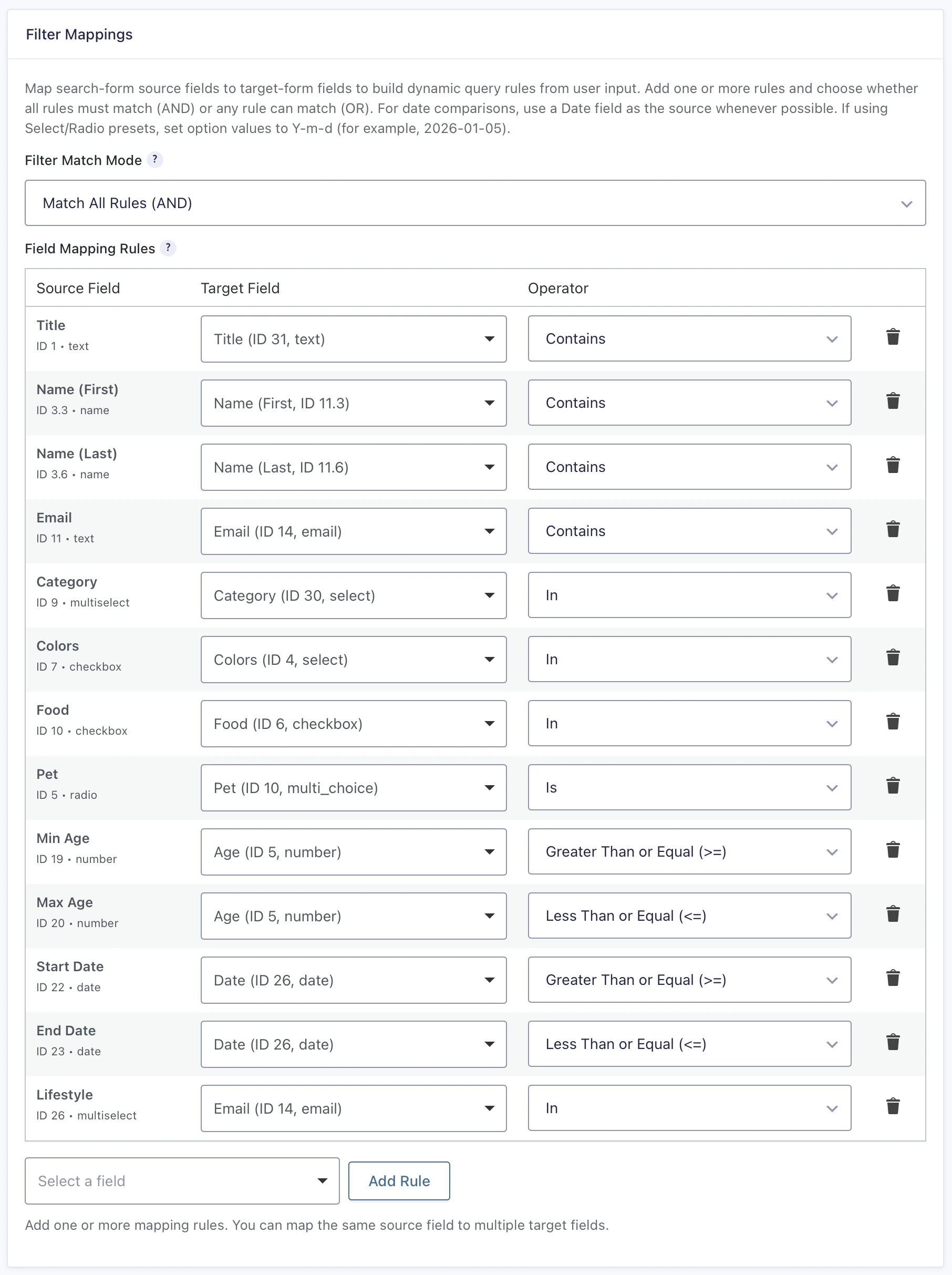
- Locate Filter Mappings.
- Confirm that the Search Form source field is mapped to the correct Target Form field.
- Confirm that the selected operator is available for that target field and matches the intended behavior.
- Review Filter Match Mode and remember that it applies only to ordinary Filter Mappings.
- Save the tab, submit a non-empty frontend value, and retest.
Use Match All Rules (AND) when every populated mapping must match. Use Match Any Rule
(OR) when at least one populated mapping may match. Empty frontend fields generally do not create query rules.
Location Source Fields Are Missing
Location Data Scope can include eligible current and historical Target Form fields. A field does not have to remain
selected under Fields to Geocode for its previously synchronized or imported locations to stay available.
- Confirm that the Search is connected to the correct Target Form.
- Confirm that the expected field still exists and is a supported Geocoder, Address, Single Line Text, or Paragraph Text field.
- For new synchronization or importing, enable Entry Geocoding and select the field under Fields to Geocode.
- Save the Target Form settings before returning to Search Setup.
- Refresh Search Setup and select the intended current or historical source under Location Data Scope.
Removing a field from Fields to Geocode stops future synchronization for that source; it does not automatically
delete the source's existing shared location records. A source being listed also does not guarantee that every entry
already has coordinates, so use the importer when older entries need to be processed.
Location Synchronization or Import Is Not Working
New or updated entries synchronize only the Target Form fields currently selected under Fields to Geocode. If a
current source value is empty or cannot produce valid coordinates, Gravity Geolocation does not keep serving a stale
location for that current value. Correct the entry's source value, confirm the geocoding provider configuration, and
update the entry again.
For existing entries:
- Open the Target Form settings and enable Entry Geocoding.
- Select and save the required Fields to Geocode.
- Open Import Existing Entry Locations.
- Leave Geocode locations missing coordinates enabled only when address-only records should be sent to the configured provider.
- Run the importer and review its imported, skipped, and failed rows plus any warning.
- Correct failed entry values or provider settings, then run the importer again.
Geocoding missing coordinates can consume API quota and may incur provider charges. Uncheck that option to import
only coordinates already stored in the entries. The importer uses the saved Fields to Geocode selection and warns
when those settings contain unsaved changes. See Importing Existing Entry Locations
for the full procedure and result meanings.
Proximity Search Is Not Working
Proximity Search needs both a valid search origin and stored coordinates for the qualifying Target Form entries.
- Select the correct current or historical sources under Search Setup → Location Data Scope.
- Import existing locations when older entries do not yet have stored coordinates.
- Open the Search Form tab and enable Enable Proximity Search.
- Select a valid Search Form Address Field and, when used, compatible Radius and Units fields.
- Review the default origin, radius, and units under Defaults & Filters.
- If the address cannot be geocoded, try a more specific address or nearby location.
- Test with a larger radius to confirm that entries are not simply outside the selected distance.
A Search without a visible form must provide the required default proximity values and use Initial Load. When one
entry owns several qualifying locations, each location can appear as a separate result and marker with its own distance.

The Map Is Not Showing
Open the Map tab and check Map Display Mode.
- Display in Results: The map appears as part of the Search results output.
- Display via Shortcode: Add
[gfgeo_search_map id="123"]once where the map should appear. - Disable: The map is not rendered.
Also confirm that:
- At least one location source is selected under Search Setup → Location Data Scope.
- The map shortcode uses the correct Search ID and appears only once for that Search.
- The Google Maps API key and required APIs are configured for the current website.
- Billing and API restrictions are configured correctly.
- The browser console does not show a JavaScript or Google Maps API error.
Map Markers Are Not Showing
If the map appears without result markers, the current result set does not contain usable stored locations or the
marker settings prevent those locations from being displayed.
- Confirm that matching entries have stored coordinates for a source selected in Location Data Scope.
- Run Import Existing Entry Locations for older entries and review skipped or failed rows.
- Check that result markers are configured under Map → Map Markers.
- Review fixed filters and try broader visitor filters or a larger proximity radius.
- Confirm that results are loading; no matching results also means there are no result markers.
The Details Page Is Not Working
If Details links are missing, return a 404, lead to the wrong page, or display no entry content, review both
Search Setup → Details Routing and Details Display.
- Confirm that the Search is active and the selected Details Page exists and is published.
- Confirm that the entry belongs to the Search's Target Form and satisfies the Search's fixed eligibility rules.
- Review Search Readiness for an unavailable page, invalid route, or route collision.
- Confirm that the details URL contains valid Search and Entry IDs.
- Enable the intended title or Details links in Results and Map settings.
- Confirm that the intended output mode is selected under Details Display.
The Details URL Returns a 404 Error
- Compare the tested URL with the Example URL under Details Routing.
- Confirm that URL Mode, URL Structure, Search URL Slug, and Details Page are the intended saved values.
- Resolve any route-conflict or unavailable-page warning shown by Search Readiness.
- On sites using plain WordPress permalinks, use the automatic simple query-string Details URL.
Saving relevant Search settings, changing Search or page lifecycle state, and changing WordPress permalink settings
refreshes the affected routes automatically. Routinely opening and re-saving WordPress Permalinks is not required.
Structured Fields or Custom HTML
For Structured Fields or Custom HTML, place
[gfgeo_search_entry] on the selected Details Page where the entry should appear.
Page Content
For Page Content, build the selected WordPress page with supported Gravity Forms merge tags. The
Details shortcode is not used in this mode. If merge tags appear as plain text, confirm that Page Content is selected
and that the page was opened through a valid Details URL.
Shortcodes Are Not Working
The main Gravity Search component shortcodes use the Search ID:
[gfgeo_search id="123"]displays and initializes the complete Search.[gfgeo_search_form id="123"]provides the form-only orchestrator for a split layout.[gfgeo_search_results id="123"]displays the results mount.[gfgeo_search_map id="123"]displays the map mount when Map Display Mode is Display via Shortcode.
Replace 123 with the Search ID, not the Target Form ID. In a split layout, render the form, results, and
optional map component once each and use the same Search ID for all of them.
Only one instance of a given Search ID is supported on a page. Do not combine the full
[gfgeo_search] shortcode with a separate [gfgeo_search_results] mount for the same ID, and
do not repeat a Search as independent instances. Different Search IDs may share a page.
The form-only shortcode outputs no visible form when Disable Search Form is enabled. A no-form directory that loads
automatically should keep the full Search shortcode and enable Initial Load.
The [gfgeo_search_entry] shortcode is for an individual Details Page. It normally reads the Search and
entry IDs from the current Details URL; it can also accept explicit search_id and entry_id
attributes. Public lifecycle and fixed entry-eligibility checks still apply.
Troubleshooting Checklist
- Search Readiness has been reviewed after saving the relevant settings.
- The Search is active, outside Trash, and connected to the intended Target Form.
- The Target Form exists outside Trash and contains the expected entries.
- Initial Load and Search Form visibility match the intended workflow.
- Visitor filters map to the intended Target Form fields and compatible operators.
- Fixed filters are not unintentionally excluding entries.
- Location Data Scope contains the intended current or historical sources.
- Existing locations have been imported and any failed rows have been reviewed.
- Proximity has a valid origin, radius behavior, units, and stored coordinates.
- Map Display Mode and shortcode placement match the page layout.
- Details Routing uses a published page and has no route collision.
- The Details shortcode is present only for Structured Fields or Custom HTML output.
- Every page component uses the Search ID and appears only once for that Search.
- Google Maps APIs, billing, and key restrictions are configured correctly.
- The WordPress page and any website cache were updated after the configuration changed.