
Displaying Gravity Search on a Page
Introduction
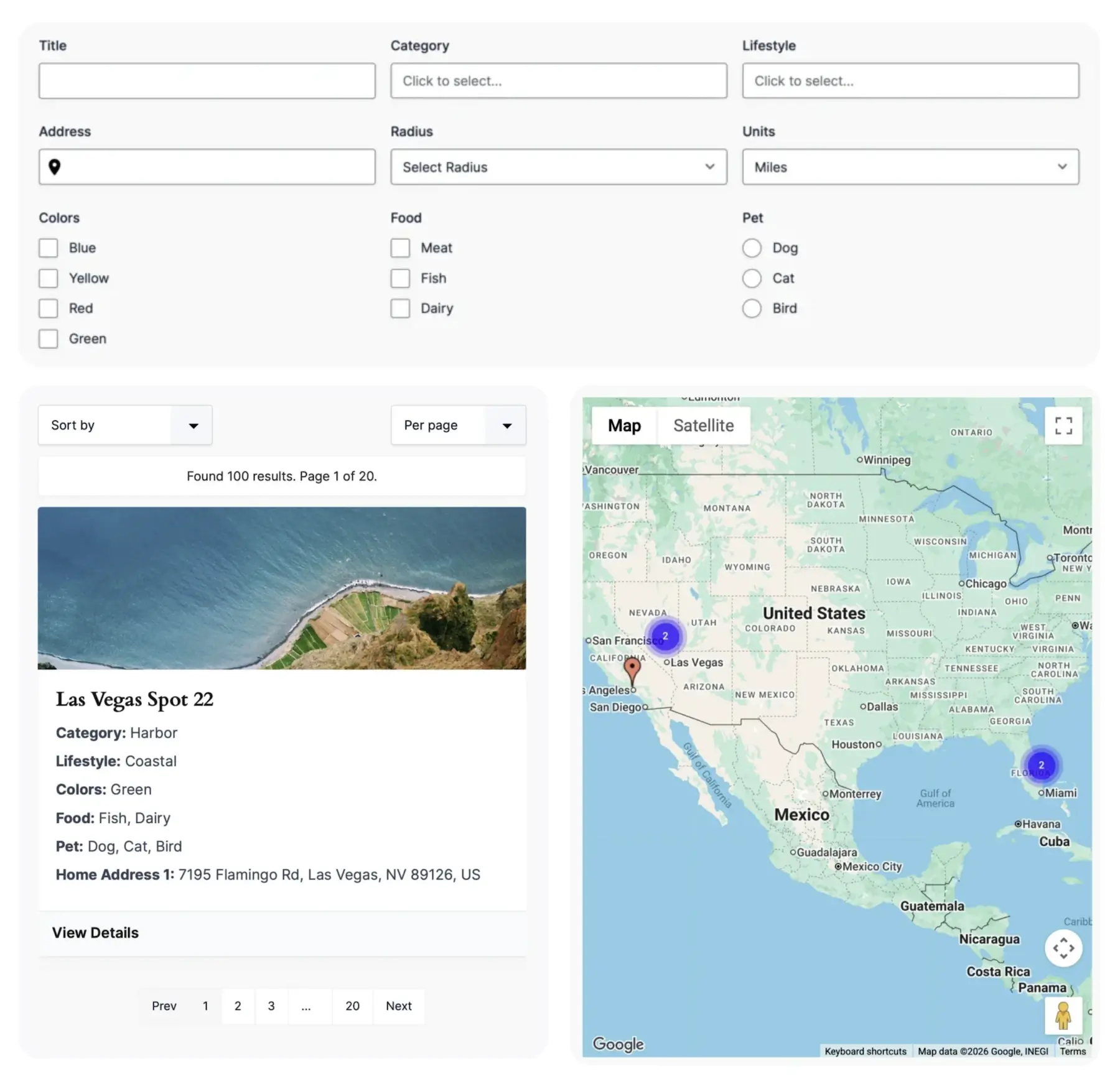
Gravity Search can be displayed on WordPress pages using shortcodes.
You can render the complete Search with one shortcode or place its optional search form, results, and map in separate areas to create a custom layout. Each approach creates one connected runtime for that Search ID.
This allows you to build standard search pages, directories, split layouts, map-first interfaces, and sidebar-filter layouts without writing custom PHP.

Finding the Search ID
Every Search has an ID assigned by Gravity Forms.
Locate the Search in the Gravity Forms list and copy the number shown in the ID column.
Use this Search ID in each Gravity Search shortcode. Do not use the Target Form ID.
In the examples below, replace 123 with your Search ID.
Complete Search Shortcode
The simplest way to display a complete Search is:
[gfgeo_search id="123"]This shortcode renders the Search using its configured frontend search form, results, and map settings.
If the frontend search form is disabled, the shortcode can still render initial-load or predefined results and the configured map without visitor-facing fields.
Use the complete shortcode when all Search components should appear together in the standard layout.
Do not add a separate [gfgeo_search_results] shortcode for the same Search ID when the full shortcode is already on the page. The full shortcode already supplies the results mount.
Component Shortcodes
Use component shortcodes when the search form, results, and map need to appear in different areas of the page.
Search Form Only
[gfgeo_search_form id="123"]This shortcode renders only the optional frontend search form.
It produces no output when Disable Search Form is enabled.
Results Only
[gfgeo_search_results id="123"]This shortcode renders the results area without automatically rendering the search form or map.
Map Only
[gfgeo_search_map id="123"]This shortcode renders the Search map separately from the standard results layout.
Select Display via Shortcode under Map Settings when the map should be rendered through this shortcode rather than inside the standard results output.
Connecting Multiple Components
All component shortcodes belonging to the same Search must use the same Search ID:
[gfgeo_search_form id="123"]

[gfgeo_search_results id="123"]

[gfgeo_search_map id="123"]
Using the same Search ID once for each required component allows the form, results, and optional map to share one query state and runtime.
If different Search IDs are used, each shortcode belongs to a different Search and operates independently.
A split layout is one Search instance: render its form, results, and optional map component no more than once each. Repeating the same Search ID as multiple independent Search instances on one page is unsupported.
Shortcode Attributes
Details Entry Shortcode
For Structured Fields or Custom HTML Details Display modes, place the following shortcode on the selected Details Page:
[gfgeo_search_entry]A generated Details URL supplies the Search and Entry IDs automatically. The Details Display tab provides Copy shortcode and Edit Page helpers.
For an advanced explicit context, the shortcode accepts search_id and entry_id:
[gfgeo_search_entry search_id="456" entry_id="123"] The aliases sid and eid are also accepted. The Search must be active, the entry must belong to its Target Form, and the entry must satisfy the Search’s fixed visibility rules. Visitor filters and proximity input are not reapplied.
Do not use this shortcode for Page Content mode. Add Gravity Forms merge tags directly to the selected Details Page instead.
Split Layout Example
The following example creates one Search instance by placing the optional form above one results mount and one map mount:
[gfgeo_search_form id="123"]

<div class="search-layout">
	<div class="search-results-column">
		[gfgeo_search_results id="123"]
	</div>

	<div class="search-map-column">
		[gfgeo_search_map id="123"]
	</div>
</div>
The HTML provides the page structure. Add CSS through your theme, page builder, or the Search’s custom CSS settings to create the desired column layout.
This approach is useful for directories, store locators, property searches, and other experiences where results and the map should remain visually separate.
Use Display via Shortcode for this Search’s Map Display Mode. Do not also place [gfgeo_search] or repeat any of these component shortcodes for Search ID 123 on the same page.
Searches Without a Search Form
A Search does not require visitor-facing fields.
For a directory, predefined listing, or map without a frontend search form:
- Configure Search Defaults and Predefined Filters.
- Enable the required Initial Load behavior.
- Enable Disable Search Form.
- Place
[gfgeo_search id="123"]on the page. The full shortcode remains the Search orchestrator even though it does not show visitor-facing fields. - If Map Display Mode is Display via Shortcode, also place one
[gfgeo_search_map id="123"]where the map should appear.
Do not use only [gfgeo_search_results] and [gfgeo_search_map] for this setup. Those component mounts do not replace the full shortcode’s initial-load orchestration. Do not use [gfgeo_search_form] when the frontend search form is disabled; it intentionally produces no output.
Best Practices
- Use
[gfgeo_search]for the simplest complete Search output. - Use component shortcodes only when you need a custom page layout.
- Use the Search ID—not the Target Form ID—in every shortcode.
- Use the same Search ID once for each form, results, and optional map component that belongs to one split-layout runtime.
- Do not combine the full Search shortcode with a results component for the same Search ID.
- Do not render duplicate independent instances of the same Search ID on one page; that layout is unsupported.
- When using
[gfgeo_search_map], configure Map Display Mode and select at least one Location Source Field. - Test initial-load behavior when displaying results without a frontend search form.
- Different Search IDs can share a page because each creates its own runtime.