
Search Field Mapping
Introduction
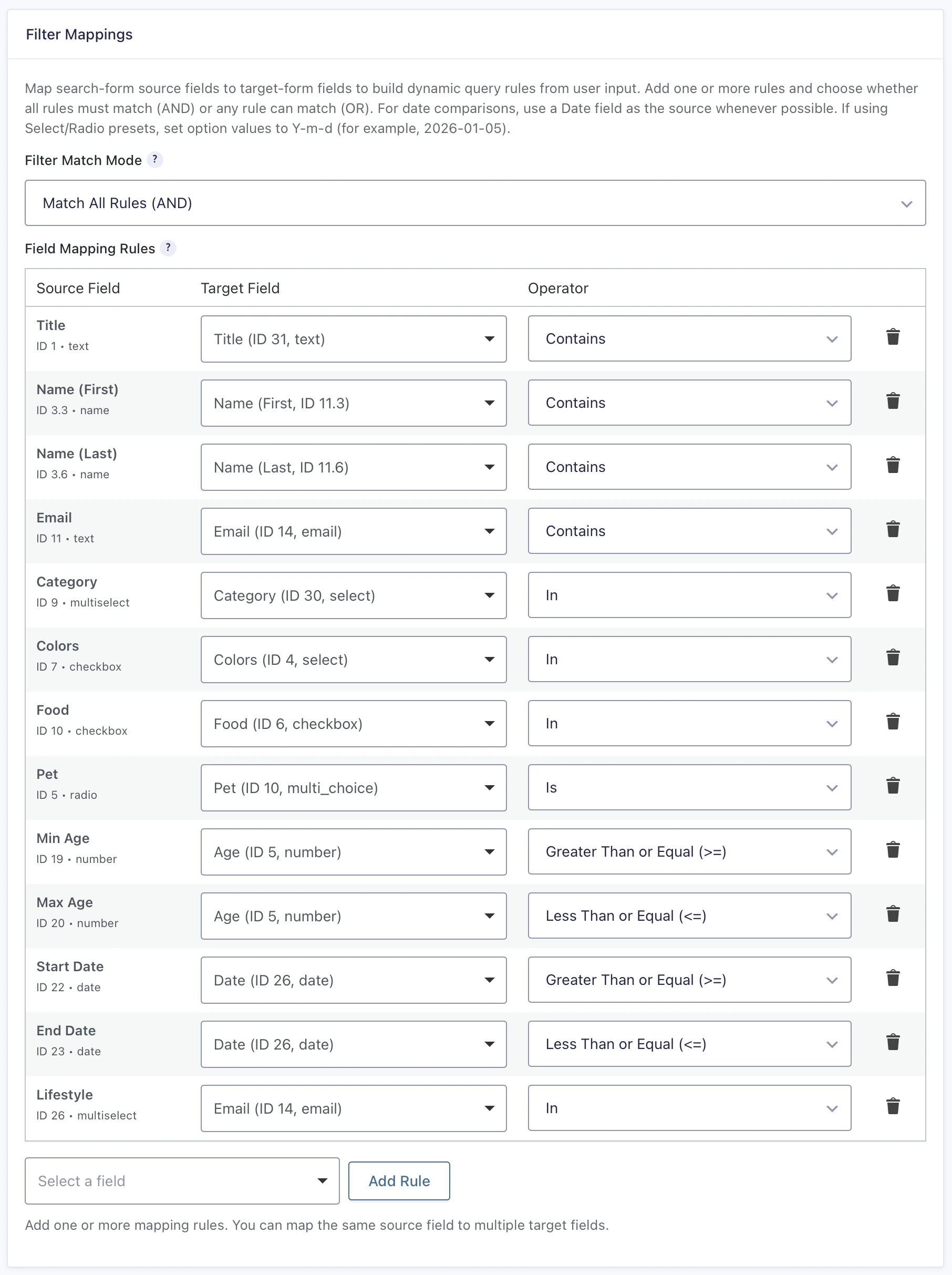
Field mapping connects fields from the optional visitor-facing Search Form to fields stored in the selected Target Form. Each mapping tells Gravity Search which visitor value to use, which Target Form field to query, and how the values should be compared.
Field mappings are needed only when visitor-facing Search Form fields should filter the results. A Search can instead run from Initial Load, Search Defaults, and Predefined Filters without field mappings or a visible Search Form.
How Field Mapping Works
Each mapping rule connects one Source Field from the Search Form to one Target Field in the Target Form. When the Source Field contains a visitor value, Gravity Search compares that value with the stored Target Form field using the selected operator.
A mapping rule contains:
- Source Field: the Search Form field that supplies the visitor’s value.
- Target Field: the Target Form field or supported Name/Address sub-input whose saved entry value is queried.
- Operator: the comparison performed between the visitor value and the stored value.
A rule is applied only when its Source Field has a value in the search request. Empty visitor inputs do not add conditions to the query.
Creating Mapping Rules
- Open the Search and go to Search Settings → Search Form.
- Under Filter Mappings, select a Source Field and click Add Rule.
- Choose the Target Field and Operator for the new row.
- Add any additional rules, then select the Filter Match Mode.
- Save the Search Form settings.
You can map the same Source Field to more than one Target Field. For example, one Keyword field can search both Business Name and Business Description. Reusing a source this way is valid because every row has the same ordinary Filter Mapping role.
Supported Field Types and Operators
Eligible Source Fields from the Search Form Builder include:
- Single Line Text and Paragraph Text
- Number
- Email, Website, and Phone
- Checkboxes, Radio Buttons, Drop Down, and Multi Select
- Date and Time
- Hidden
- Name and Address sub-inputs
Eligible Target Form fields include compatible text, number, choice, date, time, contact, Hidden, Name, and Address fields. Name and Address fields are mapped through their individual sub-inputs.
The operator choices shown for a rule depend on its Source Field type:
- Number, Date, and Time: Equals, Greater Than, Greater Than or Equal, Less Than, and Less Than or Equal.
- Checkboxes and Multi Select: In and Not In.
- Radio Buttons and Drop Down: Is.
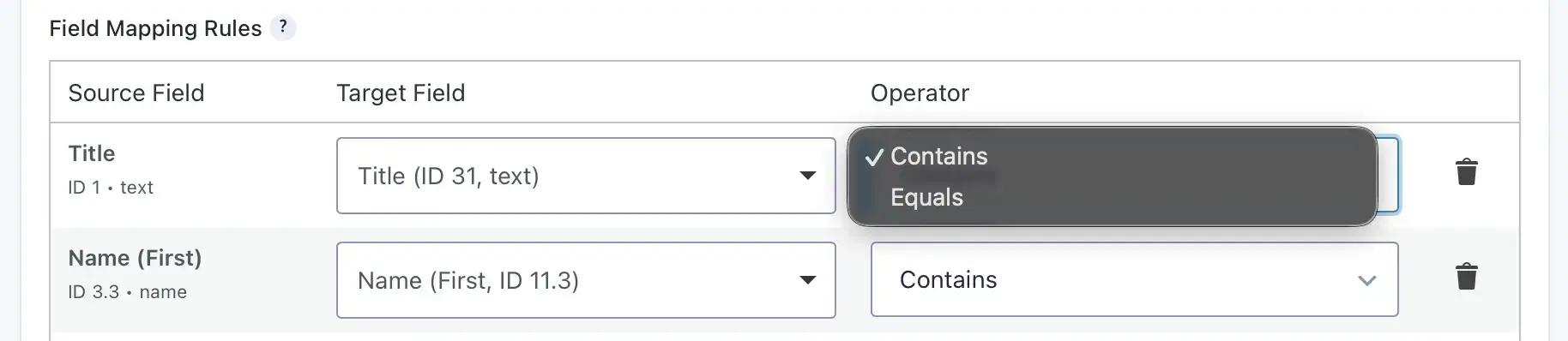
- Text-like fields: Contains and Equals.
Choose a Source Field, Target Field, and operator that represent the same kind of data. Gravity Search validates the saved operator against the Target Field type before treating the mapping as ready.
For date comparisons, use a Date Source Field whenever possible. If a Drop Down or Radio Buttons field supplies preset dates, store its option values in Y-m-d format, such as 2026-01-05.
Filter Match Mode
Filter Match Mode determines how ordinary Filter Mapping rules that have visitor values are combined.
Match All Rules (AND)
An entry must satisfy every applicable ordinary mapping rule. For example, Category = Restaurant and City = Miami returns restaurant entries in Miami.
Match Any Rule (OR)
An entry can satisfy any applicable ordinary mapping rule. For example, mapping one Keyword field to Business Name and Business Description returns an entry when the keyword matches either Target Form field.
Match Any affects only ordinary Target Form field mappings. Predefined Target Field Filters, Entry Meta Filters, creator filters, entry status, and location constraints remain mandatory and are combined with the mapped-field group using AND logic.
Field Roles and Unavailable Mappings
Each Search Form field can have only one semantic search role. A field used for an ordinary Filter Mapping cannot also be assigned as an Entry Meta, Creator User, Creator Role, Creator Text, Proximity Address, Proximity Radius, or Proximity Units field. Gravity Search checks these assignments when you save and identifies the conflicting field and roles.
Using the same Source Field in multiple ordinary Filter Mapping rows is allowed. This is different from assigning that field to another role.
If a mapped Source Field is removed from the Search Form Builder, Gravity Search preserves the saved row and marks the source as removed or unavailable. If a Target Field is no longer available, Search Readiness also identifies the invalid mapping. Correct or remove outdated rows before relying on them in a live Search.
Field Mapping Examples
Keyword Search
Map a text Source Field to a compatible Target Form text field using Contains for partial matching or Equals for an exact value.
Single-Choice Search
Map a Drop Down or Radio Buttons Source Field to a compatible Target Form field using Is.
Multiple-Choice Search
Map a Checkboxes or Multi Select Source Field to a compatible Target Form choice field using In or Not In.
Date Search
Map a Date Source Field to a Target Form Date field using Equals, Greater Than, Greater Than or Equal, Less Than, or Less Than or Equal.
Numeric Search
Map a Number Source Field to a compatible numeric Target Form field using the available comparison operators.
Reviewing and Saving
Use the Search Readiness panel to review invalid or unavailable mappings. Its Review Search Form action returns you to the Filter Mappings section when a saved rule needs attention.
Use either Save Settings button on the Search Form tab. Saving this tab preserves settings stored on the other Gravity Search tabs. Search Readiness flags mappings whose source, target, or saved operator needs correction; review those rows before relying on the Search in production.
Best Practices
- Add and clearly label only the Search Form fields visitors need.
- Choose compatible source and target data types.
- Use Match All for narrowing across several fields and Match Any only for the ordinary mappings that should form an OR group.
- Use a Date Source Field for date comparisons whenever possible.
- Review mappings after Search Form or Target Form fields are added, removed, or changed.
- Test empty, partial, and complete visitor input, along with saved fixed filters.