
Details Display Settings
Introduction
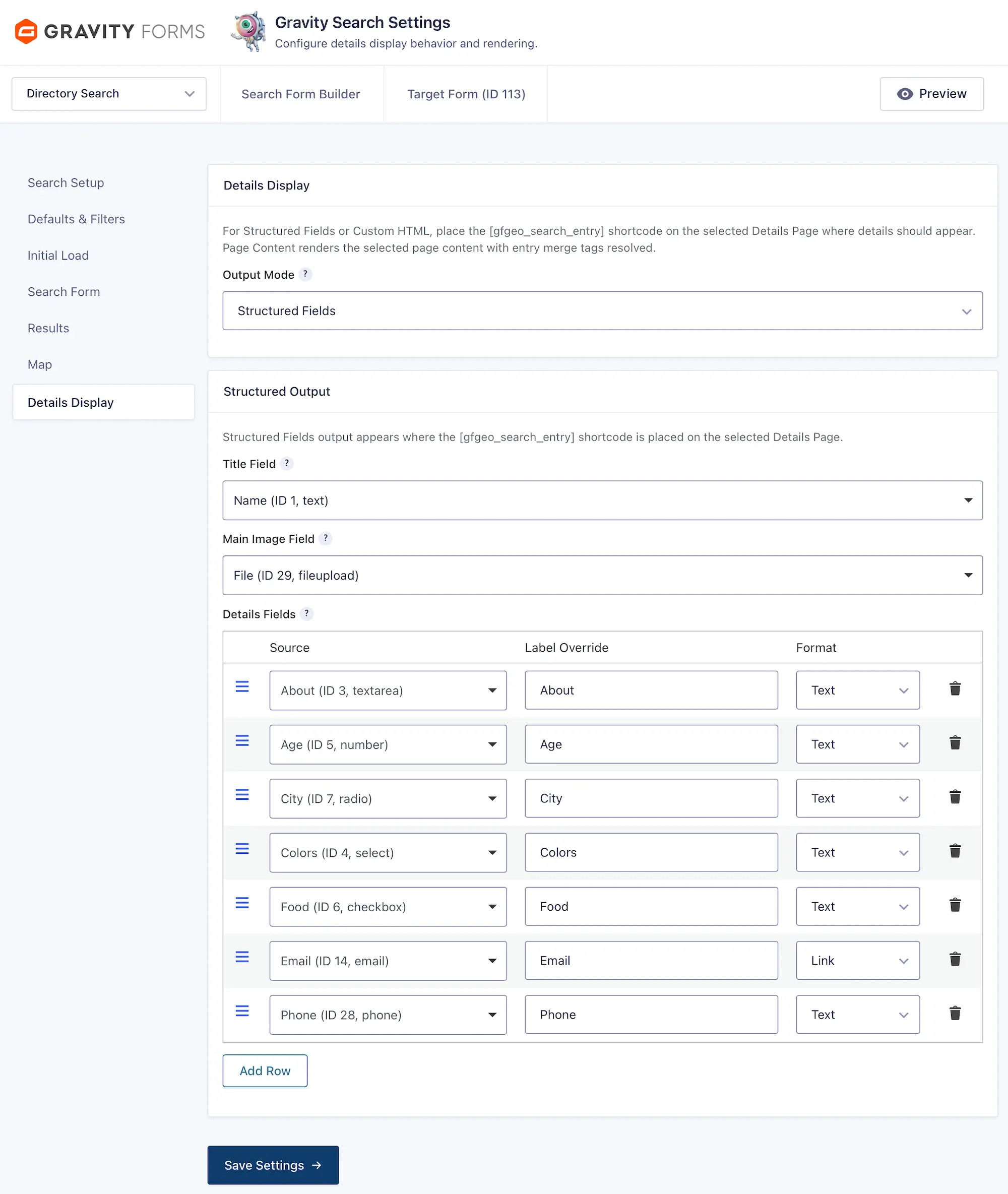
The Details Display tab controls how an individual Target Form entry is displayed after a visitor follows a Details link or opens a valid Details URL.
Details Display supports three Output Modes:
- Structured Fields
- Custom HTML
- Page Content
Entry Details are optional. A Search can display results and maps without a Details Page. When Details are used, this tab controls the entry content and layout; the destination page and URL format are configured separately under Search Setup → Details Routing.
Check Search Readiness
The Search Readiness panel reviews the saved Details configuration. It can identify a missing or unpublished Details Page, unavailable pretty permalinks, an invalid route, or a route that conflicts with another active Search.
Search Readiness reviews configuration only. It does not scan the selected page for a literal shortcode because page builders and reusable content can place the output outside the page’s stored content.
Before You Begin
Before configuring the entry output, open Search Setup → Details Routing and select a published Details Page. Details Display remains unavailable until a page is selected.
The Details Page is the WordPress page used as the destination for entry details links. Details Routing also controls whether entry URLs use Pretty or Simple mode.
For complete routing and URL configuration instructions, see Details Routing in Search Setup Settings.
Mode Placement Requirements
The tab identifies the selected Details Page and displays an Edit Page action when your account can edit it. The placement guidance changes with the selected Output Mode.
When using Structured Fields or Custom HTML, place the following shortcode on the selected Details Page where the individual entry should appear:
[gfgeo_search_entry]Use the built-in Copy shortcode button to copy it. The Details URL supplies the Search and Entry IDs automatically, so no attributes are required on the configured Details Page.
The shortcode is not required when using Page Content. In Page Content mode, edit the selected page and use its content as the entry template.
The Details Display Tab
Open the Details Display tab in Search Settings to select an Output Mode and configure the content displayed for individual entries.
1. Output Mode
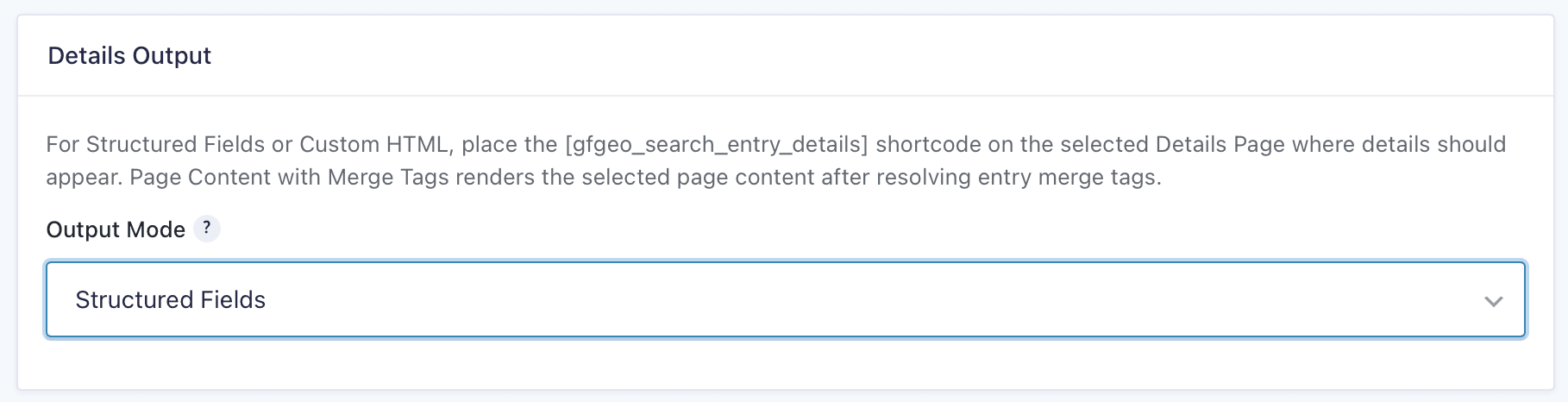
The Output Mode setting determines how Gravity Search generates the individual entry display. Structured Fields is the default.
- Structured Fields: Builds the entry display from selected Target Form fields and configurable display rows, then renders it through
[gfgeo_search_entry]. - Custom HTML: Builds the entry display from custom markup and supported Target Form or entry tags, then renders it through
[gfgeo_search_entry]. - Page Content: Uses the selected Details Page content as the entry template and resolves Gravity Forms merge tags within that content. No Details shortcode is required.
Choose Structured Fields for configuration-based output, Custom HTML for direct control over the generated markup, or Page Content when the WordPress page itself should provide the entry layout.
Below the selector, Gravity Search shows the selected page and its Edit Page action. Structured Fields and Custom HTML also show the copyable shortcode helper; Page Content instead reminds you to edit the page directly.
2. Structured Fields
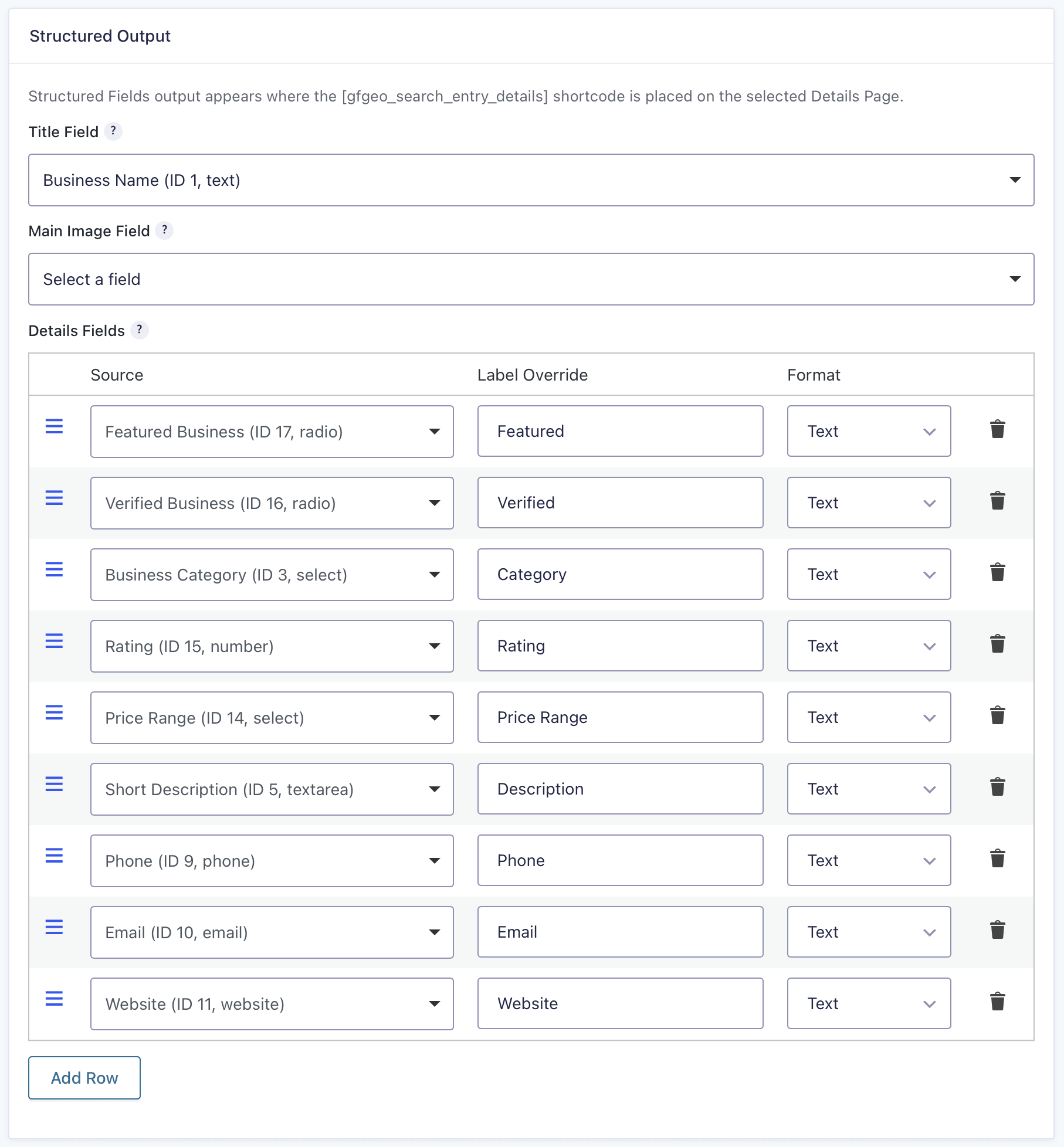
Select Structured Fields to build the individual entry display from selected fields and configurable rows.
The generated output appears where the [gfgeo_search_entry] shortcode is placed on the selected Details Page.
Title Field
Optionally select a compatible Target Form field to display as the details title.
Leave this setting empty when no title should be displayed.
Main Image Field
Optionally select a compatible Target Form field to use as the primary image for the entry.
Details Fields
Add and arrange display rows containing compatible Target Form fields or supported entry metadata.
Built-in entry sources include Entry ID, Date Created, Date Updated, Created By, Status, Source URL, Form ID, Post ID, Payment Status, Payment Amount, and Transaction ID.
Each row contains the following settings:
- Source: The field or entry value displayed by the row.
- Label Override: An optional custom label used instead of the default field label.
- Format: Display the value as Text, Link, Link (New Tab), or Image.
Use Add Row to add fields. Rows can be reordered or removed to create the desired entry layout.
3. Custom HTML
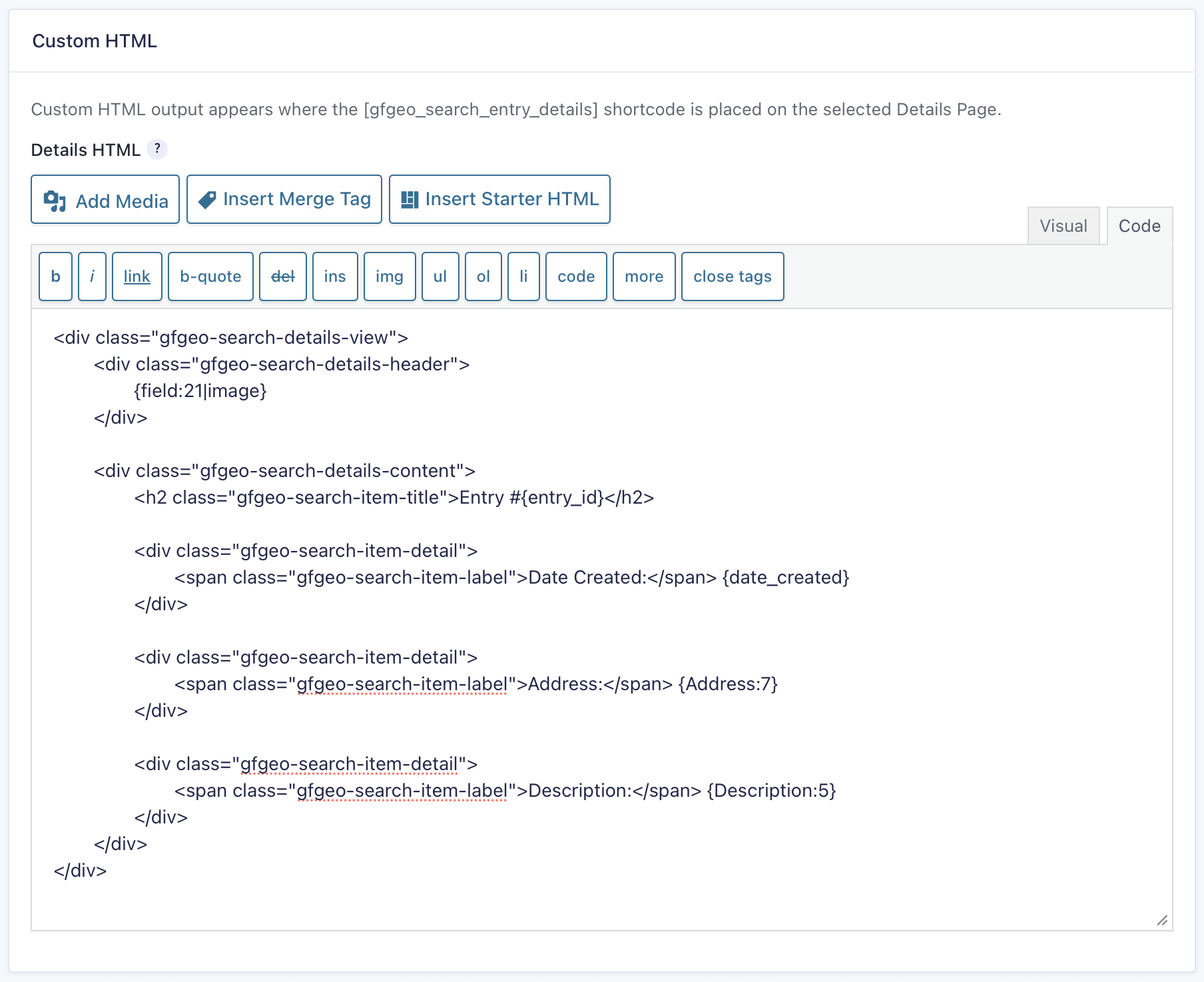
Select Custom HTML to build the individual entry display using custom markup and supported Gravity Search template tags.
The generated output appears where the [gfgeo_search_entry] shortcode is placed on the selected Details Page.
Details HTML
Enter the HTML used to render the individual entry.
Use the tag selector to insert Target Form field values and supported entry properties into the template. Examples include Gravity-style field tags such as {Name:1}, field tags such as {field:1}, and entry tags such as {entry_id} or {date_created}.
For example:
<article class="member-details">
	<h2>{Name:1}</h2>
	<p>{Email:2}</p>
</article>
Replace the example merge tags with the appropriate fields from your Target Form.
See Search Templates & Merge Tags for additional guidance.
4. Page Content
Select Page Content to use the content of the selected Details Page as the individual entry template.
Add Gravity Forms merge tags directly to the WordPress page content. When a valid entry Details URL is loaded, Gravity Search resolves those merge tags using the requested Target Form entry.
For example, the Details Page content might contain:
<h2>{Name:1}</h2>
<p>{Email:2}</p>
Do not add [gfgeo_search_entry] when using Page Content mode. The page content itself becomes the details output.
Page Content is useful when you want to build the complete entry layout with the WordPress editor. Use the Edit Page helper to open the selected page. If a third-party page builder generates content outside the standard WordPress page content, test the completed page on the frontend to confirm that its merge tags and layout are processed as expected.
How Details Display Works
When a visitor follows a Details link, Gravity Search identifies the requested Search and Target Form entry and loads the published Details Page selected under Search Setup → Details Routing.
The selected Output Mode then determines how the entry content is generated:
- Structured Fields: Displays the configured title, main image, and details rows through the
[gfgeo_search_entry]shortcode. - Custom HTML: Processes the configured Details HTML and displays it through the
[gfgeo_search_entry]shortcode. - Page Content: Processes the selected Details Page content and resolves supported merge tags for
the requested entry.
Before rendering the entry, Gravity Search verifies that the Search is active and not in Trash, the Target Form still belongs to the Search and is not in Trash, the entry is active, and the entry still satisfies the Search’s fixed administrator-defined visibility rules. Visitor filter values, proximity input, sorting, and paging are not reapplied to a direct Details request.
Details links can be enabled independently in Search Results and Map Info Window settings. Those link controls decide whether a link is shown in that output; they do not globally enable or disable a valid direct Details request.
Details Display is entry-level. If one entry has multiple qualifying locations, the Details page describes the parent entry rather than retaining the specific marker or result-location context that was selected.
Setup Recipe
- Open Search Setup → Details Routing.
- Select a published Details Page.
- Configure the entry URL settings and save the Search.
- Open the Details Display tab.
- Select Structured Fields, Custom HTML, or Page Content under Output Mode.
- Configure the settings shown for the selected mode.
- Use Edit Page to open the selected page.
- For Structured Fields or Custom HTML, use Copy shortcode and add
[gfgeo_search_entry]where the entry output should appear. - For Page Content, add the desired content and merge tags directly to the Details Page without the shortcode.
- Enable details links in Search Results or Map Info Window settings.
- Save the Details Display settings and review Search Readiness.
- Test an entry details link on the frontend.
Troubleshooting
The Details Page Opens but No Entry Is Displayed
- Confirm that the correct Details Page is selected under Search Setup → Details Routing.
- When using Structured Fields or Custom HTML, confirm that
[gfgeo_search_entry]is present on that
page. - When using Page Content, remove the Details shortcode and place the merge tags directly in the selected page content.
- Confirm that the requested Entry ID exists, is active, and belongs to the Search’s Target Form.
- Confirm that the entry satisfies the Search’s fixed field, entry-meta, creator, status, and location requirements.
- Verify that the Details URL supplies a valid Search and Entry ID.
Merge Tags Appear as Plain Text
- Confirm that Output Mode is set to Page Content when merge tags are placed directly in the
Details Page content. - Confirm that the merge tags reference fields in the Search’s Target Form.
- Open the page through a generated details link so Gravity Search has the required Search and entry context.
A Details URL Returns a 404 Error
- Confirm that the Search is active and not in Trash, and that the selected Details Page exists and is published.
- Use Search Readiness to check the Search URL Slug, URL Structure, pretty-permalink availability, and route conflicts.
- Verify that the URL contains a valid Entry ID.
- If WordPress pretty permalinks are disabled, use the generated Simple query-string URL. Gravity Search falls back to that format automatically.
- Search, Details Page, and permalink changes refresh the Details route automatically; routine manual resaving of WordPress Permalink Settings is not required.
Details Links Are Not Displayed
Selecting a Details Page does not automatically add a details link to every output. Enable the appropriate
details-link setting under Search Results or Map Info Window settings.
Saving Settings
Use either Save Settings button on the Details Display tab. Saving this tab updates only its Output Mode and mode-specific display values. Details Routing remains owned by Search Setup, and settings on the other Gravity Search tabs are preserved.
After saving, review Search Readiness and test a generated Details link on the frontend. For Structured Fields or Custom HTML, also confirm that the shortcode output appears in the intended page or builder region. For Page Content, confirm that the selected page’s merge tags resolve for the requested entry.