
Search Form Settings
Introduction
The Search Form tab controls the optional visitor-facing fields used to refine a Gravity Search. Use it to open the Search Form Builder, map visitor inputs to Target Form fields and entry properties, configure creator and proximity filters, and choose whether changes run the Search automatically.
Search fields are optional. A Search can display initial results or run with saved defaults and predefined filters without showing a frontend search form.
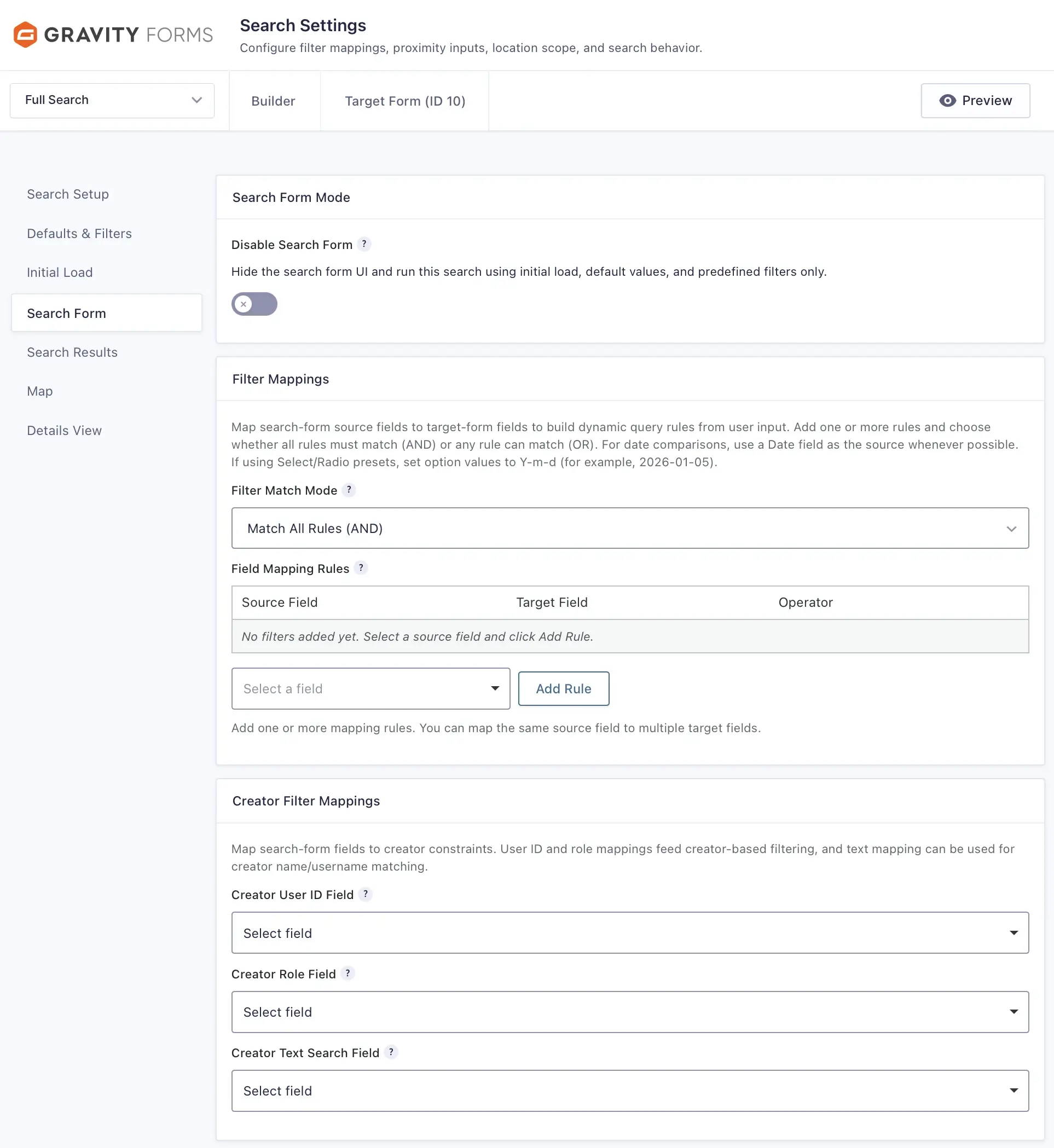
Check Search Readiness
The Search Readiness panel summarizes the saved configuration and identifies anything that still needs attention. Review it after configuring this tab, especially if the Search Form is disabled or a feature depends on settings from another tab.
Dependency notices appear beside unavailable controls and link to the setting that enables them. For example, Proximity Search remains unavailable until at least one Location Source Field is selected under Search Setup → Location Data Scope.
Configuring Search Form Settings
1. Search Form Status
Select Open Search Form Builder to add, remove, or arrange the fields visitors use to filter entries. An empty Search Form Builder is valid when the Search relies on initial-load results, Search Defaults, or Predefined Filters.
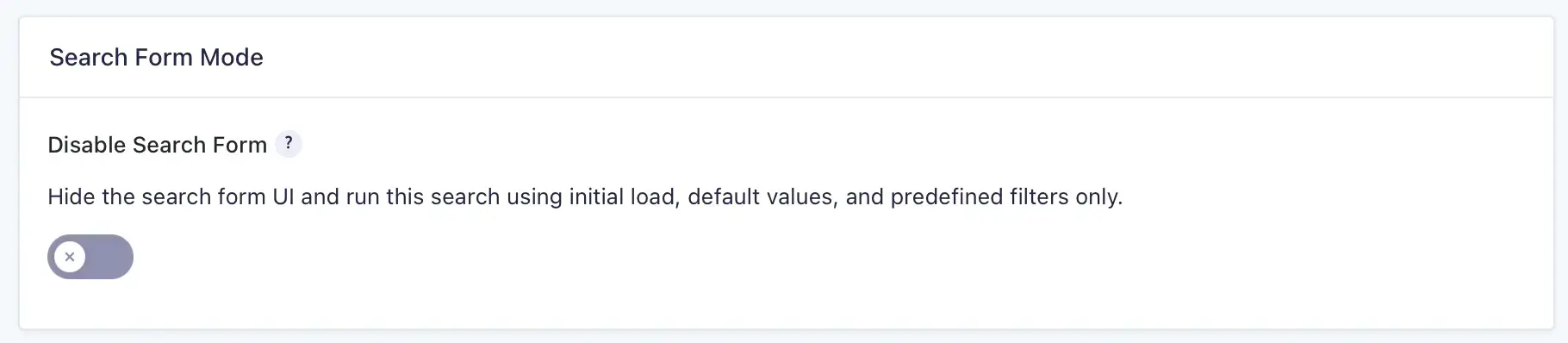
Disable Search Form
Enable Disable Search Form when the visitor-facing form should not be rendered. This is useful for directories, maps, restricted views, and pre-filtered listings that do not require visitor input.
When the Search Form is disabled, enable Initial Load if results should appear automatically when the Search page opens. Saved defaults and predefined filters can still determine which entries are returned.
2. Filter Mappings
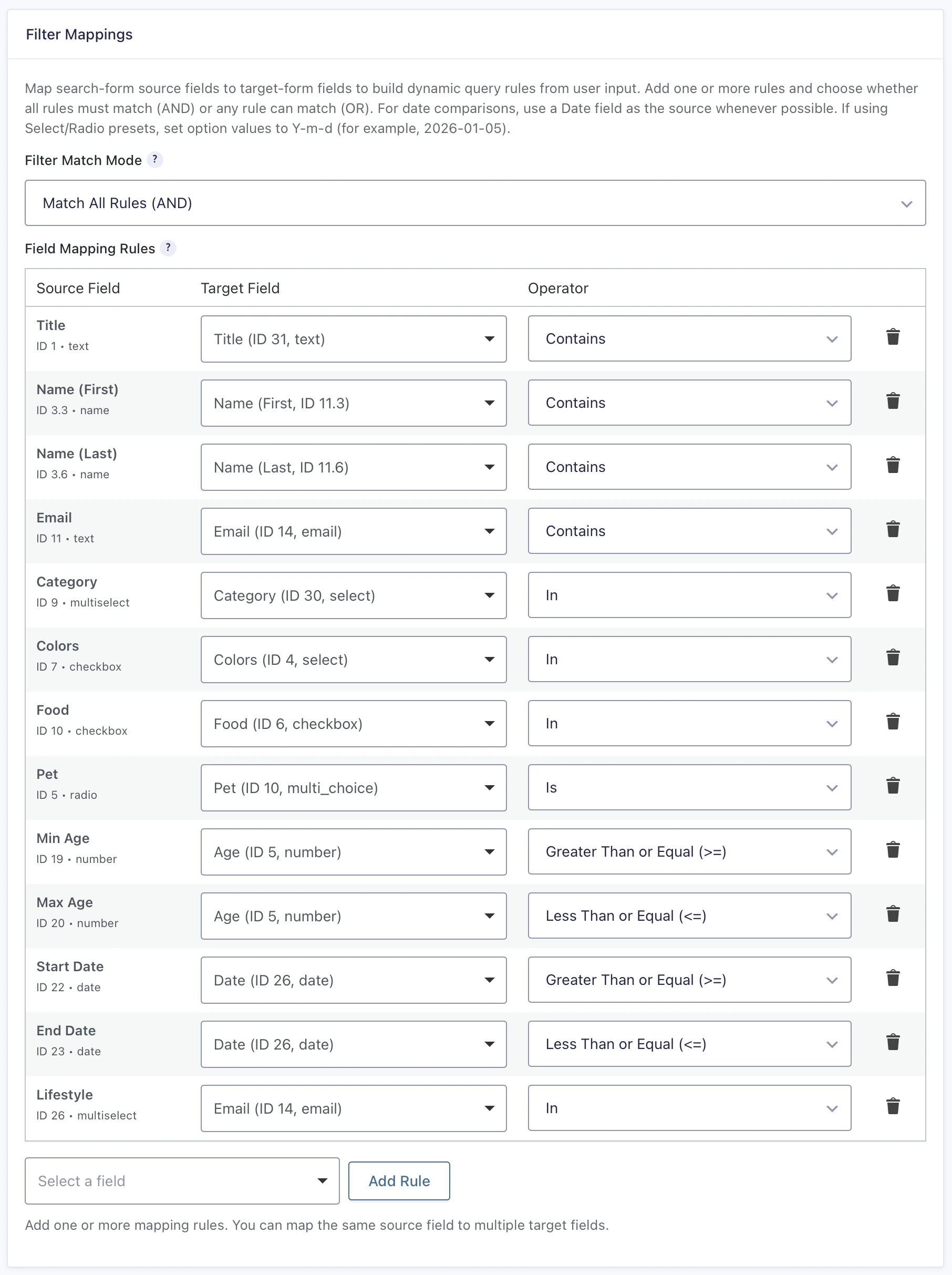
Filter Mappings connect fields in the visitor-facing Search Form to fields in the selected Target Form. Click Add Rule, then choose a Source Field, Target Field, and comparison Operator for each rule.
Filter Match Mode
- Match All Rules (AND): every ordinary field-mapping rule that has a visitor value must match.
- Match Any Rule (OR): at least one ordinary field-mapping rule that has a visitor value must match.
Match Any changes only the relationship between ordinary Target Form field mappings. Predefined filters, Entry Meta Filters, creator filters, entry status, and location constraints remain required and are combined with the mapped-field group using AND logic.
The same Source Field can be mapped to more than one Target Field. If a saved Source Field is later removed from the Search Form Builder, its mapping is preserved and marked unavailable so you can correct it.
For date comparisons, use a Date field as the source whenever possible. If a Select or Radio field supplies a date preset, store its option value in Y-m-d format, such as 2026-01-05.
3. Creator Filter Mappings
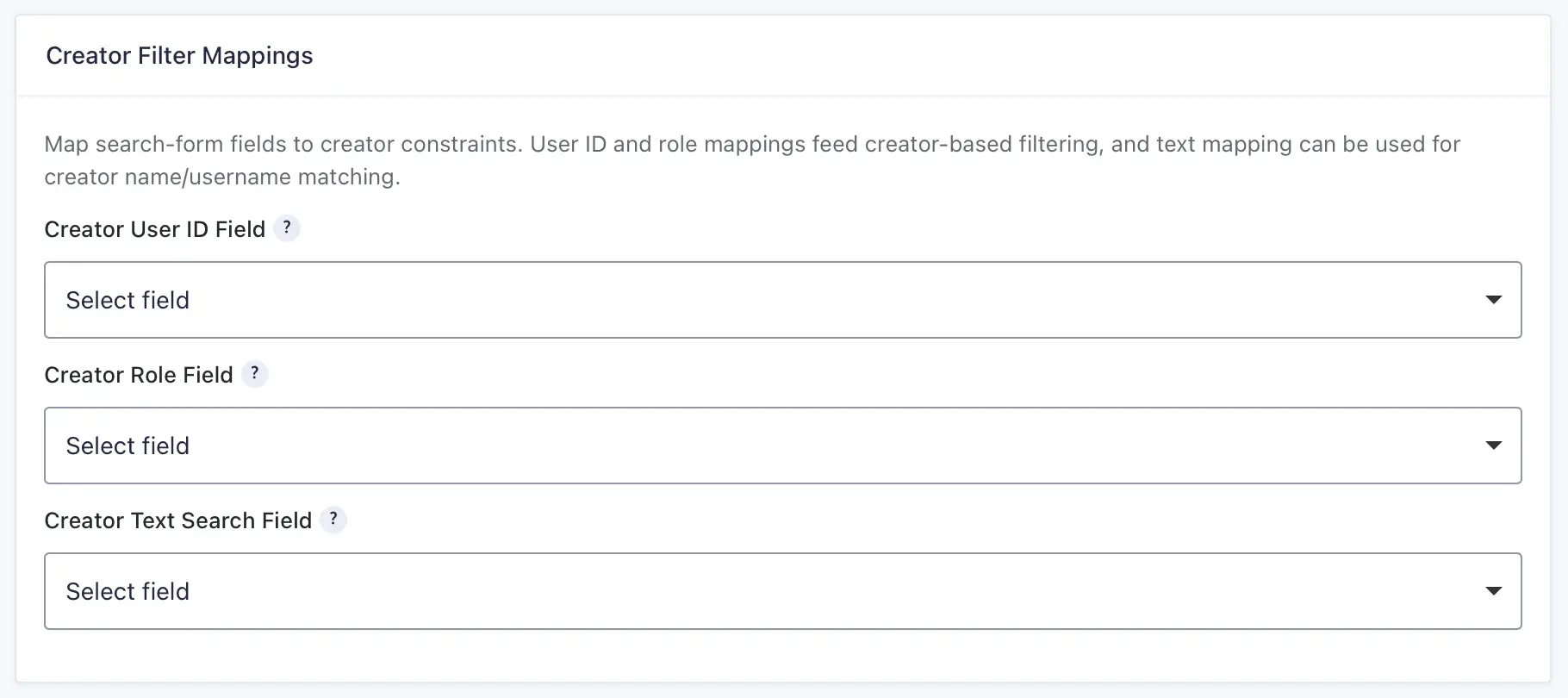
Creator Filter Mappings use Search Form fields to filter entries by the WordPress user who created them.
Creator User ID Field
Map a field whose value or values contain WordPress user IDs.
Creator Role Field
Map a field whose value or values contain WordPress role keys.
Creator Text Search Field
Map a Text or Paragraph field so visitors can search creator usernames, display names, user nicenames, or email addresses. Email addresses are searchable, but they are not displayed to visitors as result labels.
Use these mappings for member directories, staff listings, and other searches built from user-created entries.
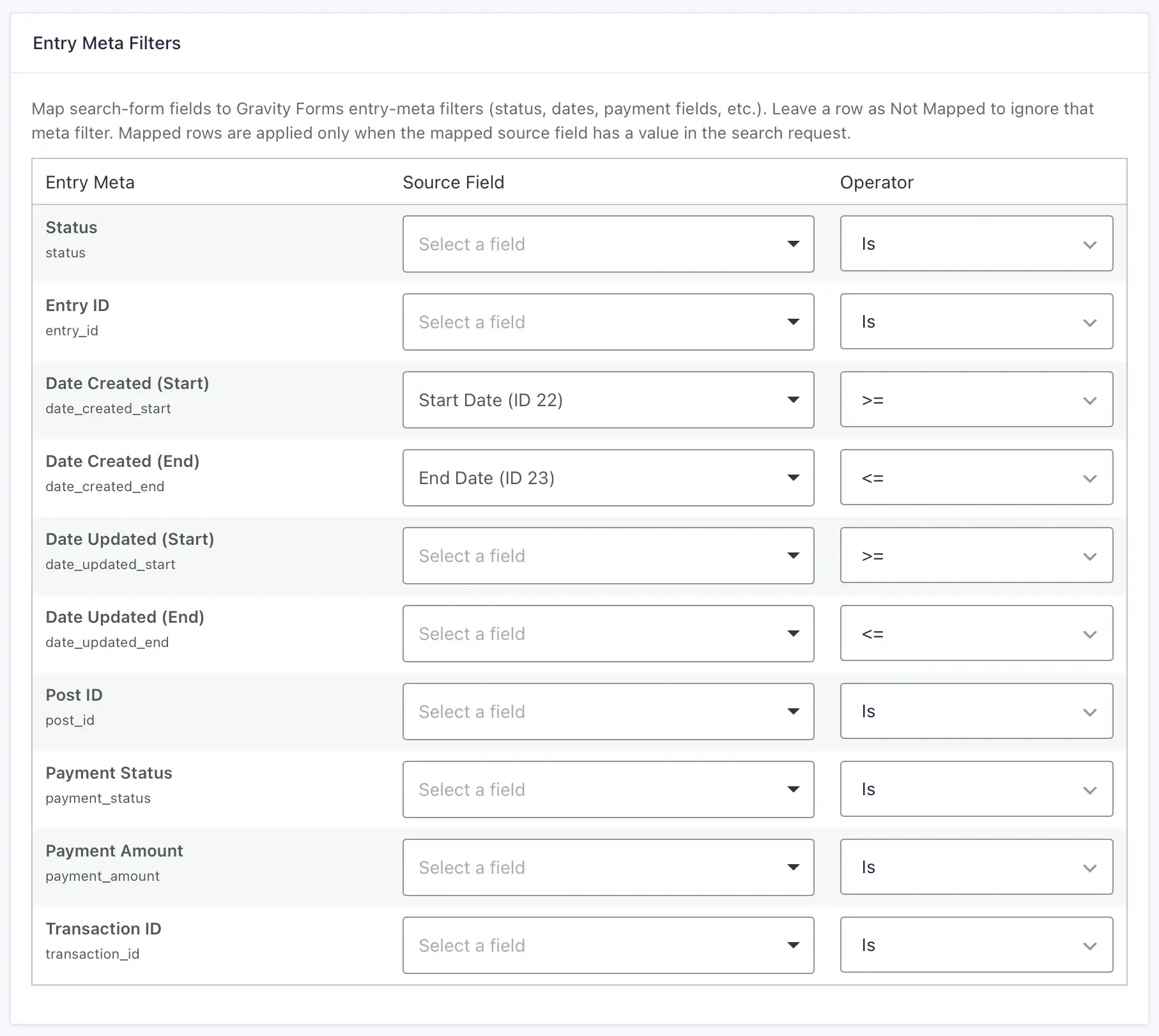
4. Entry Meta Filters
Entry Meta Filters map Search Form fields to built-in Gravity Forms entry properties. Leave a row set to Not Mapped when visitors should not filter by that property. A mapped row is applied only when its Source Field contains a value in the search request.
- Status: exact status value.
- Entry ID: exact entry ID.
- Date Created (Start/End): created-date range using
>=and<=. - Date Updated (Start/End): updated-date range using
>=and<=. - Post ID: exact linked WordPress post ID.
- Payment Status: exact payment status.
- Payment Amount: exact or numeric comparison using
is,>,>=,<, or<=. - Transaction ID: exact or contains comparison.
5. Proximity Search
Proximity Search lets visitors find entries near an address within a radius and can provide the distance for each result. Before configuring these inputs, select at least one Location Source Field under Search Setup → Location Data Scope.
The target entries must also have stored location records for the selected source fields. Configure Entry Geocoding for new or updated entries, and use Importing Existing Entry Locations when older entries still need location records.
Enable Proximity Search
Turns on distance-based searching. The control remains unavailable until at least one Location Source Field is selected.
Address Field
Select a Text field that visitors use as the search center. You can also show the Address Locator Button, enable Google Places autocomplete, restrict autocomplete to selected countries, and choose an autocomplete language.
Radius Field
Select an optional Number, Text, Select, or Radio field that supplies the radius. If no mapped radius value is submitted, Gravity Search uses the saved default radius from Search Defaults & Filters.
Units Field
Select an optional Select or Radio field that supplies the units. Use imperial or metric as the choice values. If no mapped units value is submitted, Gravity Search uses the saved default units.

6. Search Behavior
Auto-submit on Filter Change
This setting is enabled by default. When enabled, changing a mapped Search Form input runs the Search automatically. Text input is debounced briefly before a request is sent, and a newer request replaces an older pending browser request so stale responses do not replace newer results.
When disabled, visitors use the Search Form submit button to run the Search manually. Disable automatic submission when you want visitors to set several filters before refreshing the results.

Field Role Validation
Each Search Form field can have only one search role. A field used for an ordinary Filter Mapping cannot also serve as an Entry Meta, Creator User, Creator Role, Creator Text, Proximity Address, Proximity Radius, or Proximity Units field. Gravity Search checks these assignments when you save and identifies conflicts that must be resolved.
You may reuse the same Source Field in multiple ordinary Filter Mapping rules because those mappings all belong to the same role.
How Search Form Settings Work
Gravity Search builds the final query from the visitor values that are present, then combines them with saved Search Defaults and Predefined Filters. Ordinary field mappings use the selected Filter Match Mode. Entry-meta, creator, status, predefined, and location rules remain mandatory constraints.
When the Search Form is empty or disabled, the Search can still run from Initial Load, Search Defaults, and Predefined Filters. Use Search Readiness to confirm that the saved configuration has a valid way to run and display results.
Saving Settings
Use either Save Settings button on the page. Saving the Search Form tab updates only the settings shown on that tab; saved values from other Gravity Search tabs are preserved. Repeaters can also be intentionally cleared without an unrelated partial save clearing them by accident.