
Search Results Settings
Introduction
The Results tab controls how matching Target Form data is displayed on the frontend.
You can select a visual template, choose between Structured Fields and Custom HTML, configure list or grid layouts, add visitor sorting and page-size controls, and customize pagination and no-results behavior.
New Searches use the Classic visual template, a grid layout with the layout toggle enabled, Structured Fields output, newest entries first, and 20 results per page. You can change these settings without affecting the Search’s filter configuration.
Configuring Search Results
Open the Results tab in Search Settings. The Search Readiness panel at the top summarizes the saved Results configuration. Readiness evaluates configuration only; it does not count or inspect Target Form entries or stored locations.
The Results tab uses normal page navigation. Save changes before switching tabs. The Save Settings buttons at the top and bottom submit the same settings form, and saving Results preserves settings belonging to the other Search tabs.
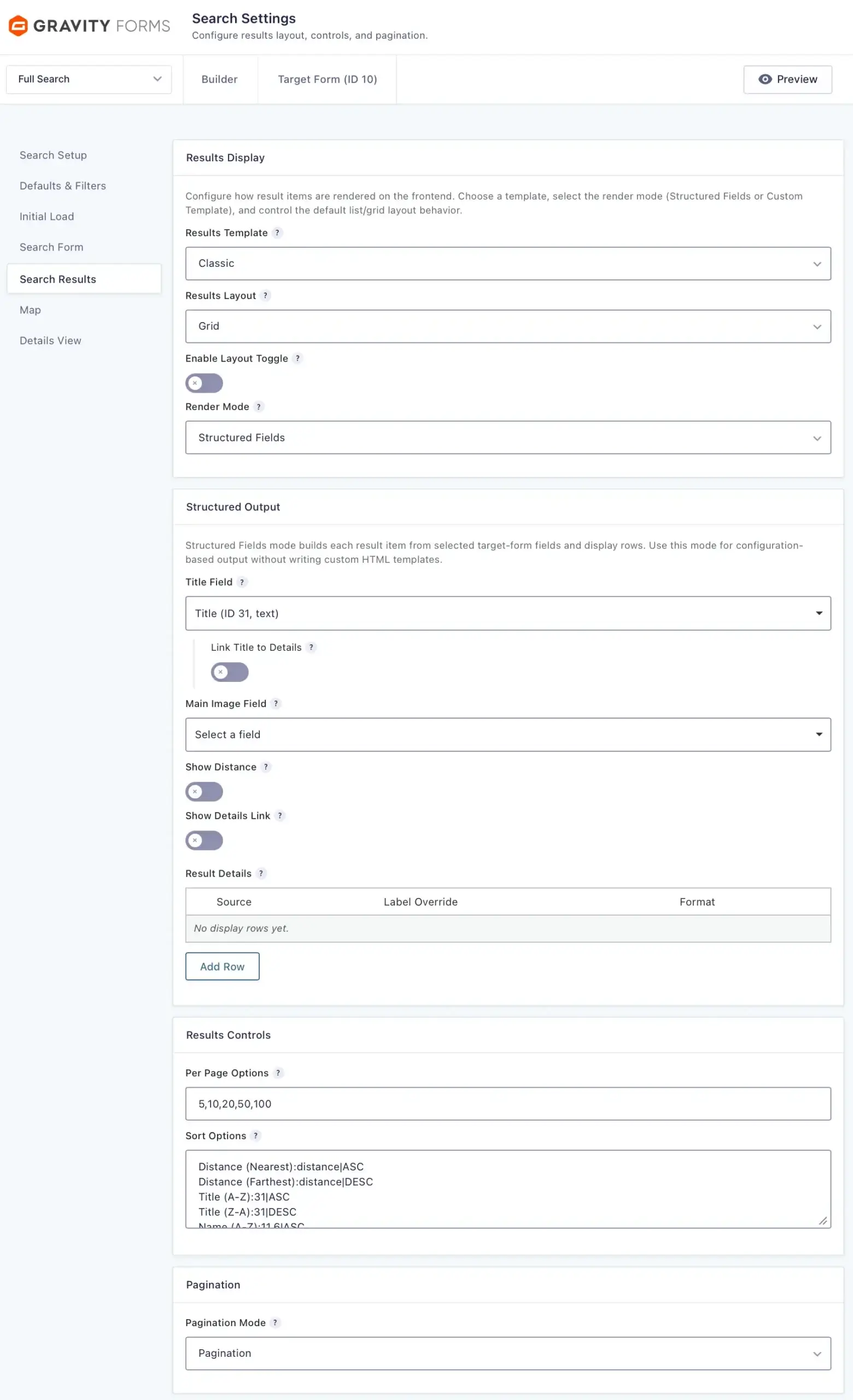
1. Results Display
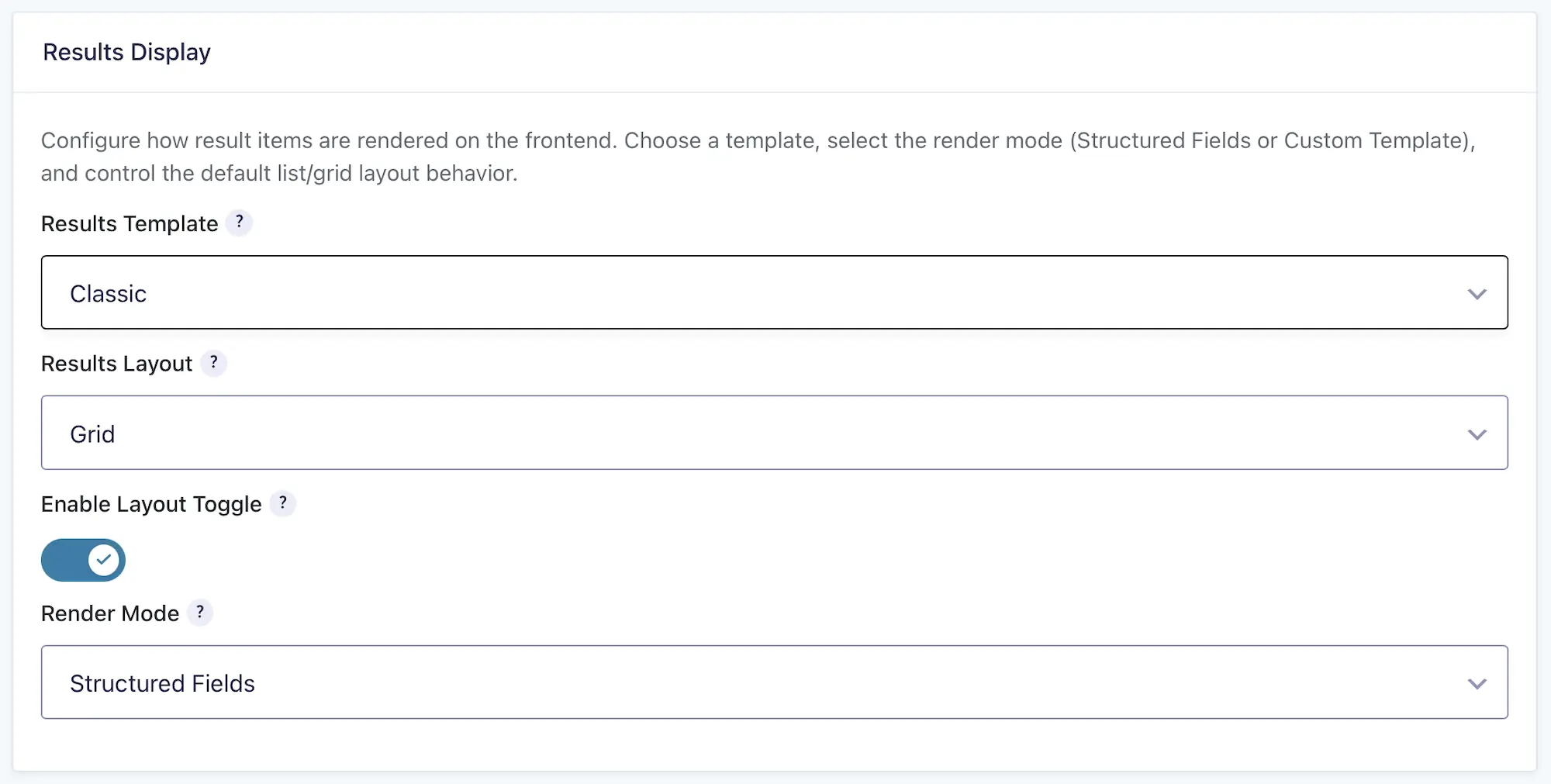
Results Display controls the visual template, layout, and output method used for each result item.
Visual Template
Select the visual template used to display results. A template controls the overall result structure and can provide template-specific layout options.
Results Layout
Select the default layout used by compatible visual templates:
- Grid: Display results in a card-based grid.
- List: Display results in a vertical list.
Enable Layout Toggle
Enable this option to let visitors switch between compatible list and grid layouts from the results toolbar.
Output Mode
Choose how each result item is generated:
- Structured Fields: Build result items from selected Target Form fields and configured display rows.
- Custom HTML: Build result items using custom HTML and supported merge tags.
Structured Fields is suitable for configuration-based layouts. Custom HTML provides direct control over result-item markup.
2. Structured Output
Structured Fields mode builds each result item from selected Target Form fields and configurable display rows without requiring custom HTML.
Title Field
Optionally select the Target Form field used as the result title. You can also use the system Entry ID or leave the setting empty when no title should be displayed.
Link Title to Details
Enable this option to link the title to the entry’s Details URL. A published Details Page must first be selected under Search Setup → Details Routing. Without a usable Details Page, this control remains visible but disabled with a link to the required setting.
Main Image Field
Optionally select a compatible Target Form field to use as the primary image for each result item.
Show Distance
Display the calculated distance when a proximity origin and result distance are available.
Show Details Link
Display a Details link for each result item. A published Details Page must be selected under Search Setup → Details Routing before standard Details links can be enabled.
Details Link Label
Customize the text displayed for the Details link. The default label is View Details.
Result Details
Add and arrange rows containing Target Form fields, entry metadata, distance information, or Details links. Each row can include:
- Source: The field or data source displayed by the row.
- Label Override: An optional custom label used instead of the default field label.
- Format: Text, Link, Link (New Tab), or Image.
Rows can be added, removed, and reordered to create the desired result layout.

3. Custom HTML
Custom HTML mode lets you build result-item markup using HTML and supported merge tags from Target Form entries. Use this mode when Structured Fields does not provide enough control for the required layout.
Table Header HTML
Enter optional header markup when using a compatible table-based visual template.
Result Item HTML
Enter the HTML used to render each result item. Use the merge-tag selector to insert Target Form fields and other supported values.
See Search Templates & Merge Tags for examples and supported merge-tag usage.

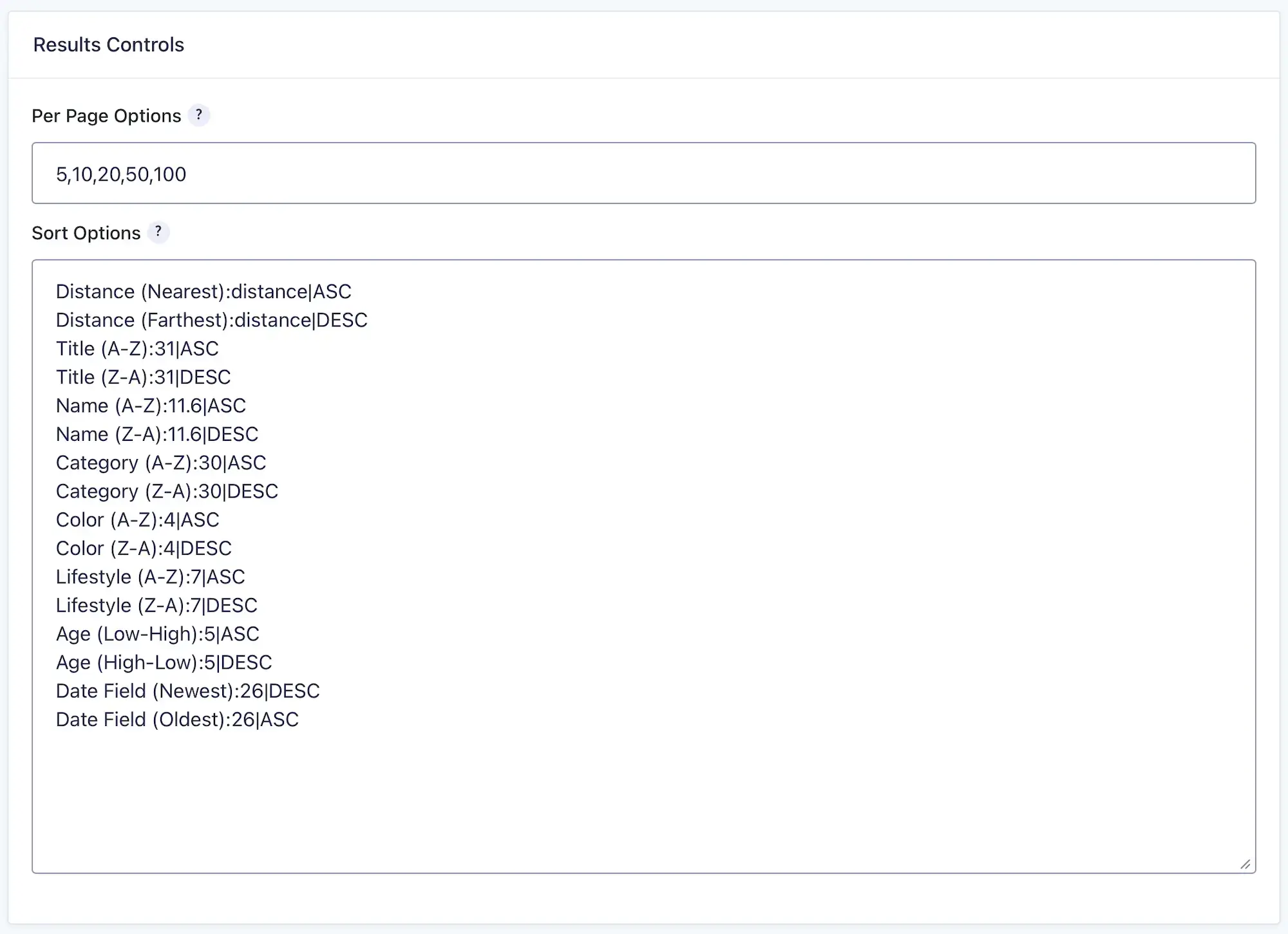
4. Results Controls
Results Controls configure the page-size and sorting choices available to visitors in the results toolbar.
Per Page Options
Use the numeric option controls to add the result counts visitors can select. Remove an option with its remove button. When settings are saved, invalid and duplicate values are removed and the remaining positive values are stored in numeric order.
The default page size is configured separately under Defaults & Filters → Search Defaults. It does not have to appear in the visitor’s Per Page choices. When it does appear, the matching choice is selected by default.
Sort Options
Each Sort Option is a structured row containing:
- Label: The text visitors see in the sorting control.
- Sort By: The entry value used for sorting.
- Order: Ascending or Descending.
Add, remove, and drag rows to control the available choices and their order. Built-in Sort By choices include Date Created, Date Updated, Entry ID, and Distance. Compatible Target Form fields are also available.
The default sort is configured separately under Defaults & Filters → Search Defaults. It does not have to appear among the visitor’s Sort Options. When the exact field and direction are included, that choice is selected by default.
Gravity Search validates visitor-supplied sorting against the configured choices and saved default. Requested page sizes are bounded by the administrator-configured page-size options and default.
5. Results Behavior
Results Behavior groups pagination and empty-results messaging in one settings panel.
Pagination Mode
Choose how visitors navigate additional results:
- Pagination: Display page-number and navigation controls.
- Load More: Display a button that appends additional results to the current list.
Load More Button Text
Customize the button label displayed when Pagination Mode is set to Load More.

No Results Message
Enter optional text to display when no results match the current request. Use it to explain the empty state or suggest that visitors broaden their criteria.

How Search Results Work
When a Search runs, Gravity Search queries the Target Form and passes normalized result items to the selected Visual Template. The Output Mode determines whether each item is generated from configured Structured Fields or Custom HTML.
Without location scope, each matching entry normally produces one result. When one or more Location Source Fields are selected, each qualifying stored location is a result of its own. An entry with several qualifying locations can therefore appear several times with different addresses, distances, map markers, and result identities.
Result totals, pagination, stable ordering, markers, and information-window identity follow that entry-location result model when location scope is active.
Results Controls and Results Behavior determine how visitors sort, size, and navigate the result set. Unsupported public sort values fall back to the saved default, and excessive page-size requests are limited by the Search’s trusted configuration.
Results belong to the complete Search rather than to the optional visitor form. They can therefore load automatically through Initial Load and can be restricted by Search Defaults and Predefined Filters even when the visitor Search Form is disabled.
