
Search Setup Settings
Introduction
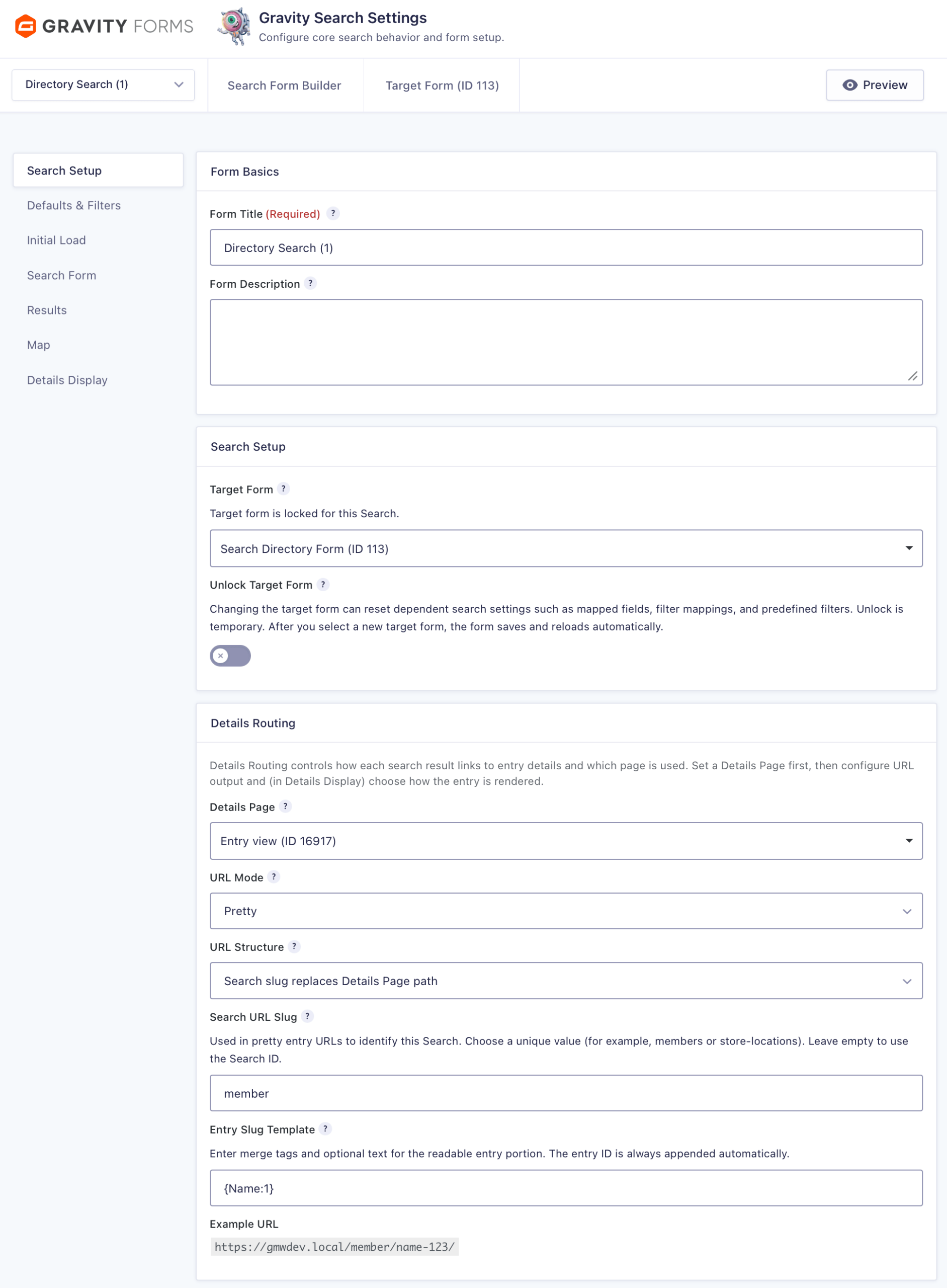
The Search Setup tab contains the core settings that connect a Search to its Target Form, configure
optional individual-entry URLs, define the location data available to the Search, and retain the Gravity Forms layout
settings used by the optional frontend search form.
A Search is a specialized Gravity Form. Its Target Form is a separate, regular Gravity Form that owns
the entries being queried. Each Search uses one Target Form.

Search Readiness
The Search Readiness panel appears at the top of every Search Settings tab. It summarizes the saved
configuration and links each item that needs attention to the relevant tab or section. It does not scan entries or
location records and does not add another saved setting.
The overall status can be:
- Search is ready: the core configuration is usable and no warnings remain.
- Search is ready with items to review: the Search remains usable, but an optional feature or saved reference needs attention.
- Search needs setup: the Target Form is missing or unavailable, or both the visitor Search Form and Initial Load are disabled.
- Search is configured but inactive: the configuration is usable, but the Search itself is inactive.
Optional location sources, map and proximity features, and Entry Details do not prevent readiness simply because they
are not in use. Expand the panel to review the saved Target Form, location sources, search form, results, map and
proximity, and Entry Details components.
The Search Setup Tab
The Search Setup tab is the starting point for configuring a Search. Use it to:
- Connect the Search to a Target Form.
- Optionally select a Details Page and configure individual-entry URLs.
- Select the stored location records available to location-aware Search features.
- Configure Gravity Forms presentation settings for the optional frontend search form.
The remaining native Search Settings tabs control defaults and filters, Initial Load, the visitor Search Form,
Results, Map, and Details Display. Saving one tab preserves settings that belong to the other tabs.
Target Form
The Target Form is the regular Gravity Form that collects and stores the entries queried by the Search.
The selected form determines which fields, entry metadata, creators, and location sources are available throughout
Search Settings.
A Target Form can store one or more location records for each entry. Those records can be used for proximity searches,
distance calculations, results, and maps. If you created the Search from a regular Gravity Form, its Target Form is
selected automatically. Otherwise, select it during initial setup and save the Search.

Unlock Target Form
After a Target Form has been assigned, its selector is locked to help prevent accidental changes. To connect the Search
to another form, enable Unlock Target Form, confirm the warning, and then select the new form. The unlock
is temporary; selecting another Target Form saves and reloads the Search automatically.
Important: Existing field-dependent values are preserved when the Target Form changes. Because Gravity
Forms field IDs can overlap between forms, a preserved field ID may be invalid or may refer to a different field in the
new Target Form. Review mappings, predefined filters, display fields, sort fields, location sources, and Details fields
on every Search Settings tab after making this advanced change.
Details Routing
The Details Routing section controls where individual Target Form entries are displayed and how their
details URLs are generated. Entry Details are optional: a Search can display results and a map without a Details Page.
When a published Details Page is selected, Gravity Search can generate links from Search Results, map information
windows, or custom output that contains a Details URL token. Configure the content shown at that destination under
the Details Display tab.
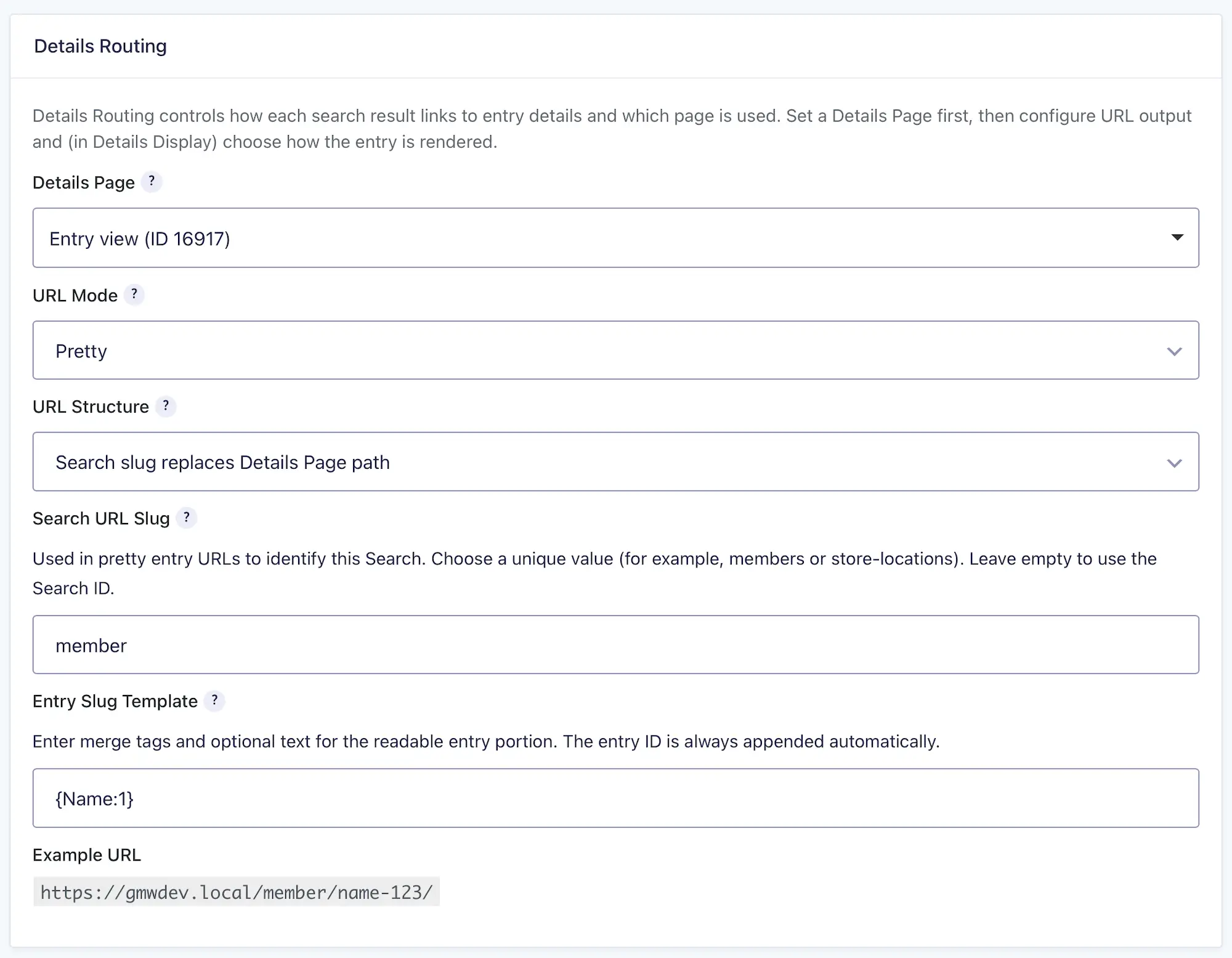
Details Page
Select the published WordPress page that should display individual Target Form entries. Standard Results and map
information-window Details link controls remain unavailable until a page is selected. Selecting a page enables the
Details destination; those link controls still decide where a link is displayed.
For Structured Fields or Custom HTML output, place the following shortcode on the
selected Details Page where the individual entry content should appear:
[gfgeo_search_entry] The shortcode is not required when the Output Mode under Details Display is set to Page Content. That
mode resolves entry merge tags in the selected page content.
URL Mode
URL Mode determines the format used for individual-entry URLs:
- Pretty URL (recommended): uses readable path segments containing the Search slug and an optional entry slug.
- Simple query-string URL: uses the selected Details Page with the Search ID and Entry ID supplied as query parameters.
A Simple URL follows this general pattern:
https://example.com/members/?sid=45&eid=123 If WordPress pretty permalinks are disabled, Gravity Search automatically uses the simple query-string format even
when Pretty URL mode is selected.
URL Structure
URL Structure is available in Pretty URL mode. New Searches use
Under Details Page (recommended), which places the Search route beneath the selected Details Page.
From site root (advanced) creates a shorter site-wide route.
Under Details Page (recommended)
The Search slug is added after the actual Details Page path. If the page is members and the Search slug is
member, the URL can be:
https://example.com/members/member/john-doe-123/ This page-namespaced structure is safer because two Searches can use the same Search slug when their final Details
Page paths are different.
From site root (advanced)
The Search slug replaces the Details Page path in the public URL, although the selected page still renders the entry.
With a Search slug of member, the URL can be:
https://example.com/member/john-doe-123/Use this structure only when its final route will not conflict with another Search or WordPress path.
Search URL Slug
The Search URL Slug identifies the Search in Pretty URLs. Enter a short descriptive value, such as
members, store-locations, or properties. If left empty, Gravity Search uses the
numeric Search ID. The setting does not affect Simple URLs.
Entry Slug Template
The Entry Slug Template creates a readable URL segment from the current Target Form entry. Enter
supported merge tags and optional text. Gravity Search converts the result into a URL-safe slug and always appends the
Entry ID.
For example, this template:
{Name:1}can produce this entry segment when the field contains John Doe and the Entry ID is 123:
john-doe-123 Do not add the Entry ID to the template manually. If the template is empty or does not produce a usable value, the
URL uses the Entry ID alone. The setting applies only to Pretty URLs.
Example URL
The Example URL preview shows the expected format from the current Details Page, URL Mode, URL
Structure, Search URL Slug, and Entry Slug Template. Review it before saving.
Route Conflicts and Refresh
Gravity Search registers exact Pretty URL routes. If another Search already owns the same final route, the conflicting
settings are rejected when you save rather than routing visitors to an arbitrary Search. Change the Details Page,
Search URL Slug, or URL Structure to create a unique final path. Simple URLs do not participate in Pretty URL route
collisions.
Routes refresh automatically after relevant Search, Details Page, or WordPress permalink changes. A one-time soft
rewrite refresh is scheduled when needed, so routine manual resaving of the WordPress Permalink Settings page is not
required.
Configuring Entry URLs
- Select a published Details Page.
- Choose Pretty URL (recommended) or Simple query-string URL.
- For Pretty URLs, keep Under Details Page or deliberately choose the advanced root structure.
- Enter a Search URL Slug, or leave it empty to use the Search ID.
- Optionally enter an Entry Slug Template using Target Form merge tags.
- Review the Example URL and save Search Setup.
- Configure the output under Details Display.
- Enable Details links under Results or Map settings where needed.
URL Examples
The following examples use a Details Page of members, Search ID 45, Search slug member, Entry value John Doe, and Entry ID 123.
| Setting | Resulting URL Pattern |
|---|---|
| Pretty URL under Details Page (recommended) | https://example.com/members/member/john-doe-123/ |
| Pretty URL from site root (advanced) | https://example.com/member/john-doe-123/ |
| Pretty URL without an Entry Slug Template | https://example.com/members/member/123/ |
| Pretty URL without a Search URL Slug | https://example.com/members/45/john-doe-123/ |
| Simple query-string URL | https://example.com/members/?sid=45&eid=123 |
Location Data Scope
Location Data Scope determines which stored location records from Target Form entries are available
to the Search. Select one or more eligible Target Form fields under Location Source Fields. Those
selections apply to map and proximity behavior across the Search.
Entry Geocoding on the Target Form controls which fields are automatically synchronized. A currently synchronized
source and a historical source with retained location records can both remain eligible for a Search. Removing a field
from Entry Geocoding stops future synchronization for that source but does not delete its existing records.
Selecting a field here does not create location records. If the Target Form already contains entries, use
Importing Existing Entry Locations to create them. For the
complete data model, see Understanding Location Data
& Proximity Search.

Current and Historical Location Sources
- Currently synchronized: Entry Geocoding is configured to create or update this field's location records.
- Historical locations available: stored records remain available even though the field is no longer synchronized.
- Eligible without stored data: the field can be selected, but location features cannot use it until valid records exist.
If a previously saved source field no longer exists on the Target Form, Search Readiness reports it for review. It is
not silently discarded because historical records may still rely on that source ID.
Single or Multiple Location Sources
Select one source when the Search should use only one location type, such as a retail store. Select multiple sources
when it should consider several stored locations, such as home, work, and warehouse locations. When location scope is
active, each qualifying location is a distinct result and map marker, even when several locations belong to one entry.
Hide Entries Without Location
Enable Hide Entries Without Location to exclude entries that have no valid stored location in any
selected source. Leave it disabled when non-location results should remain available. An active proximity search still
requires valid location data even when this setting is disabled.
Search Lifecycle
Only an active, non-trashed Search can answer public Search requests or Details requests. Deactivating or trashing the
Search makes those public routes unavailable. An inactive Target Form intentionally remains searchable for its existing
entries because deactivation stops new submissions; a trashed Target Form is unavailable.
Direct Details requests also verify that the entry belongs to the configured Target Form and satisfies the Search's
saved fixed visibility restrictions. Visitor-entered filters are not reapplied to a direct Details URL.
Form Layout
The Form Layout section contains Gravity Forms presentation settings retained for the optional frontend
search form, including validation placement, the required-field indicator, and a custom CSS class. These settings do
not change the Target Form or how its entries are collected.
Saving Search Setup
Use either Save Settings button on the page. The button beside Preview and the button at the bottom
submit the same native Gravity Forms settings form. Saving Search Setup preserves settings stored on all other Search
Settings tabs. After saving, review Search Readiness for the newly saved configuration.