
Understanding Searches & Target Forms
Introduction
Gravity Search is built around two components: Searches and Target Forms. The Target
Form stores the entries, while a separate Search determines how those entries are filtered and displayed.
The visitor-facing search form is optional. A Search can instead load a directory automatically using Initial Load,
saved defaults, and predefined filters.
What Is a Target Form?
A Target Form is the regular Gravity Form that collects and stores the entries you want visitors to
search. One Search can query one Target Form.
Examples include:
- Business directory submission forms.
- Property listing forms.
- Member registration forms.
- Event submission forms.
- Store or location databases.
A Target Form can use ordinary entry fields, location-enabled fields, or both. Location features depend on stored
location records, but text and field-based searches do not require a map or proximity setup.
What Is a Search?
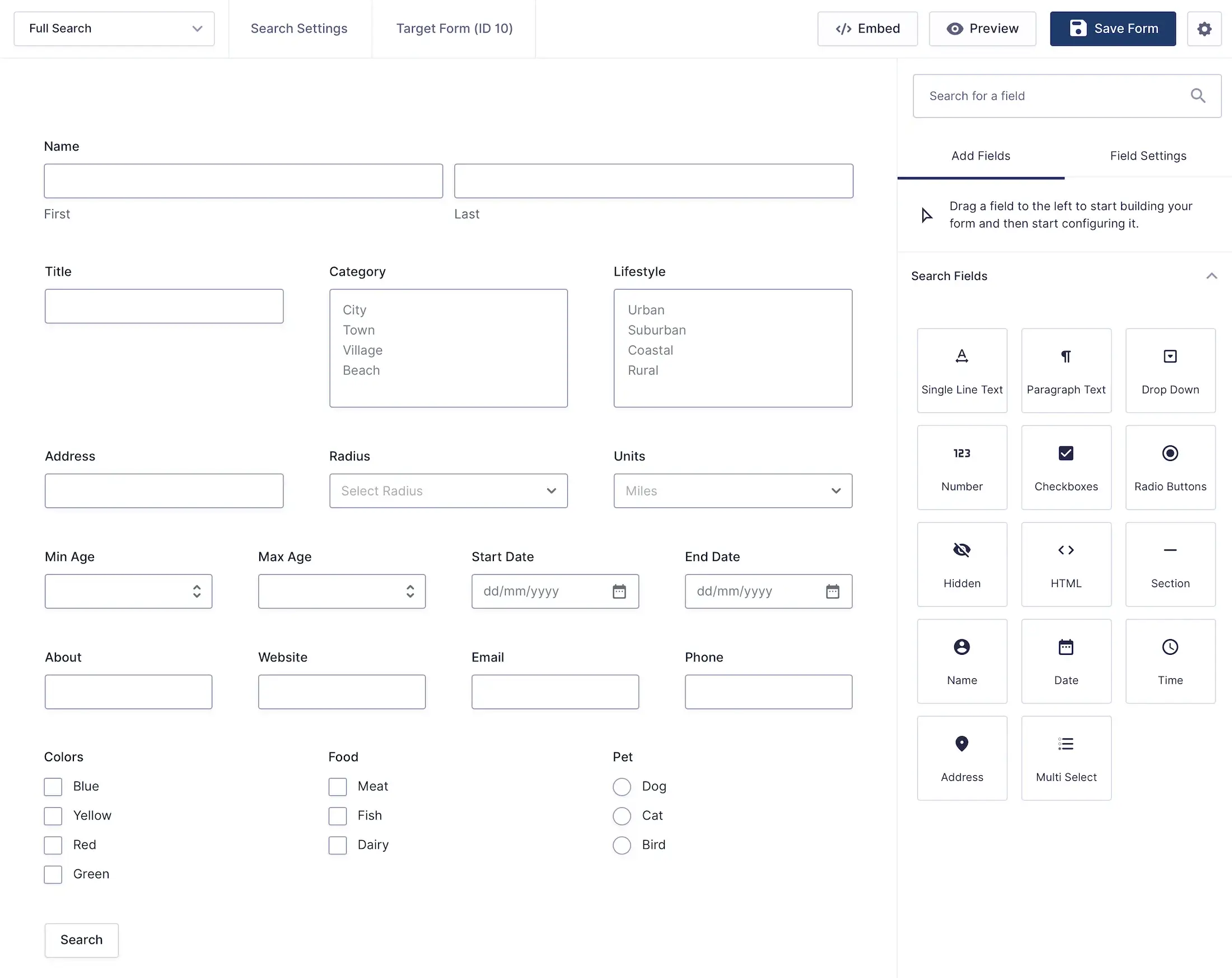
A Search is a dedicated Gravity Form in Search mode. It does not collect entries. It queries the
connected Target Form and controls the optional visitor fields, fixed filters, initial-load behavior, results, map,
and entry Details output.
Search Form fields can include text, choice, date, number, address, radius, and units controls. Map, proximity, and
Details features are optional.
How They Work Together
When a Search runs, Gravity Search combines administrator-defined defaults and mandatory filters with populated
visitor controls, then queries entries from its Target Form. Match All or Match Any affects only ordinary visitor
Filter Mappings; fixed field, entry-meta, creator, status, and location constraints remain mandatory.
A typical workflow is:
- A user submits information through the Target Form.
- Gravity Forms stores the entry.
- Configured location fields synchronize their locations when location features are in use.
- A separate Search is created and connected to that Target Form.
- Optional visitor fields, defaults, filters, results, maps, and Details output are configured.
- The Search queries the Target Form on initial load or after a visitor submits or changes a control.
- Matches appear in the configured results, map, or individual Details page.
Search Readiness summarizes the saved configuration across every settings tab. It can identify missing setup and
items to review, but it does not scan actual entry or location records.
Search and Target Form Lifecycle
- An active Search outside Trash can be displayed publicly.
- An inactive or trashed Search is unavailable to public Search, map, and Details requests.
- A Target Form must exist outside Trash.
- An inactive Target Form may still provide its existing entries because deactivation stops new submissions rather than access to stored entries. Search Readiness flags the inactive state for review.
- Direct Details and information-window requests still enforce the Search's fixed administrator-defined eligibility rules.
Location Data Sources
A Target Form entry can own stored locations from one or more eligible source fields, such as a home, office,
warehouse, or store location. Under Location Data Scope, each Search chooses which sources may participate in its
results, proximity calculations, and map markers.
Location records are shared canonical data; they are not created solely for Search. A source can remain available when it contains
historical synchronized or imported locations, even if that field is no longer selected for current Entry Geocoding.
Removing a field from Entry Geocoding stops future synchronization for that source; it does not automatically delete
its existing locations.
When several selected locations belonging to one entry qualify, Gravity Search can intentionally return one result
per location. Each result can have its own distance, marker, ordering position, and information window.
Multiple Searches Per Target Form
The same Target Form can support multiple Searches. Each Search can use a different audience, set of filters,
location scope, layout, map, and Details configuration while reading the same underlying entry data.
For example:
- A public directory with category and location filters.
- An internal staff listing with fixed eligibility rules.
- An automatic results directory driven by Initial Load.
- A location finder with proximity controls and a map.
- A streamlined Search for a smaller-screen page layout.
Search Instances on a Page
Different Search IDs may appear on the same WordPress page. A given Search ID supports only one instance on that
page. Repeating the same Search as separate full outputs, or combining its full shortcode with a duplicate results
mount, is unsupported.
A split layout still counts as one instance: render the form, results, and optional map component once each, using the
same Search ID. A directory without visitor controls should retain the full Search shortcode so it can initialize
Initial Load and render the results.
Common Examples
Business Directory
Businesses submit listings through a Target Form. Visitors browse them through a Search with optional keyword,
category, and location filters.
Property Finder
Properties are stored in a Target Form. A Search filters them by location, price, and property details.
Member Directory
Members register through a Target Form. A Search displays the appropriate profile fields and filters.
Store Locator
Store locations are stored in a Target Form. A Search helps visitors find qualifying locations using proximity
controls, results, and a map.

Next Steps
Continue with the following guides: