
Location Search & Radius Search
Introduction
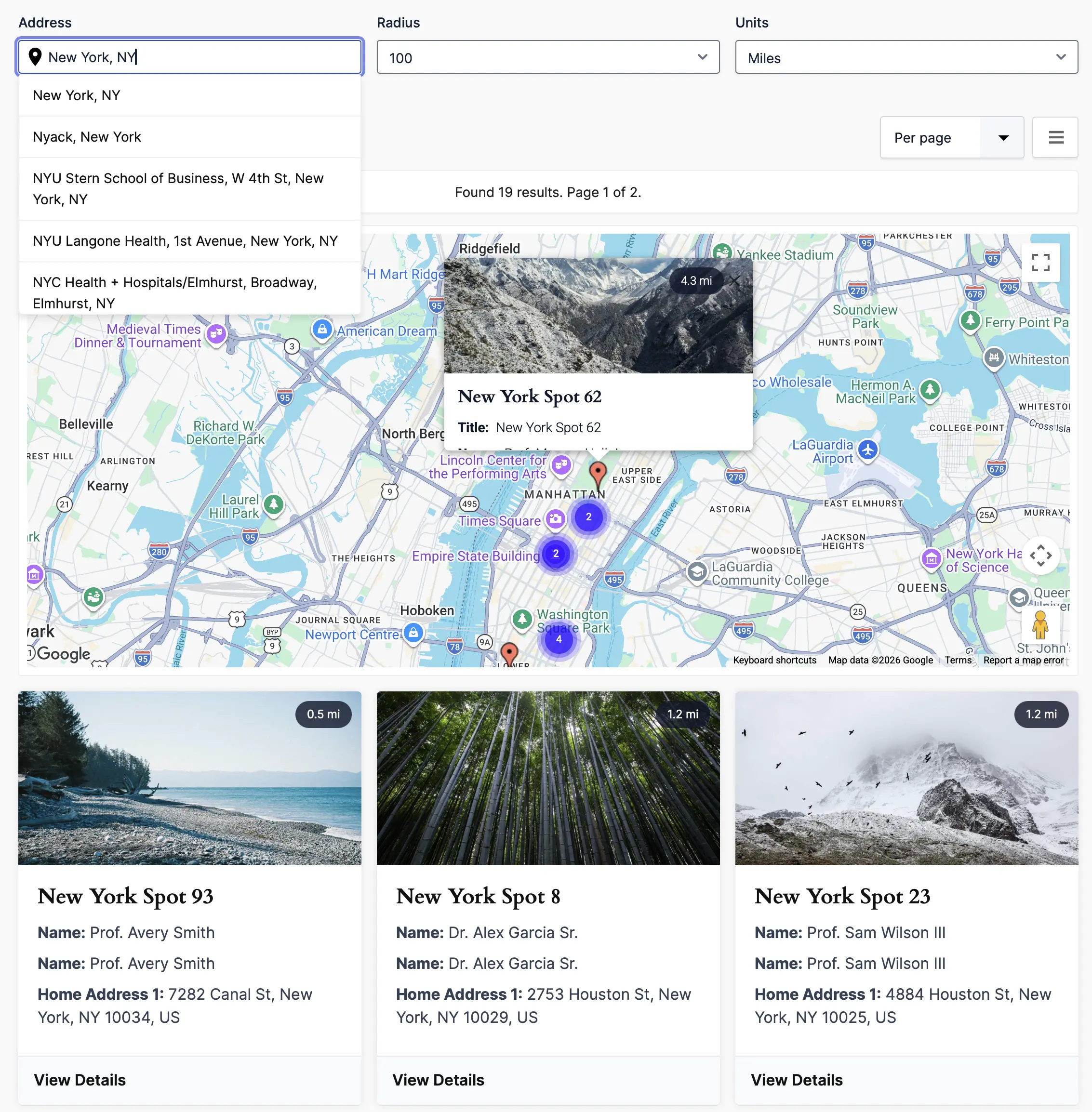
Gravity Search can find Target Form locations near an address or a visitor's current position. A proximity-enabled Search can accept an address, radius, and units, calculate the distance to each qualifying stored location, and use that distance in results and maps.
Proximity Search is optional. Each Search chooses its own Location Source Fields, visitor-facing controls, default radius, and default units. Different Searches connected to the same Target Form can therefore provide different location-based experiences.
Location Data Requirements
Before enabling Proximity Search, open Search Setup → Location Data Scope and select at least one Location Source Field. Proximity controls remain unavailable until a source is selected.
Location Source Fields are eligible Target Form fields whose stored location records this Search may use. Selecting a source does not create location records. Configure Entry Geocoding on the Target Form to synchronize locations for new and updated entries, and use Import Existing Entry Locations when older entries need to be processed.
A Target Form can provide multiple location sources, such as Home, Work, Warehouse, and Retail Location. You may select one source or several. A field can also remain available as a historical source after it is removed from Entry Geocoding; removing it stops future synchronization but does not automatically delete its existing location records.
Hide Entries Without Location
Enable Hide Entries Without Location when the default location-aware view should omit entries that do not have a stored location from the selected sources. During an active proximity search, entries without a qualifying selected location are always excluded because their distance cannot be calculated.
For a detailed explanation of stored locations, source selection, and historical records, see Understanding Location Data & Proximity Search.

Configuring Proximity Search
After selecting the Search's Location Source Fields, open Search Form → Proximity Search. This consolidated panel contains the enablement, address, radius, and units controls.
Enable Proximity Search
Enable Enable Proximity Search to activate the visitor-facing proximity roles. If the toggle is unavailable, return to Search Setup → Location Data Scope, select at least one Location Source Field, and save the Search.
Address Field
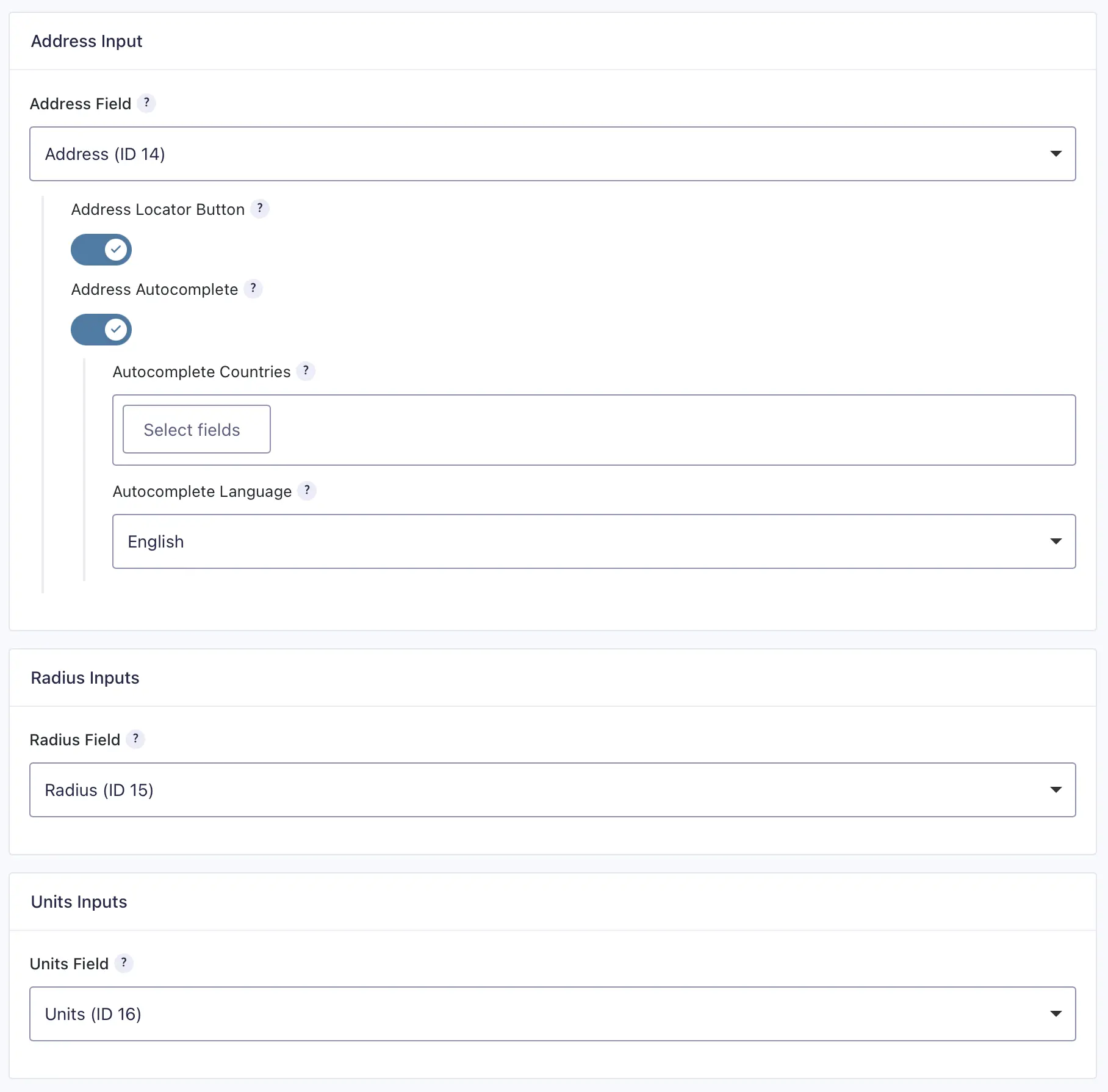
Select a Single Line Text field from the Search Form Builder as the Address Field. This field is required for the normal visitor-facing proximity workflow. Visitors can enter an address, city, postal code, or another location that the configured geocoding service can resolve.
The resolved address or coordinates become the search origin. If an entered address cannot be geocoded, the Search returns no proximity results and asks the visitor to try a more specific address or a nearby location.
Address Locator Button
Enable Address Locator Button to display a locator button beside the selected Address Field. The button lets visitors use their device's current position. Their browser may ask for location permission.
This option appears only after an Address Field has been selected.
Address Autocomplete
Enable Address Autocomplete to display Google Places suggestions while visitors type. Selecting a suggestion supplies a recognized address and coordinates for the proximity request.
Autocomplete Countries
Optionally select one or more countries to restrict the autocomplete suggestions. Leave this setting empty when suggestions should not be limited to selected countries.
Autocomplete Language
Optionally select the language used for autocomplete suggestions. Leave it at Default to use the normal configured behavior.
Radius Field
The optional Radius Field lets visitors supply the maximum search distance. You can map a Number, Single Line Text, Drop Down, or Radio Buttons field from the Search Form Builder.
Use positive numeric values for radius choices or input. When the visitor does not provide a radius, Gravity Search uses the saved Default Radius. If no default radius is set, distances can still be calculated but no maximum-distance limit is applied.
Units Field
The optional Units Field lets visitors choose miles or kilometers. You can map a Drop Down or Radio Buttons field. Configure its choice values as:
- imperial for miles
- metric for kilometers
When the visitor does not provide units, Gravity Search uses the saved Default Units.
Default Radius and Units
Open Defaults & Filters → Search Defaults to configure the fallback values used when the frontend Search does not provide a radius or units.
- Default Radius: The positive maximum distance used when no Radius Field value is submitted. Leave it blank for no distance limit.
- Default Units: Select Imperial (mi) or Metric (km).
A newly created Search starts with a Default Radius of 50 and Default Units of Imperial (mi). Existing Searches keep their saved values.
How Radius Search Works
- The visitor enters an address, selects an autocomplete suggestion, or uses the locator button.
- Gravity Search obtains valid origin coordinates from the selected place, the visitor's device, or server-side address geocoding.
- The Search examines stored location records from the selected Location Source Fields.
- Gravity Search calculates the distance between the origin and each qualifying location.
- If a radius is present, only locations within that distance are returned. Without a radius, qualifying locations are not limited by distance.
- The calculated distance can be displayed or used for nearest/farthest sorting when those result or map options are configured.
The radius is interpreted using the effective units for that request: imperial values are miles, and metric values are kilometers.
Multiple Locations Per Entry
Proximity Search evaluates qualifying location records rather than collapsing every entry to a single location. If one entry has two selected locations within the radius, it can intentionally produce two result items and two map markers, each with its own location and distance.
Result totals and pagination count qualifying entry-location results. To show only one location per entry, select only the intended source under Location Data Scope.
Verify the Search
- Save the settings on each tab you changed.
- Review Search Readiness. It checks the saved source, Address Field, and optional proximity-field configuration.
- Open the frontend Search and try a known address with a small radius.
- Increase the radius and confirm additional qualifying locations appear.
- Test both imperial and metric units if visitors can choose them.
- Confirm displayed distances, distance sorting, and map markers match the selected Location Source Fields.
Search Readiness checks configuration only. It does not scan entries to confirm that every selected source already has stored location records.
Troubleshooting
Common Use Cases
- Store and pickup-location finders
- Business and service-provider directories
- Property searches
- Event searches
- Coverage-area and nearby-resource searches