
Understanding Search Forms & Target Forms
Introduction
Gravity Search is built around two core components: Target Forms and Search Forms.
Understanding the relationship between these two forms is essential before configuring search settings, field mappings, filters, maps, and search results.
Simply put, the Target Form stores entries and location data, while the Search Form provides the interface users interact with to search, filter, and display those entries.
What Is a Target Form?
A Target Form is the Gravity Form that stores the entries you want users to search.
Every entry submitted through the Target Form becomes searchable through Gravity Search.
Target Form entries can also store one or multiple geocoded location sources that can be used for proximity searches, maps, and distance-based queries.
Examples of Target Forms include:
- Business Directory submission forms.
- Property listing forms.
- Member registration forms.
- Event submission forms.
- Store or location databases.
What Is a Search Form?
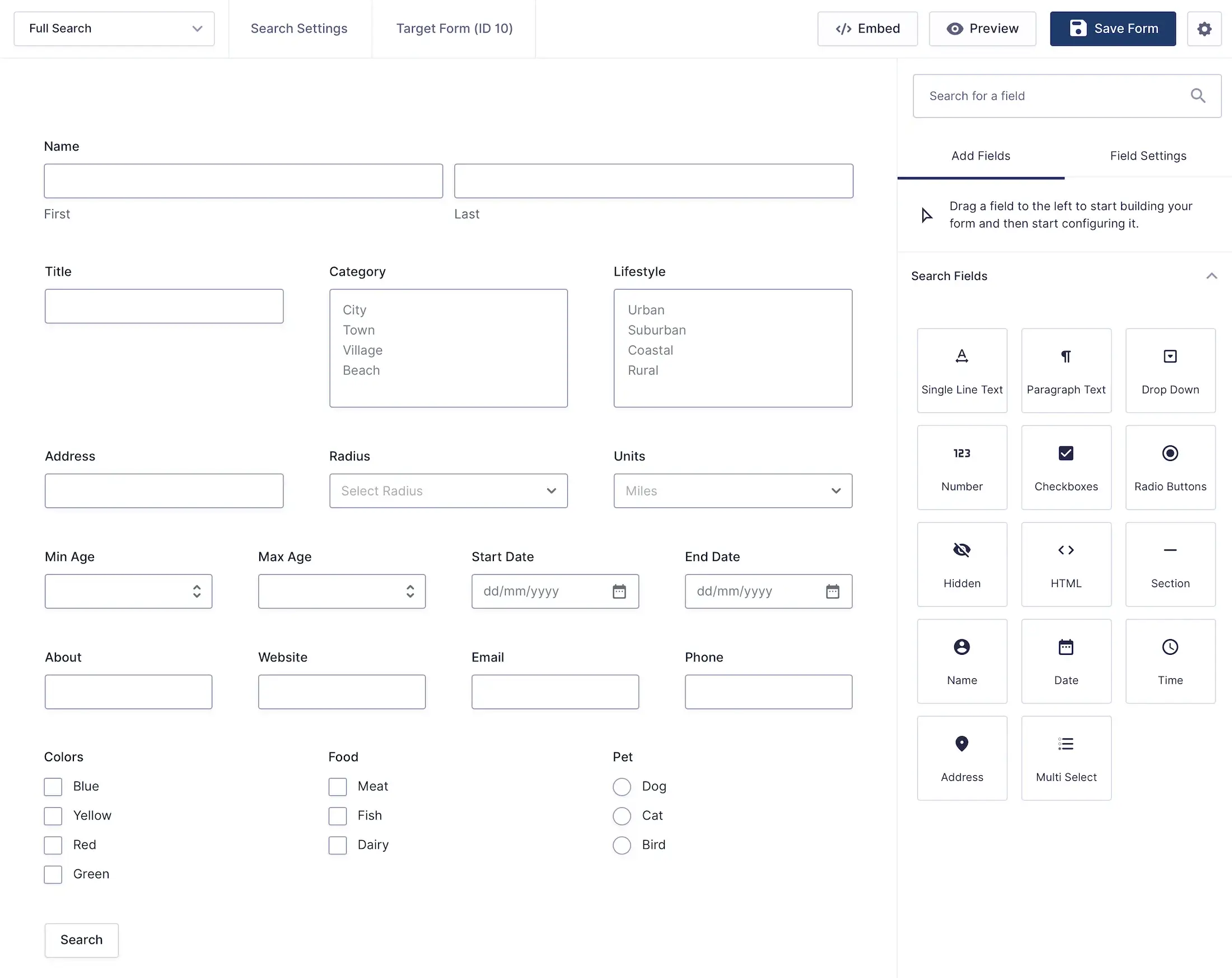
A Search Form is a dedicated Gravity Form used to search entries stored in a Target Form.
Search Forms are built using the standard Gravity Forms builder and can contain any combination of search fields, filters, location searches, radius searches, dropdowns, checkboxes, dates, and more.
Search Forms do not store searchable data themselves. Instead, they generate search queries that retrieve matching entries from the Target Form.
How They Work Together
When a user performs a search, Gravity Search uses the values entered into the Search Form to query entries stored in the Target Form.
Matching entries are then displayed using search results layouts, maps, and details views configured in the Search Settings page.
The typical workflow looks like this:
- A user submits data through the Target Form.
- The data is stored as Gravity Forms entries.
- A visitor performs a search using the Search Form.
- Gravity Search queries matching entries.
- Results are displayed in lists, grids, maps, or details views.
Location Data Sources
In addition to standard entry data, Target Forms can store one or multiple geocoded location sources for each entry.
For example, a single entry may contain:
- Home Location
- Work Location
- Warehouse Location
- Store Location
These locations are geocoded and stored in Gravity Search's location database, allowing fast proximity searches and map-based queries.
When configuring a Search Form, you can choose which location sources should participate in proximity searches.
This allows multiple Search Forms connected to the same Target Form to search different location sources.
For example, one Search Form may search only Store Locations, while another Search Form searches both Store and Warehouse Locations.
Multiple Search Forms Per Target Form
A single Target Form can be connected to multiple Search Forms.
This allows you to create different search experiences for different audiences while using the same underlying data source.
For example:
- A public business directory search.
- An internal staff search.
- A map-only search experience.
- A mobile-friendly search form.
All of these Search Forms can retrieve data from the same Target Form.
Common Examples
Business Directory
Businesses submit listings through a Target Form. Visitors search those listings using a Search Form.
Property Finder
Properties are stored in a Target Form. Buyers search by location, price, and property details using a Search Form.
Member Directory
Members register through a Target Form. Users search and filter member profiles through a Search Form.
Store Locator
Store locations are stored in a Target Form. Visitors use a Search Form to find nearby stores and locations.

Next Steps
Now that you understand the relationship between Search Forms and Target Forms, continue with the following guides: