
Details View Settings
Introduction
The Details View tab controls how a single result is displayed after users open an entry from search results or a map info window.
Details output can be rendered using structured fields, custom HTML, or full WordPress page content with merge tags.
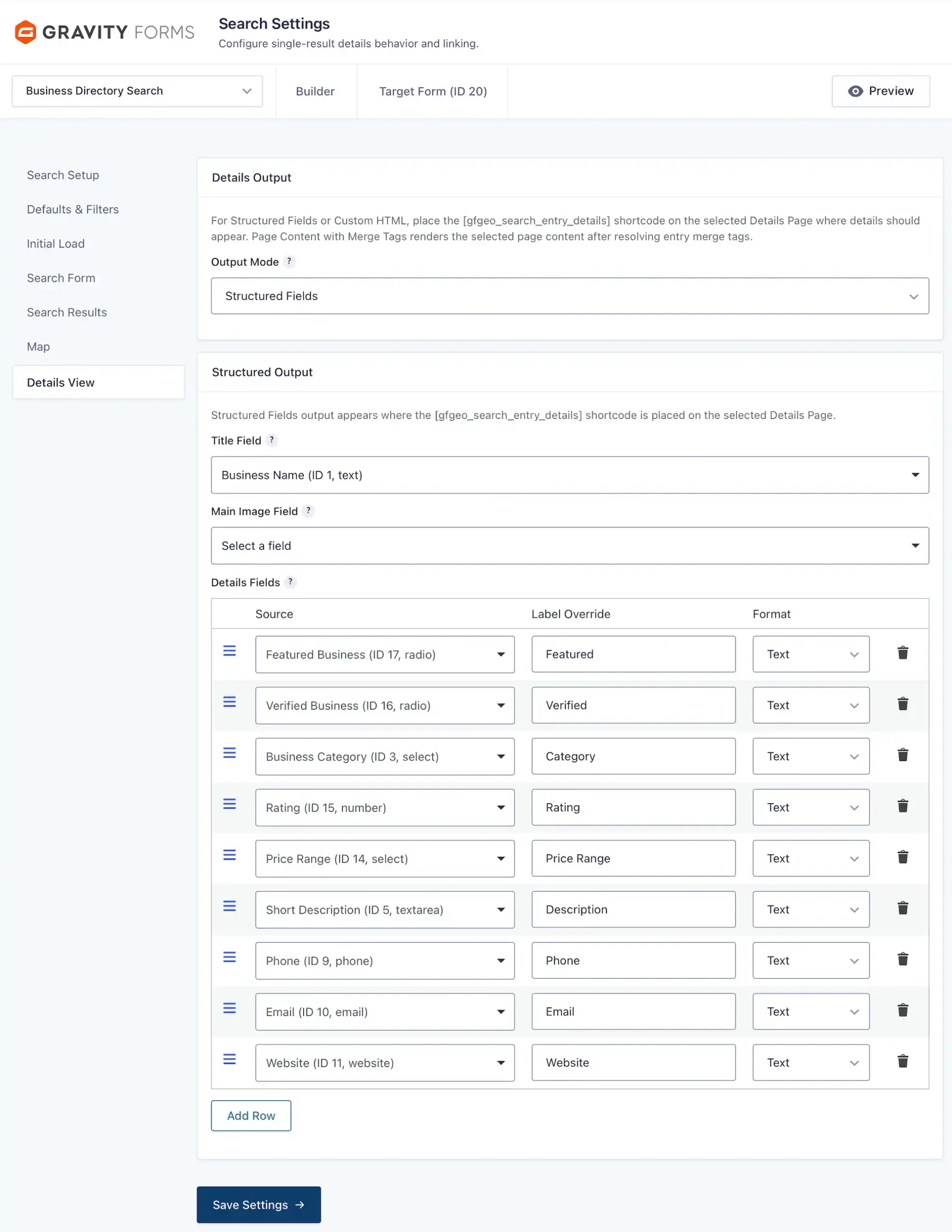
Configuring Details View
1. Details Page Setup
Before front-end detail links can work, select a Details Page in the Search Setup tab.
This page is used as the destination for View Details links from search results and map info windows.
The Details Page only defines where entry details are displayed. The content and layout of the details page are configured in the settings below.
For Structured Fields and Custom HTML output, place the following shortcode on the selected Details Page where the entry details should appear:
[gfgeo_search_entry_details]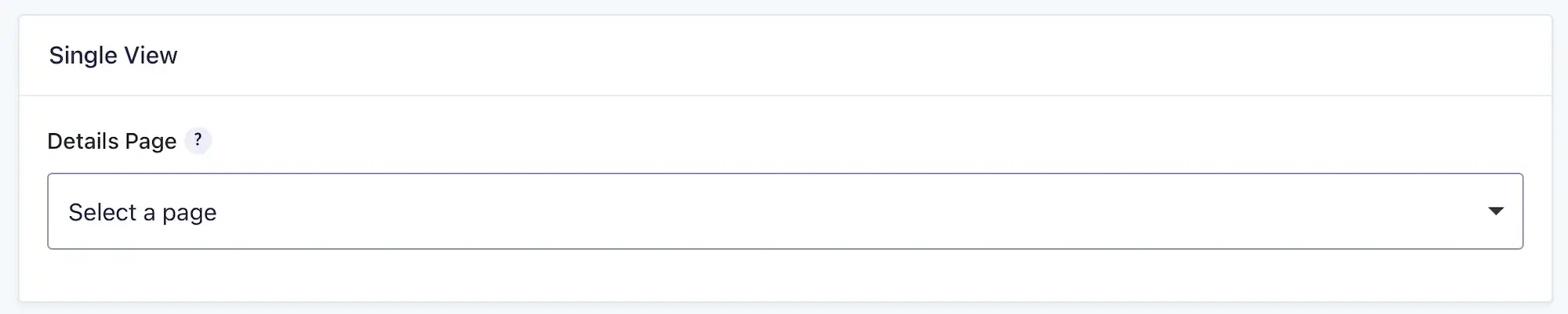
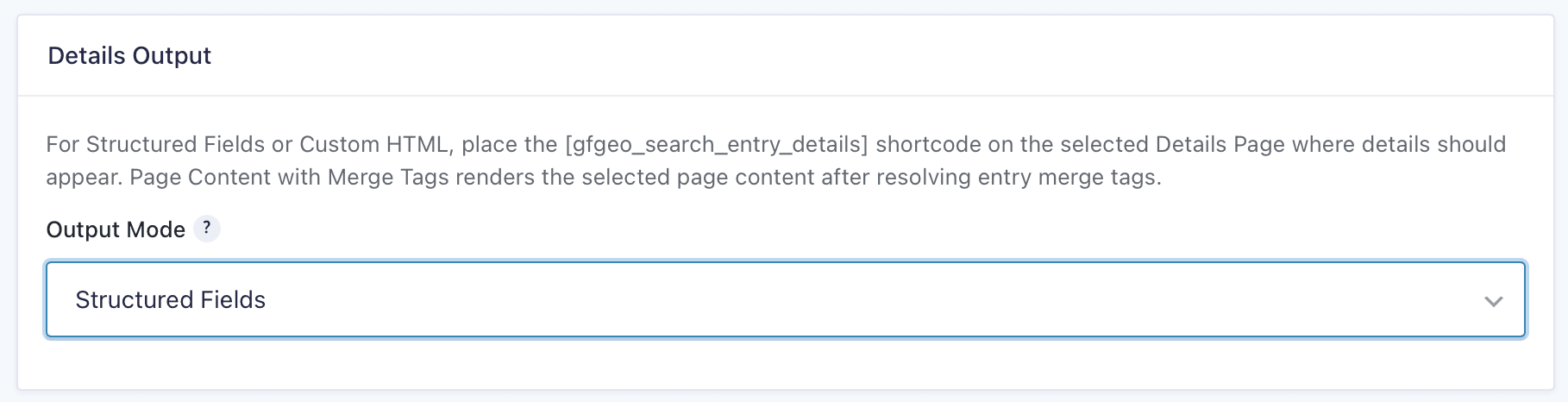
2. Output Mode
Output Mode controls how the single-entry details content is rendered.
- Structured Fields: Builds the details output from configured target form fields. This is the recommended starting point.
- Custom HTML: Uses custom HTML with merge tags for full control over the details markup.
- Page Content: Uses the content of the selected Details Page as the details view. This option is ideal when you want full control over the layout using the WordPress editor or a page builder while displaying entry data with Gravity Forms merge tags.
3. Details Structured Output
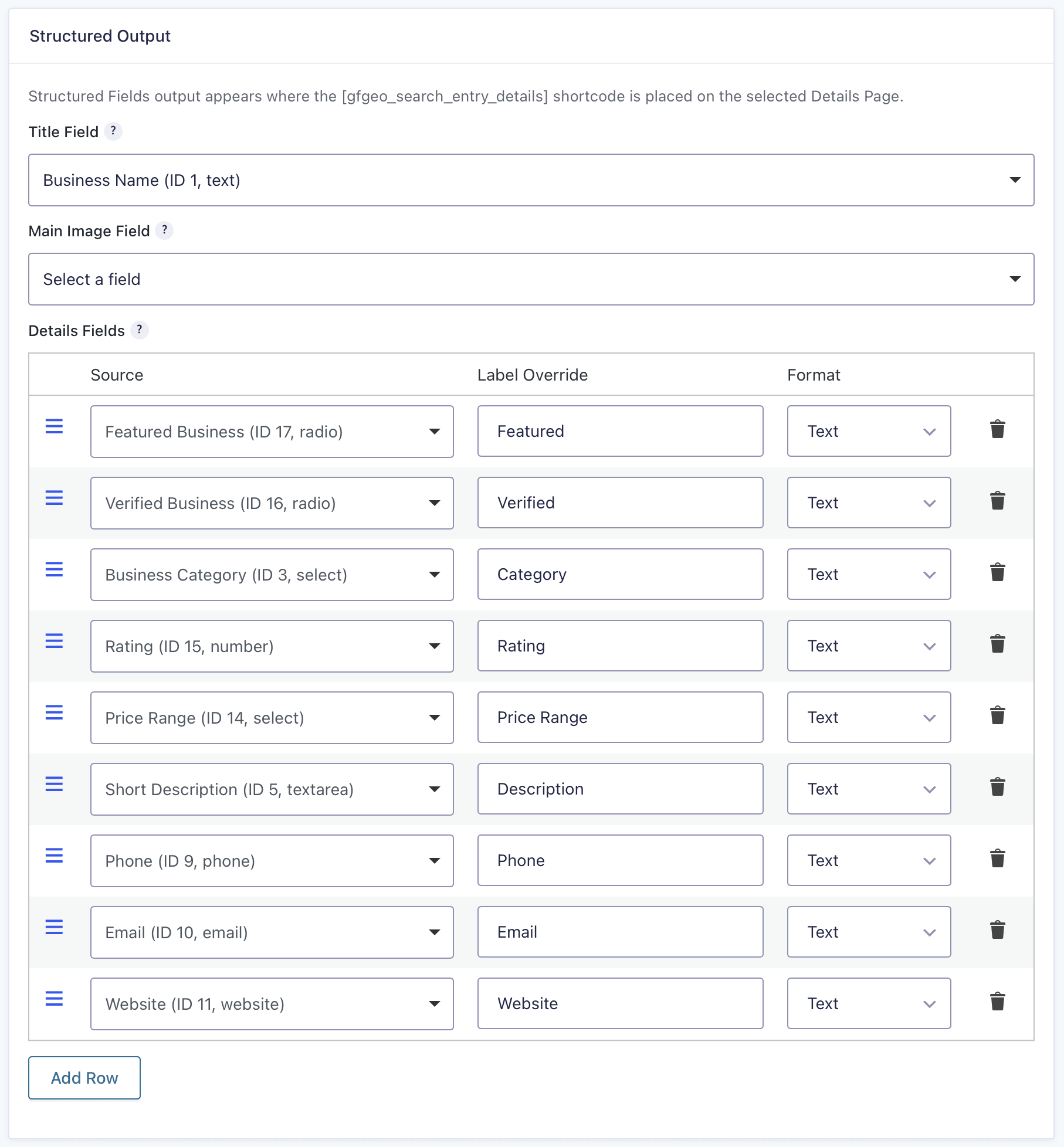
Structured output builds the details content from selected target form fields and displays it on the Details Page where the [gfgeo_search_entry_details] shortcode is placed.
Title Field
Optional field used as the details title. Leave empty to render no title.
Main Image Field
Optional image field used as the main visual for details. Supports image fields, file upload fields, and other compatible image sources.
Details Fields
Configure additional output rows for the details page:
- Source: Select a target form field or compatible metadata source.
- Label Override: Optional custom label shown in the row.
- Format: Text, Link, Link (New Tab), or Image.
Row order can be adjusted to match your intended detail layout.
4. Details Custom HTML
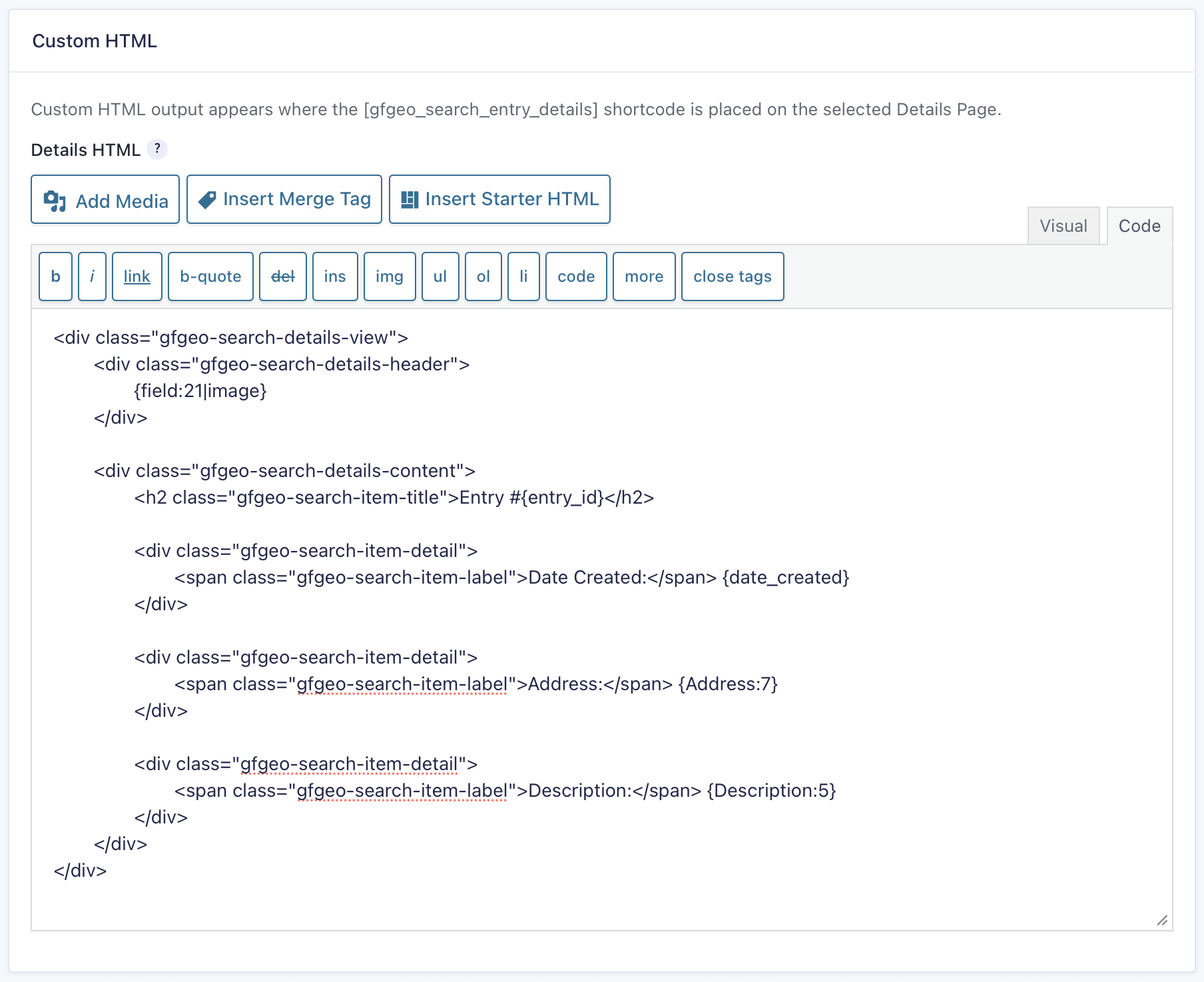
Custom HTML output lets you write the details markup manually and insert target entry values using merge tags.
Details HTML
Add the HTML used to render the single-entry details output.
Use Insert Merge Tag to insert available field merge tags, or use Insert Starter HTML to insert a starter layout that can be edited.
Custom HTML is rendered where [gfgeo_search_entry_details] is placed on the selected Details Page.
How Details View Works
The Details Page setting in the Search Setup tab defines the destination page used for single-entry detail links.
In Structured Fields mode, details content is assembled from:
- Title field
- Optional main image
- Configured details rows
In Custom HTML mode, details content is generated from your custom markup and merge tags.
Both Structured Fields and Custom HTML output appear where the [gfgeo_search_entry_details] shortcode is placed.
In Page Content mode, the selected Details Page serves as the details template. You can use the WordPress editor, page builders, custom blocks, or other layout tools to design the page while displaying entry data using Gravity Forms merge tags.
Tips for Setup
- Select a Details Page in the Search Setup tab before testing front-end detail links.
- Use Structured Fields for the fastest admin-managed setup.
- Use Custom HTML when you need custom markup but still want output inside the details shortcode area.
- Use Page Content with Merge Tags when you want the WordPress page content or page builder layout to control the whole details view.