
Creating Your First Search Form
Introduction
Gravity Search uses a dedicated Search Form to search entries stored in a separate Target Form.
In this guide, you will create a Search Form, connect it to a Target Form, map fields, and configure filters, proximity, map display, and results output.
All search fields are built in the standard Gravity Forms builder, so you keep the same familiar workflow while unlocking directory-style and location-aware search behavior.
Creating a Search Form
There are two ways to create a Search Form.
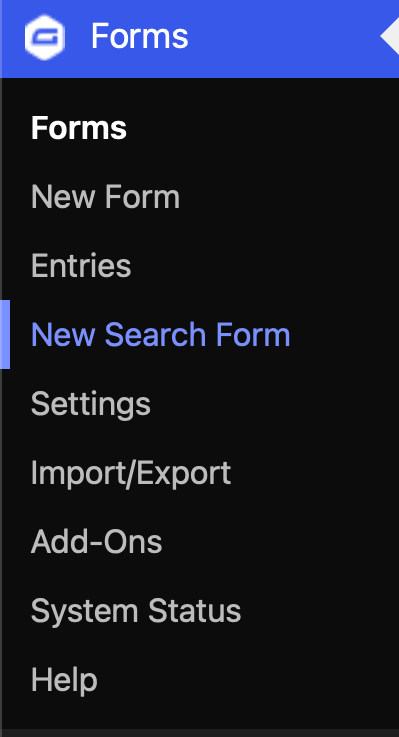
Option 1: Create a Search Form from the Forms Menu
Navigate to Forms → New Search Form and create a new Search Form.
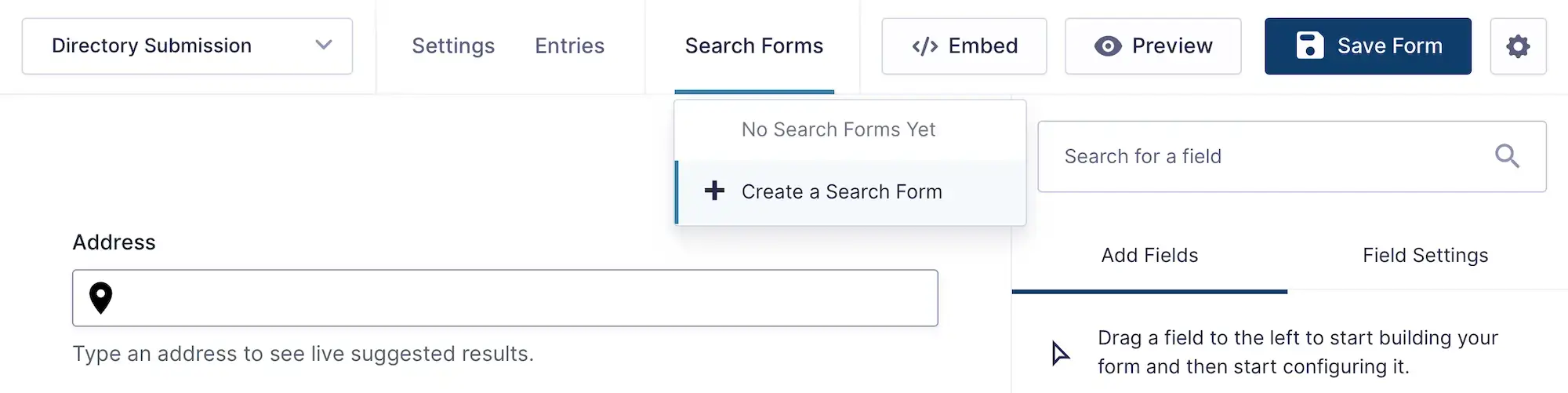
Option 2: Create a Search Form from a Target Form
Open an existing Gravity Form and click the Search Forms button in the form builder. From there, you can create a new Search Form linked to the current form.
Selecting a Target Form
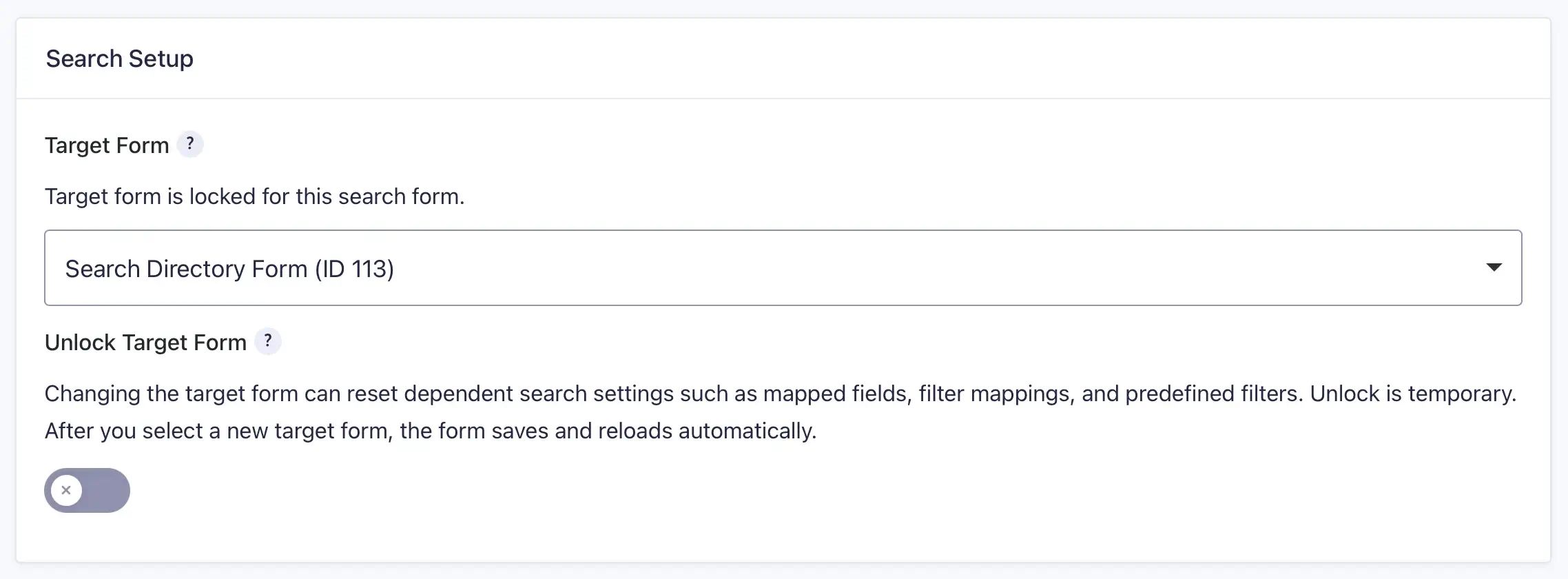
Every Search Form must be connected to a Target Form. The Target Form stores the entries and data that will be searched.
During the creation process, select the Gravity Form that contains the entries you want users to search.
The Target Form can contain one or multiple geocoded location sources. These location sources can later be used for proximity searches, distance calculations, and map-based search experiences.
Building the Search Form
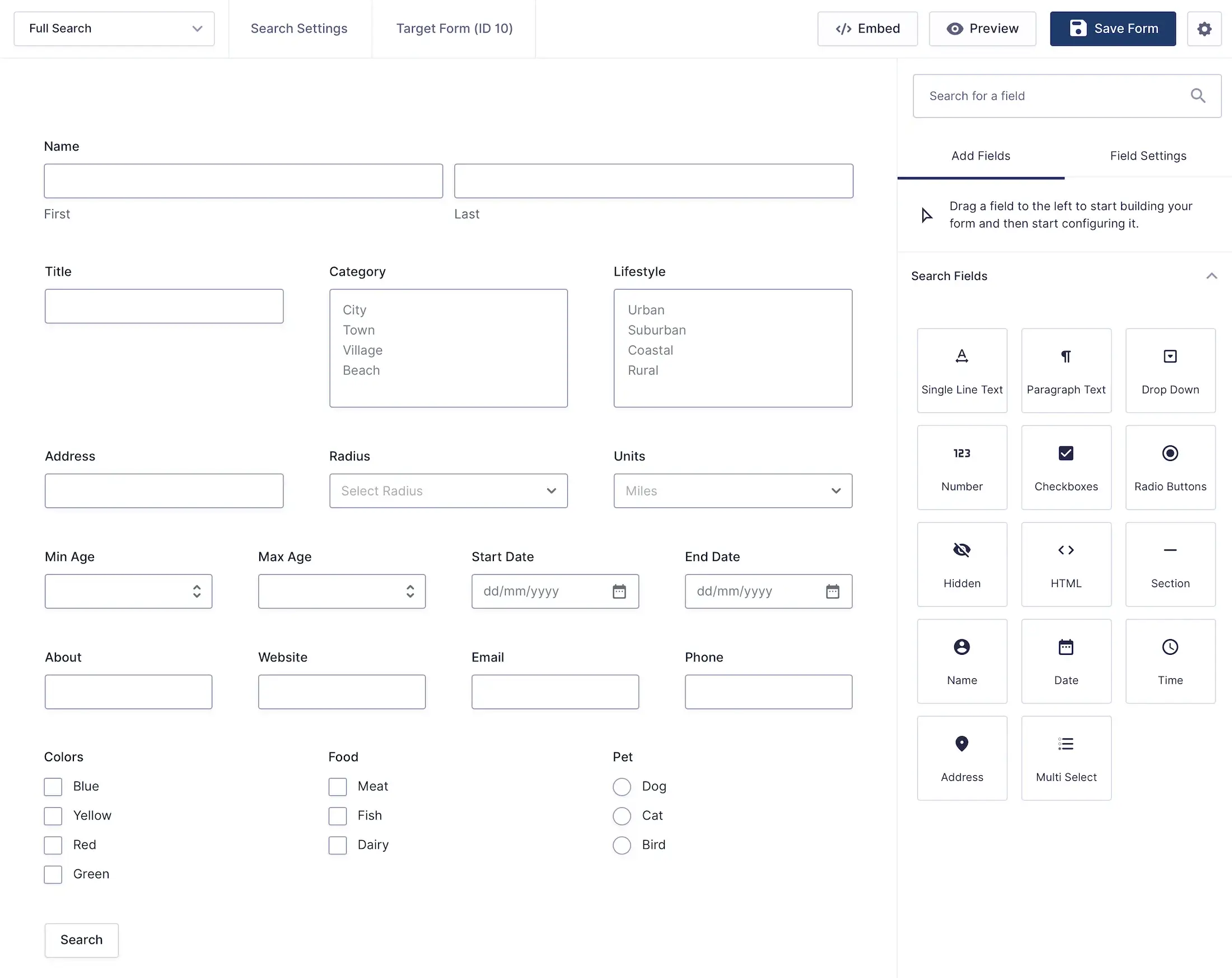
Search Forms use the standard Gravity Forms builder. Add the fields you want visitors to use when searching your entries.
Common search fields include:
- Single Line Text
- Drop Down
- Checkboxes
- Radio Buttons
- Number Fields
- Date Fields
- Address Fields
Configuring Search Settings
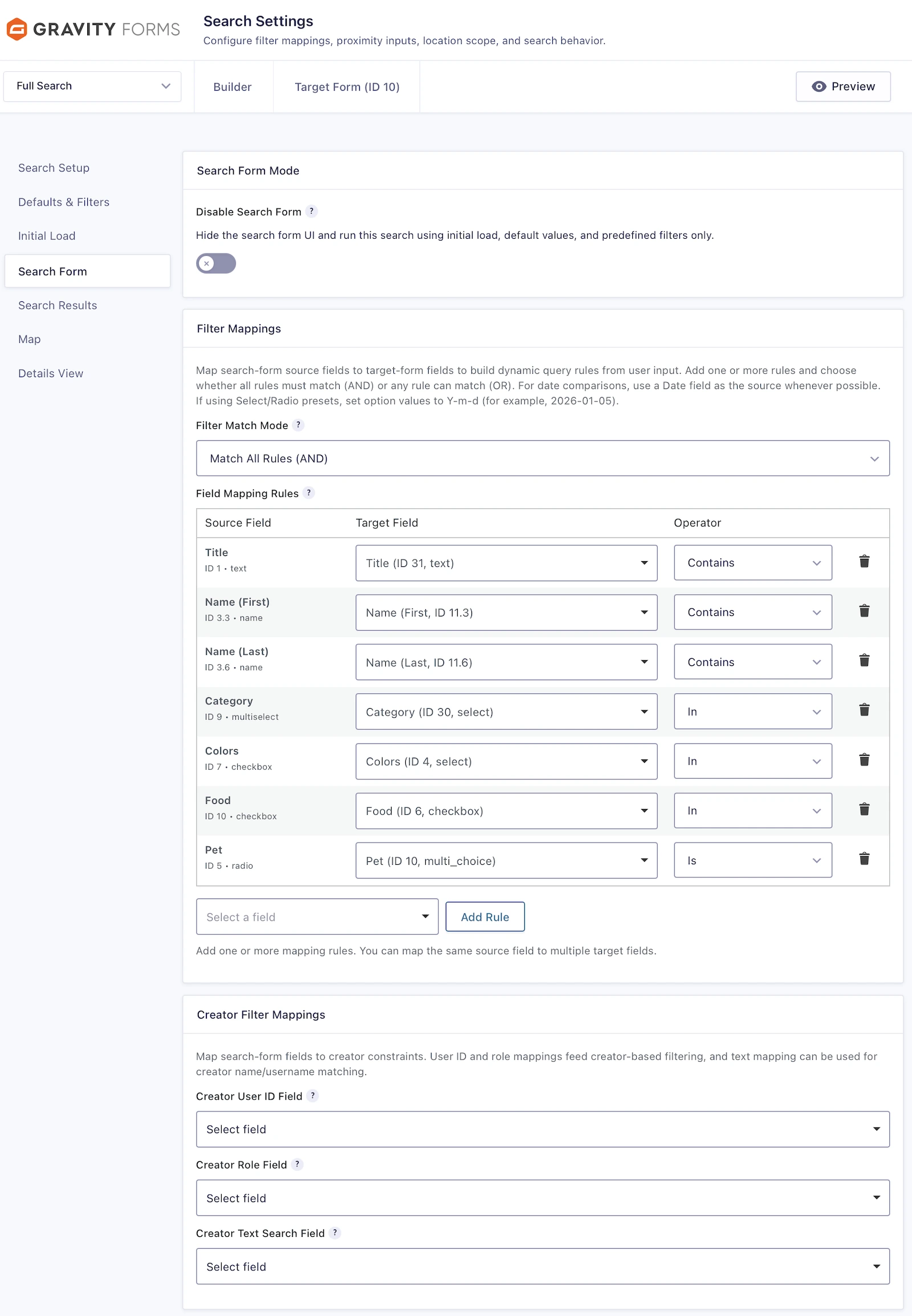
Once your Search Form is created, open the Search Settings page to configure how the search works.
Search Settings allow you to:
- Connect the Search Form to a Target Form.
- Map search fields to target fields.
- Configure search defaults and filters.
- Select which location sources participate in proximity searches.
- Configure maps and results layouts.
- Customize details views.
Testing Your Search Form
After configuring your Search Form, preview the form and perform several searches to verify that results are returned as expected.
Make sure to test:
- Text searches
- Dropdown filters
- Date searches
- Proximity searches
- Map results
