Introduction
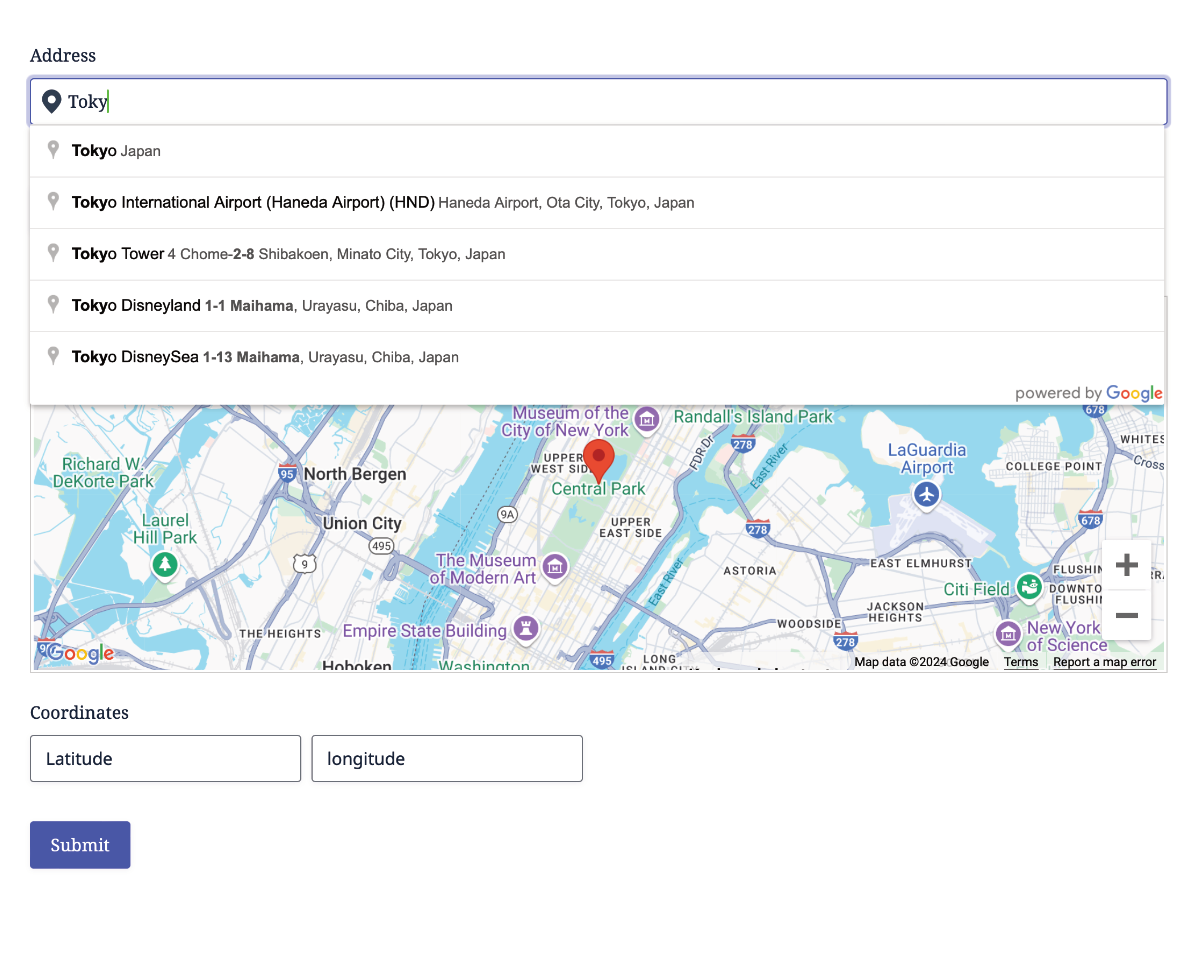
The Address Field collects an address and synchronizes it with a Geocoder Field. It supports current-location detection and real-time suggestions through Google Places API (New).
You can control the suggestion types, countries, language, and geographic bias or bounds without changing Gravity Forms’ familiar single-line field experience.
Configuring the Address Field
-
- Address field front-end
-
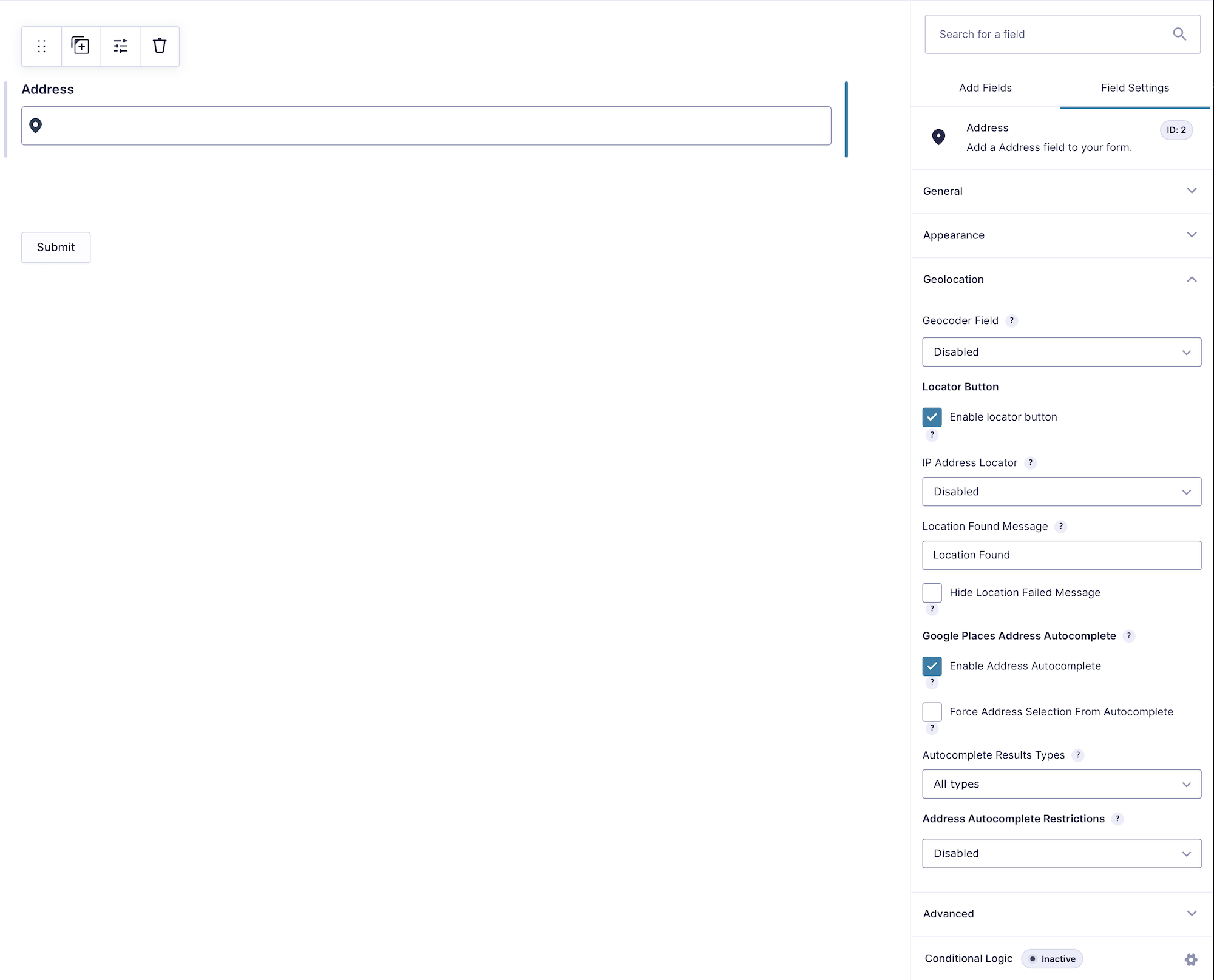
- Address field options
1. Geocoder Field
Select the Geocoder Field that should process and store this address. Other fields linked to the same Geocoder will update when the address is selected or geocoded.
Display a current-location button inside the Address Field.
Activate Locator Button
Enable the inline button that retrieves the visitor’s current location. Browser geolocation normally requires the visitor’s permission.
IP Address Locator
- Disabled: Use browser geolocation only (Default).
- Default: Use the configured IP provider as the primary method.
- Fallback: Use IP location only if browser geolocation fails.
Configure the IP provider first in Gravity Geolocation settings.
Location Found Message
Enter the success message shown after the visitor’s location is found. Leave it blank to disable the message (Example: Location found).
Hide Location Failed Message
Hide the front-end failure alert while retaining the browser-console error for troubleshooting.
3. Address Autocomplete
Configure real-time suggestions powered by Places API (New).
Activate Address Autocomplete
Enable address suggestions as the visitor types (Enabled by default).
Enforce Address Selection
Require the visitor to choose one of the suggested results instead of submitting unmatched typed text.
Enforcement Message
Customize the validation message shown when no suggestion was selected (Default Value: Please select an address from the suggested results.).
Suggestion Types
Select up to five supported Places autocomplete types. Leave the setting empty to allow all supported suggestion types.
Country Restrictions
Limit suggestions to as many as five selected countries. Leave it empty to avoid a country restriction.
Language
Choose the language used for suggestions. Leave it at Default (Browser Language) to use the visitor’s browser preference.
4. Autocomplete Bias and Bounds
Choose how autocomplete should prioritize or restrict locations.
None
Do not apply an additional geographic bias or restriction (Default).
Proximity
Bias suggestions toward a latitude, longitude, and radius. A proximity bias improves local relevance but does not guarantee that every result is inside the radius.
- Latitude: Center latitude (Example: 26.423277).
- Longitude: Center longitude (Example: -82.021776).
- Radius: Bias radius in meters (Example: 100).
Area Bounds
Restrict suggestions to a rectangular area defined by two coordinate pairs.
- Southwest Point: (Example: 26.423277,-82.137132).
- Northeast Point: (Example: 26.4724595,-82.0217760).
User’s Location (IP)
Bias suggestions toward the visitor’s approximate IP-based location. This requires an IP provider in the global settings and is not the same as the form-level Auto Locator.
Saved Value and Syncing
The Address Field saves the address text submitted with the entry. Its linked Geocoder Field stores the structured address components and coordinates. When the visitor selects a suggestion or uses the locator, the entire linked location group updates.
If the user types a new address after geocoding, the plugin processes the updated value before submission. Use Enforce Address Selection when your workflow requires a confirmed Places result.
Setting Up and Using the Address Field
- Add a Geocoder Field and an Address Field.
- Select the Geocoder in the Address Field settings.
- Enable the inline locator and autocomplete options you need.
- Configure countries, language, and geographic behavior.
- Preview the form and test typing, suggestion selection, locator behavior, and entry output.
Helpful Links