
Address Validation Field
The Address Validation Field checks an address supplied by a linked Geocoder Field and presents a clear review step when the address needs confirmation or correction. It can save the selected address and validation metadata with the Gravity Forms entry, send the confirmed address to another Geocoder Field, and expose validation details to conditional logic, Dynamic Fields, merge tags, notifications, and confirmations.
Address Validation Field Overview
The field works with a Geocoder Field that contains the address to validate. When that address changes, Gravity Geolocation sends it to the Google Address Validation service. Depending on the response, the field can confirm the address, show a suggested standardized address, let the user keep the original address, or ask the user to make changes.
The visible review panel appears only when it is needed. The value saved with the entry is a structured validation record that can include the submitted address, suggested address, selected address, selection type, status, outcome, delivery status, messages, and provider response details.
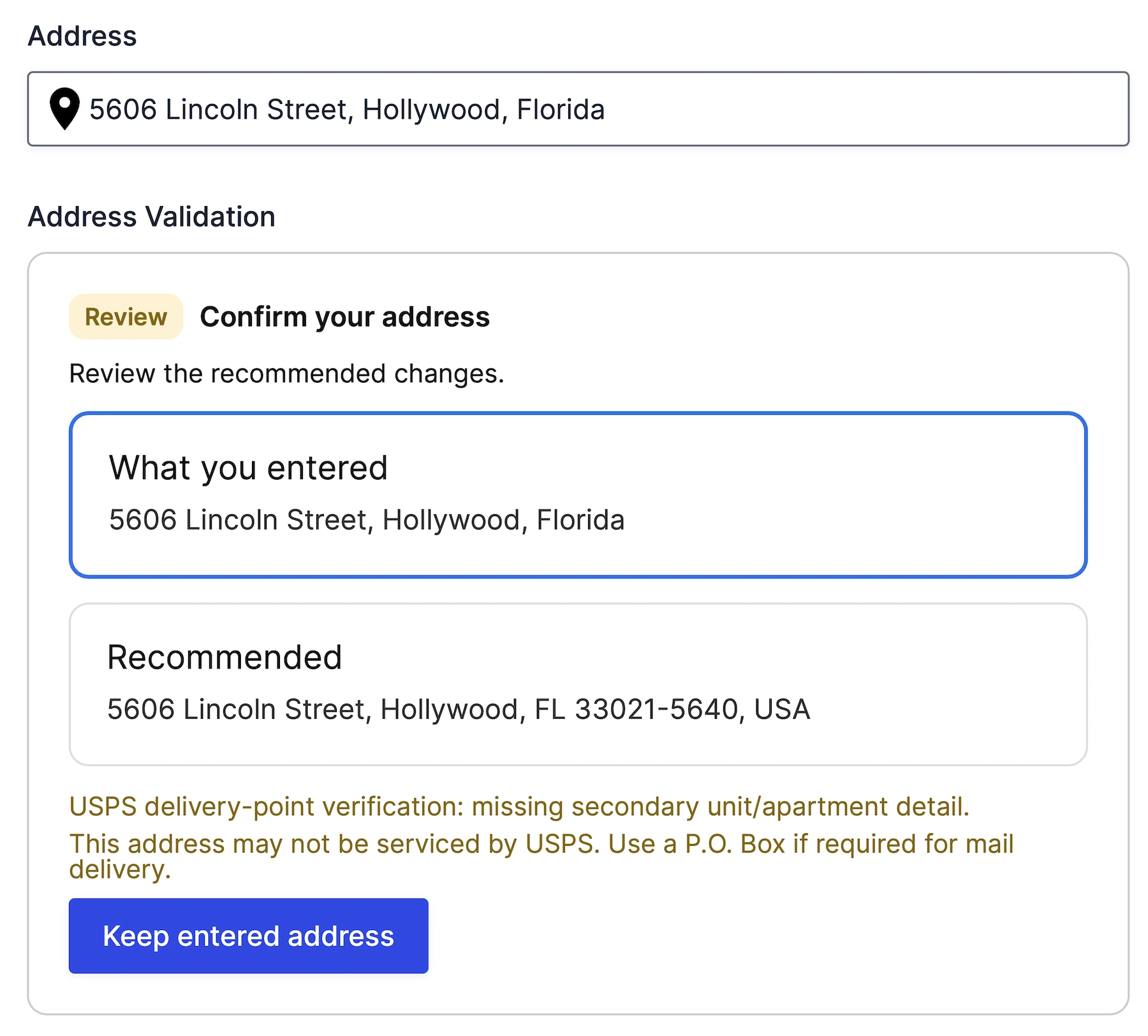
Review the entered and recommended address before confirming the final selection.
Before You Start
- Add and configure a Geocoder Field in the same form.
- Make sure the linked Geocoder Field receives a complete address from an Address Field, autocomplete field, map, coordinates, or another supported location input.
- Configure a Google Maps browser API key and enable the Google Address Validation API for that key. See Google Maps API Keys.
Address Validation Field Settings
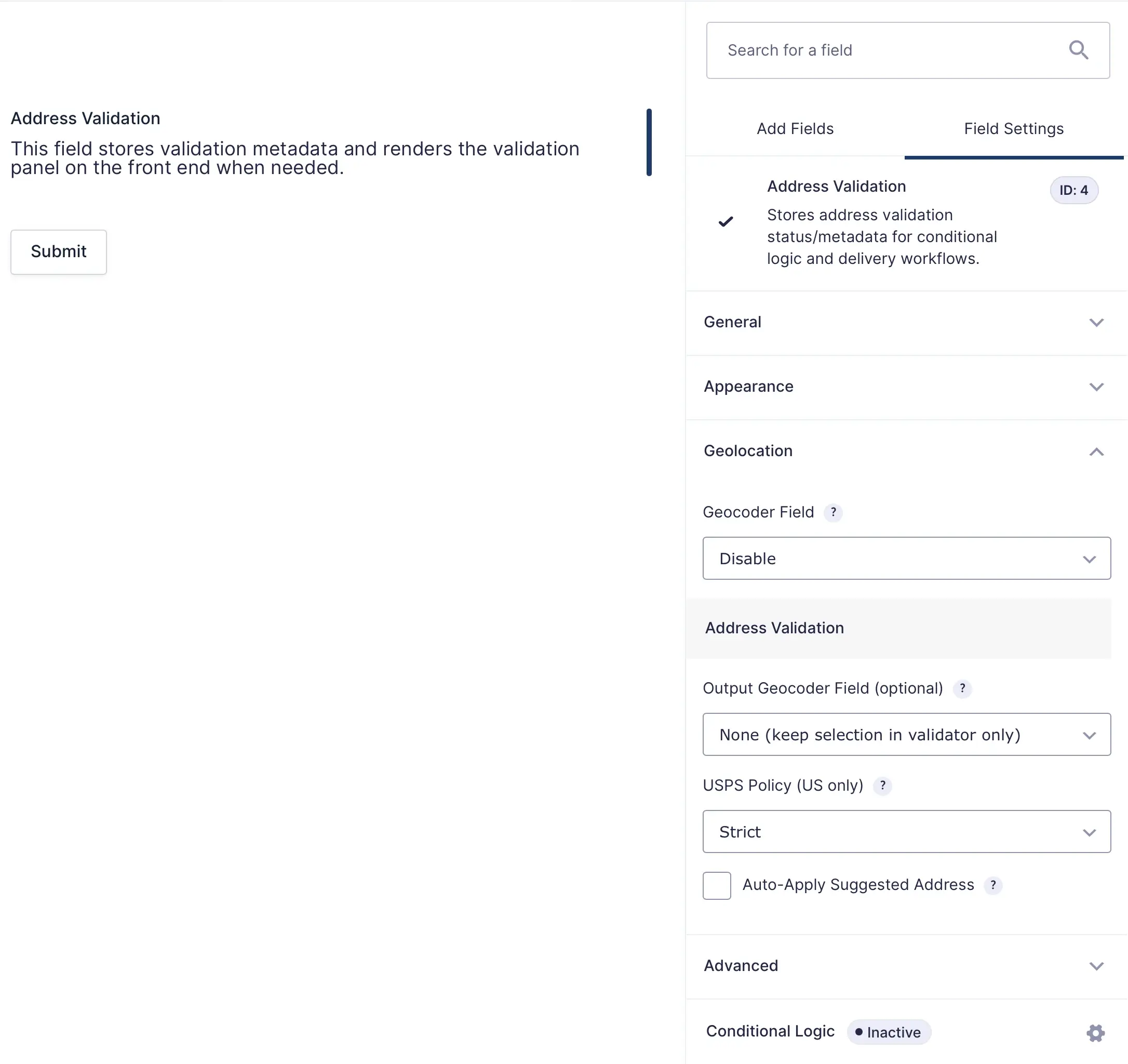
Choose the source and optional output Geocoder Fields for address validation.
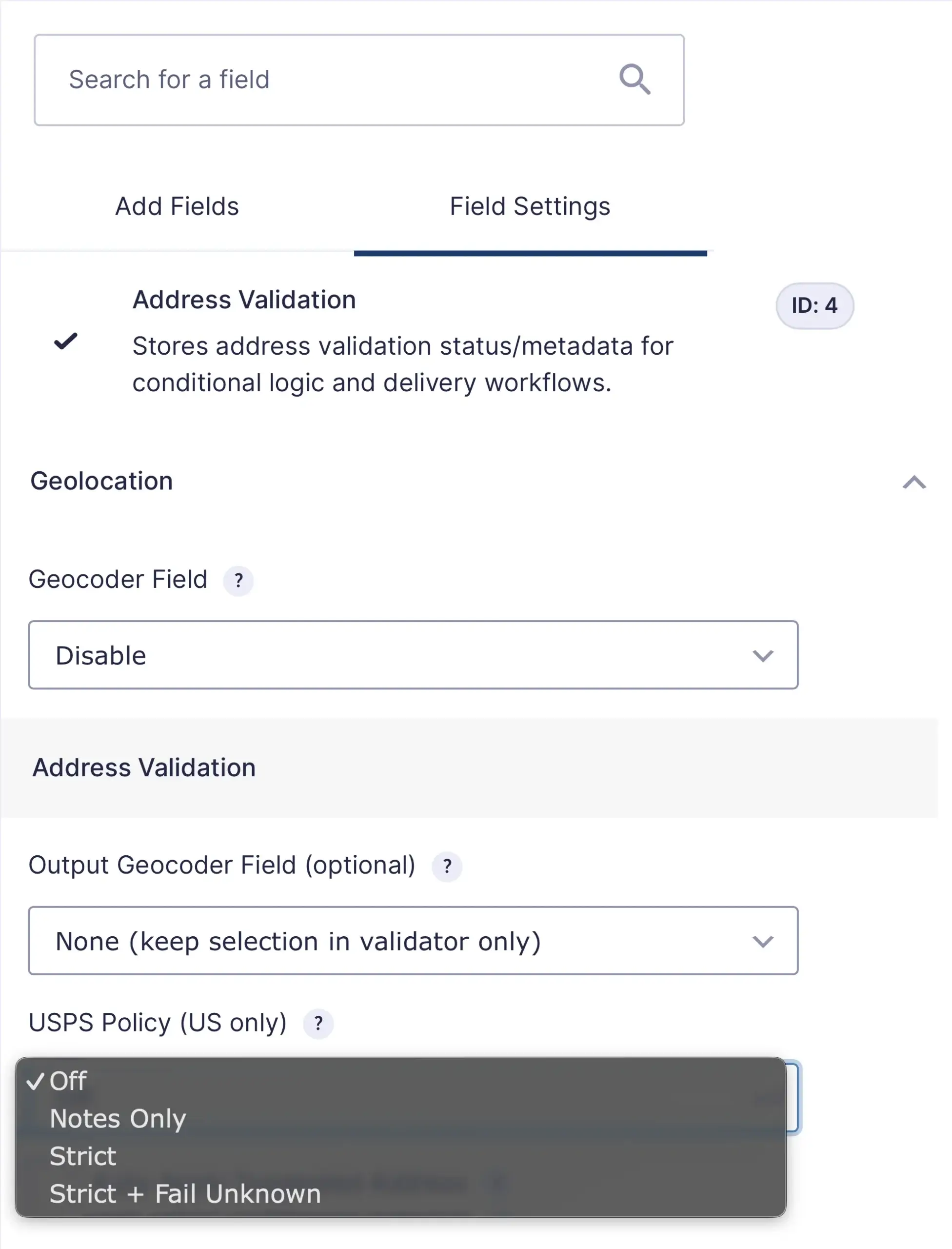
Choose how USPS delivery-point information affects address validation.
Front-End Validation Workflow
- The linked Geocoder Field receives an address.
- The Address Validation Field checks the address with Google's Address Validation service.
- If the address is already confirmed, the field saves the confirmed result without interrupting the form.
- If a standardized suggestion or correction is available, the panel lets the user choose the original address, accept the suggestion, or return to the form to make changes.
- The selected address and validation metadata are saved with the entry. If an Output Geocoder Field is selected, it receives the confirmed address as well.
Saved Data and Merge Tags
The field's normal merge tag returns the selected address. Add a modifier to request another part of the saved validation record:
selectedreturns the final selected address.suggestedreturns the standardized suggested address, when available.statusreturns the validation status.outcomereturns the validation outcome.delivery_statusreturns the saved delivery status.htmlreturns a formatted summary.jsonreturns the complete saved validation payload.
For example, select the field's merge tag in Gravity Forms and append the needed modifier to its field ID, such as {Address Validation:8.status}. Replace 8 with the actual field ID.
Basic Setup
- Add an Address Field and a Geocoder Field to the form, then link the Address Field to the Geocoder Field.
- Add the Address Validation Field.
- Select the Geocoder Field as the source.
- Optionally select a different Geocoder Field to receive the confirmed address.
- Choose the USPS policy and whether suggestions should be applied automatically.
- Save the form and test a complete address, an address with a standardization suggestion, and an incomplete address.
Troubleshooting
- No validation occurs: Confirm that the source Geocoder Field is selected, contains coordinates and address data, and changes on the front end.
- An API error appears: Confirm that the browser API key is valid for the site and that the Address Validation API is enabled in the same Google Cloud project.
- The confirmed address does not populate another field: Select the correct Output Geocoder Field and verify that it is not the same field used as the source.
- USPS results are missing: USPS delivery signals apply only when Google returns supported US or Puerto Rico postal data. Use Notes Only unless strict delivery verification is required.