
Creating a Geolocation-Enabled Form in Gravity Forms
Introduction
This tutorial builds a basic location form with six synchronized Gravity Geolocation fields. The Geocoder Field stores and coordinates the location data; the other fields provide address, map, coordinate, locate, and reset interfaces.
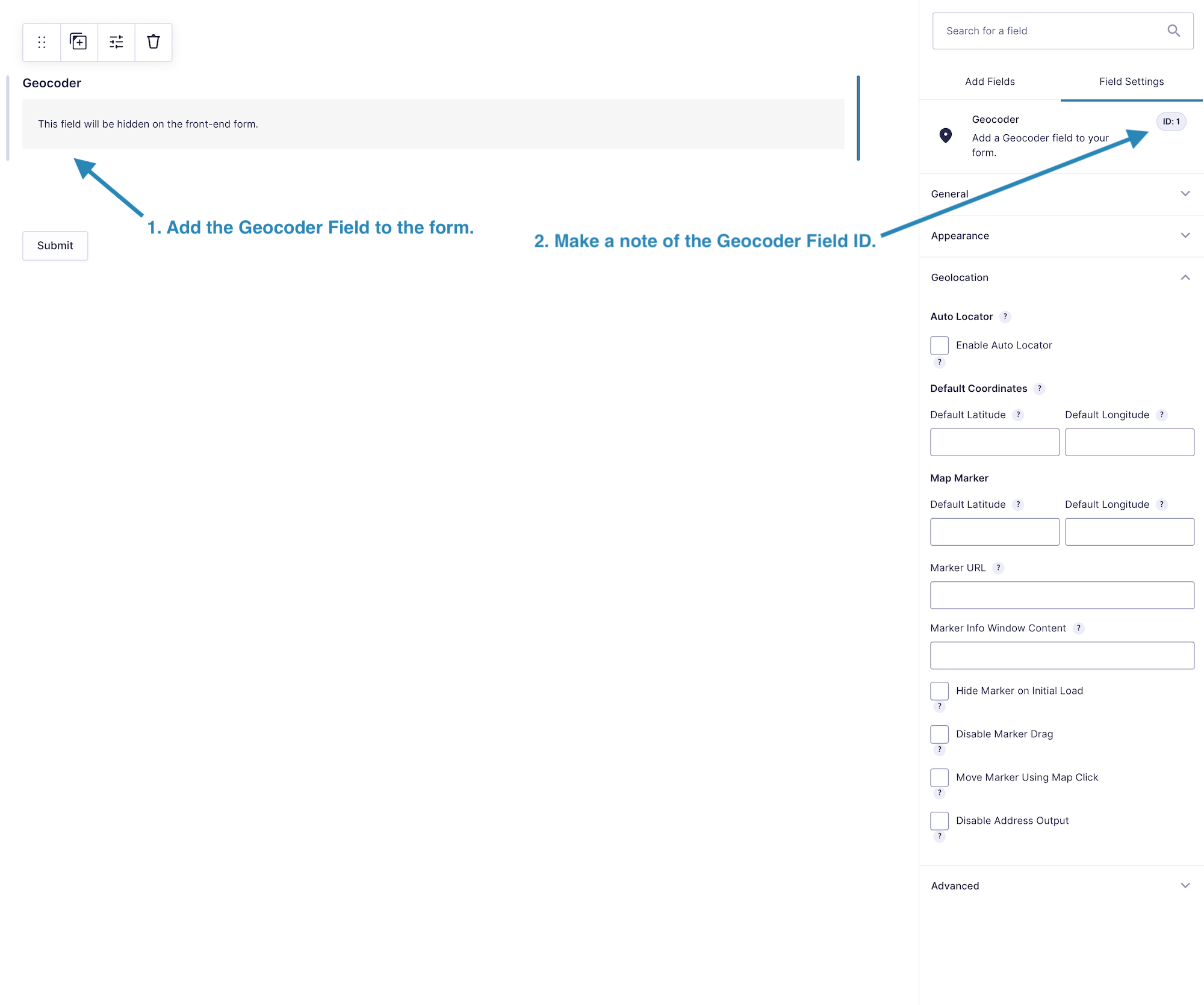
Before starting, install and activate Gravity Geolocation, then complete the plugin settings. This example uses a Geocoder Field with ID 1; use the actual ID shown in your form.
Setting Up a Geolocation Form in Gravity Forms
Link the fields below to the same Geocoder Field so they operate as one geolocation group.
1. Add and Configure the Geocoder Field
Add a Geocoder Field. Note its field ID, then configure its default coordinates, page-load geocoding, and marker options as needed.
2. Add and Configure the Address Field
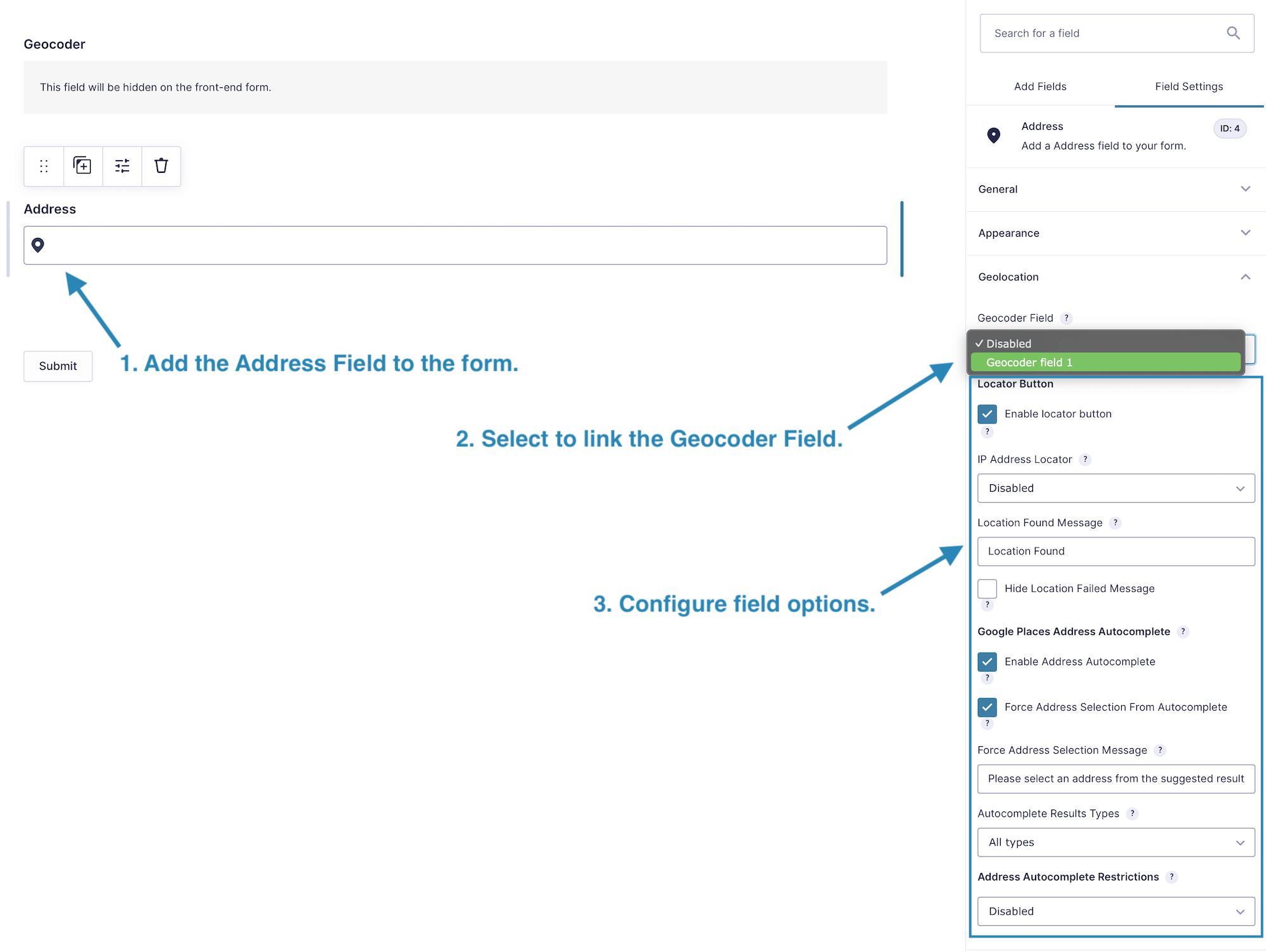
Add an Address Field and select Geocoder Field ID 1. Enable address autocomplete and configure types, countries, language, and bias only when needed.
3. Add and Configure the Locator Button
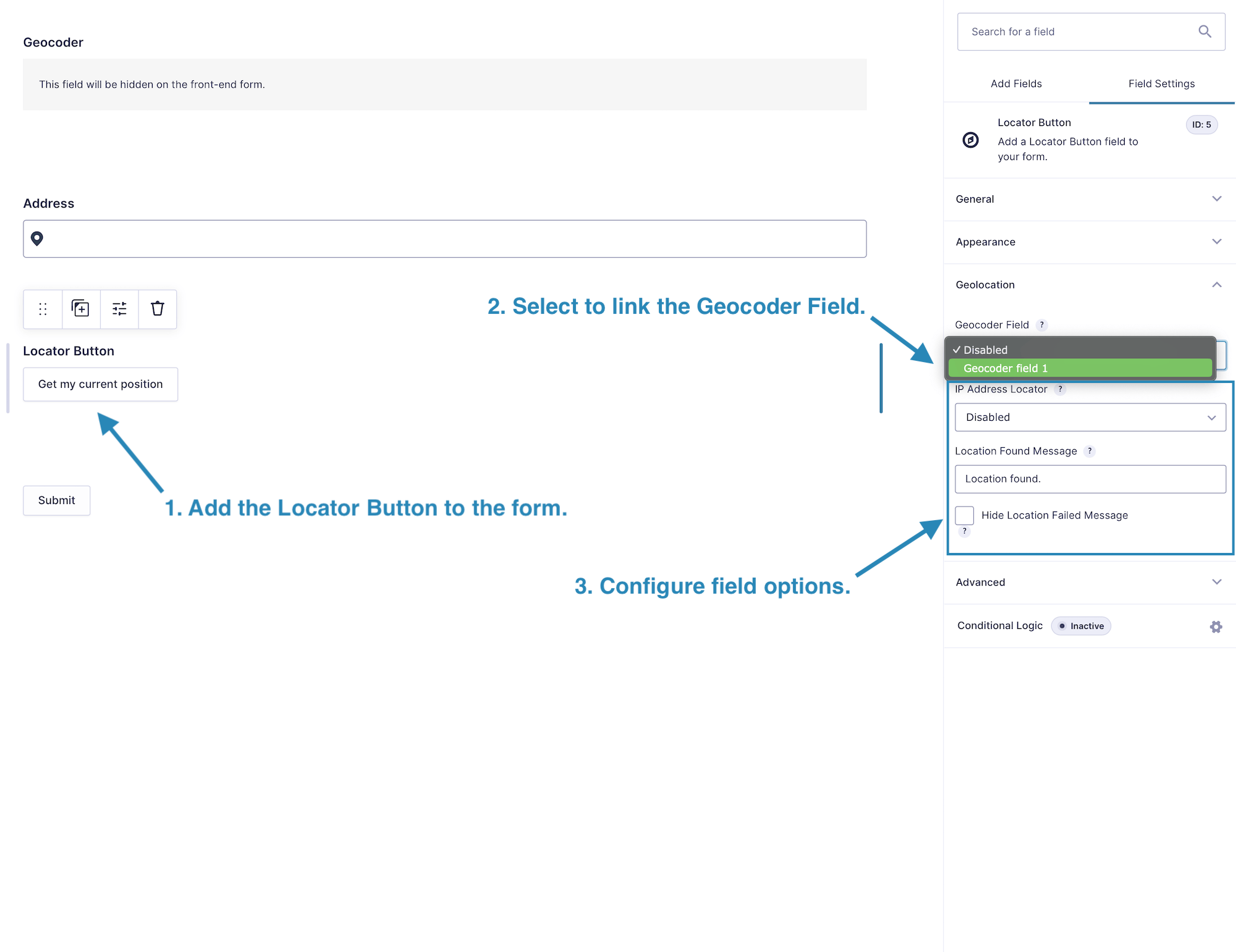
Add a Locator Button, select Geocoder Field ID 1, customize its Button Text if needed, and choose whether IP location is disabled, the default method, or a browser-location fallback.
4. Add and Configure the Map Field
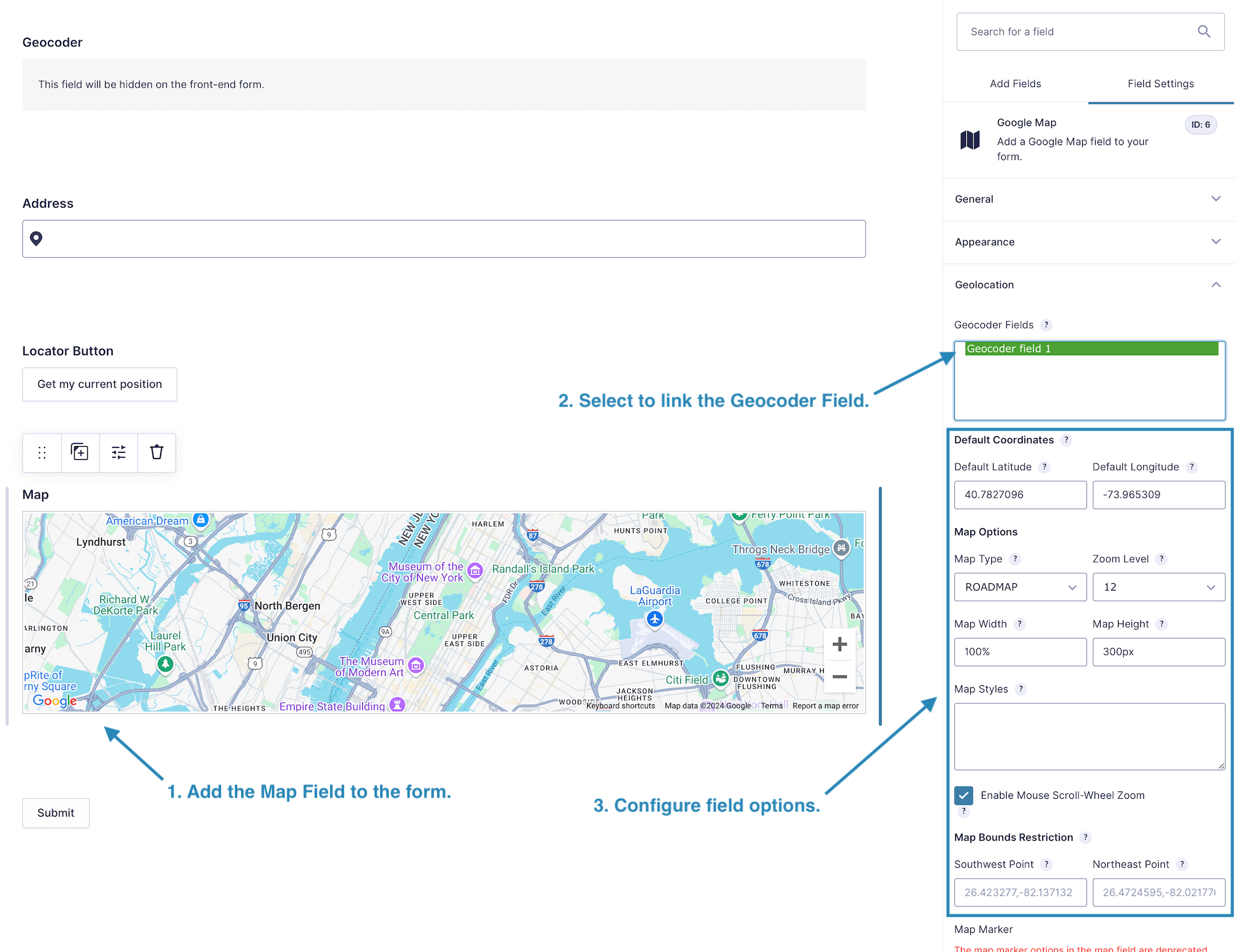
Add a Map Field, select Geocoder Field ID 1, and configure its initial view, dimensions, and map behavior.
5. Add and Configure the Coordinates Field
Add a Coordinates Field, select Geocoder Field ID 1, and customize the latitude and longitude labels or placeholders if needed.
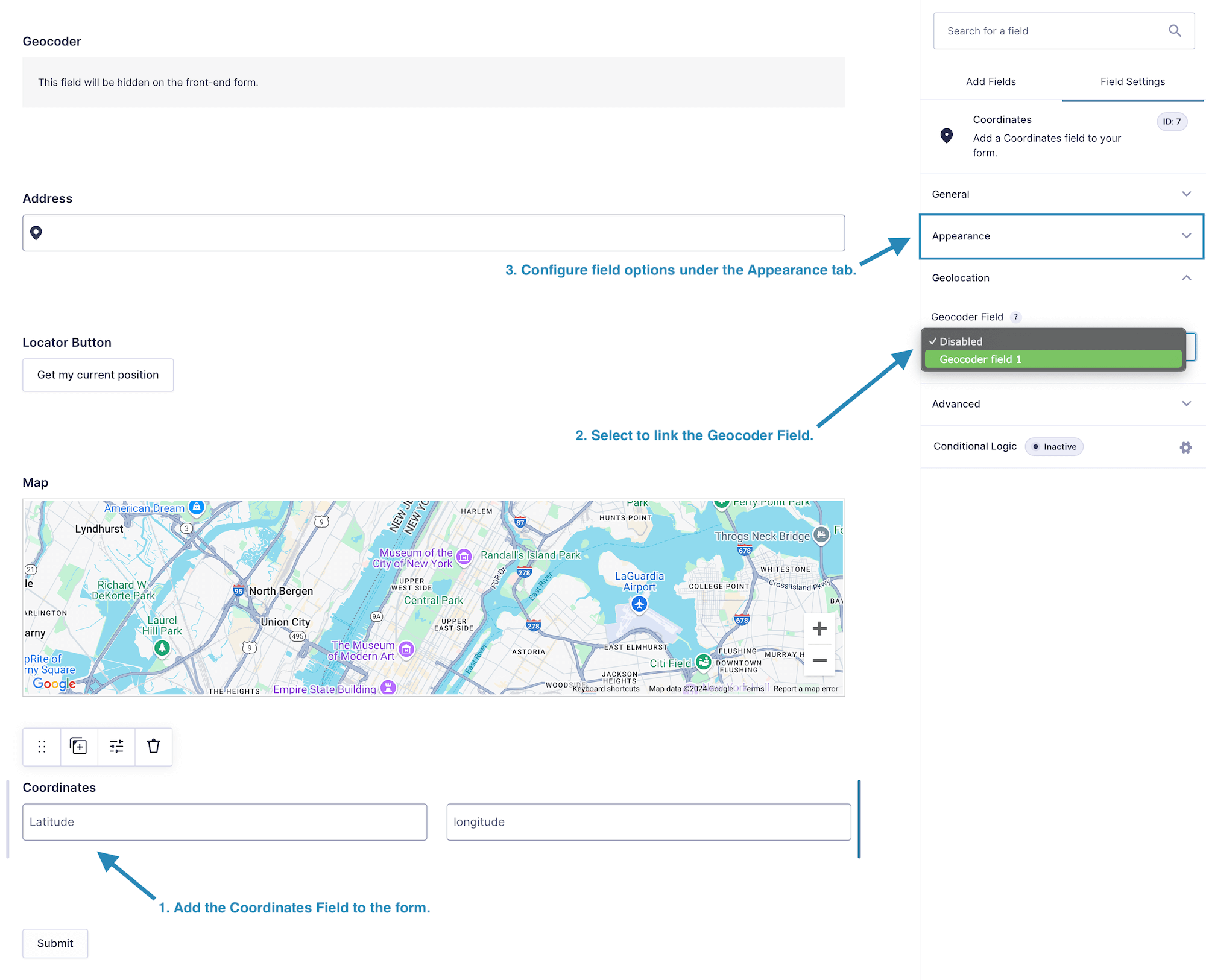
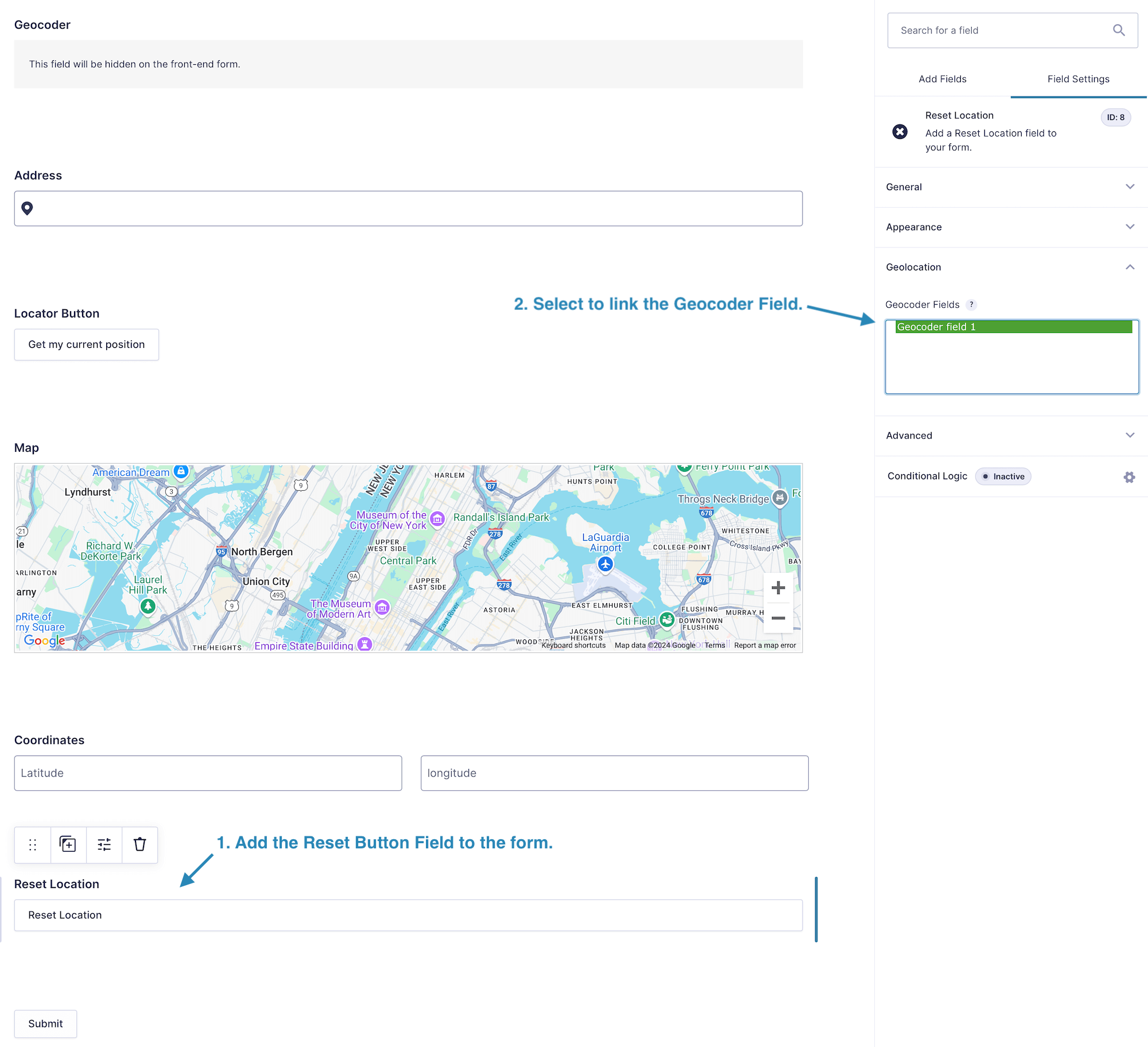
6. Add and Configure the Reset Location Button
Add a Reset Location Button and select Geocoder Field ID 1. By default the button clears the linked location. Enable Reset Location to Default only when it should restore the fields’ configured default location instead.
Testing the Form
-
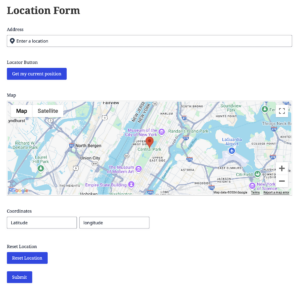
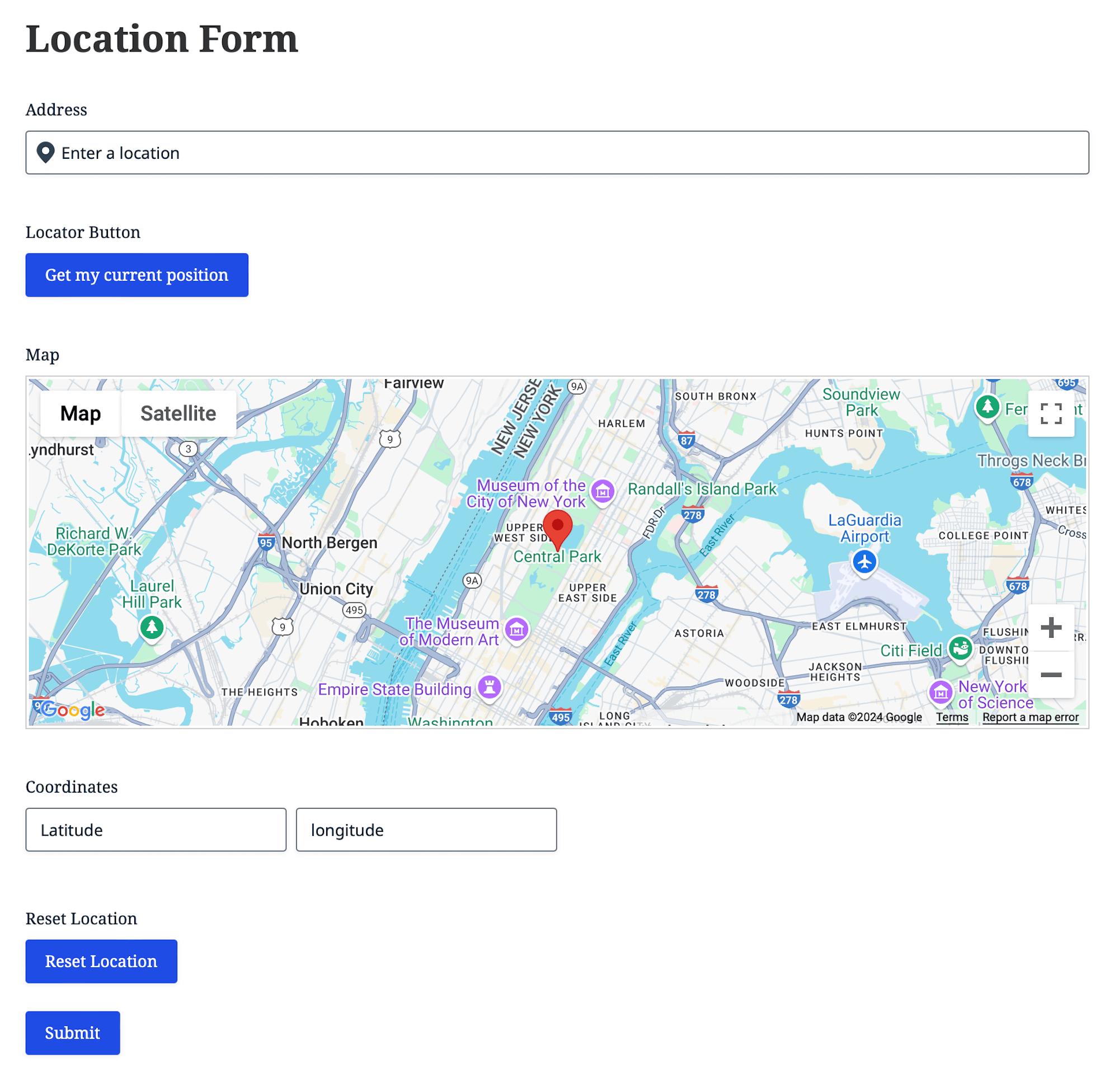
- Location form front-end
-
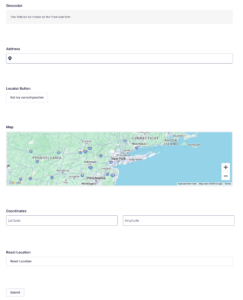
- Location form back-end
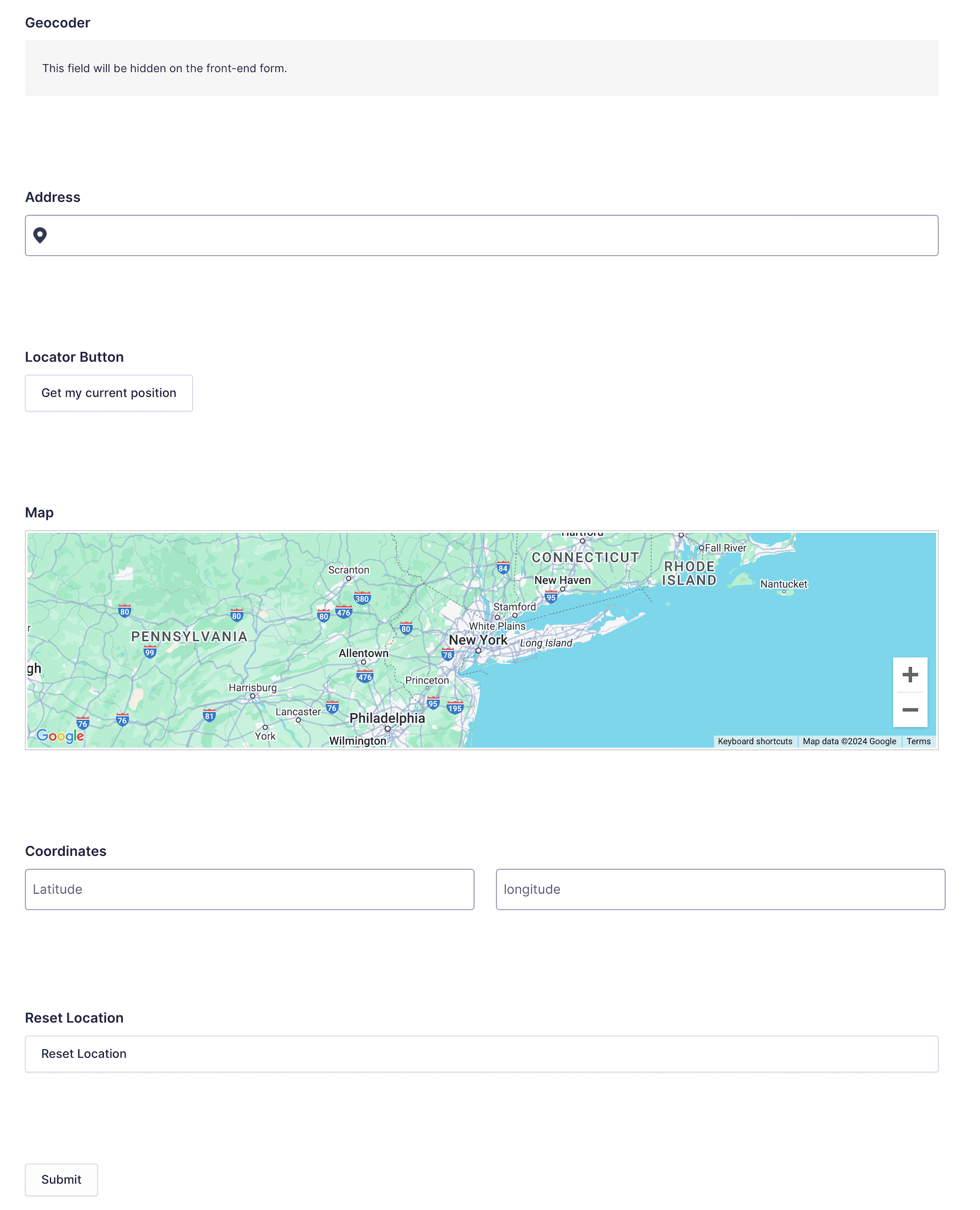
- Preview the form over HTTPS in a supported browser.
- Select an autocomplete suggestion and confirm that the marker and coordinates update.
- Move the marker and confirm that linked fields respond according to the Geocoder settings.
- Test the Locator Button, including browser permission and any configured IP fallback.
- Test whether Reset Location clears or restores defaults according to its toggle.
- Submit an entry and verify the saved Geocoder and coordinate data.
Once the basic form works, use the Geolocation Fields Overview to explore routing, address validation, nearest-location, and drawing features.