
Gravity Forms is excellent at collecting structured information, but the entries normally remain in the WordPress dashboard. A directory project needs the next layer: frontend search, filters, result layouts, maps, and pages where visitors can view individual records.
Gravity Search adds that layer directly to Gravity Forms. It queries the entries already stored in a Target Form, so you do not need to copy every submission into a custom post type or maintain a second directory database.
This approach works for business directories, member listings, property searches, resource libraries, customer portals, employee databases, store locators, and many other entry-driven applications.
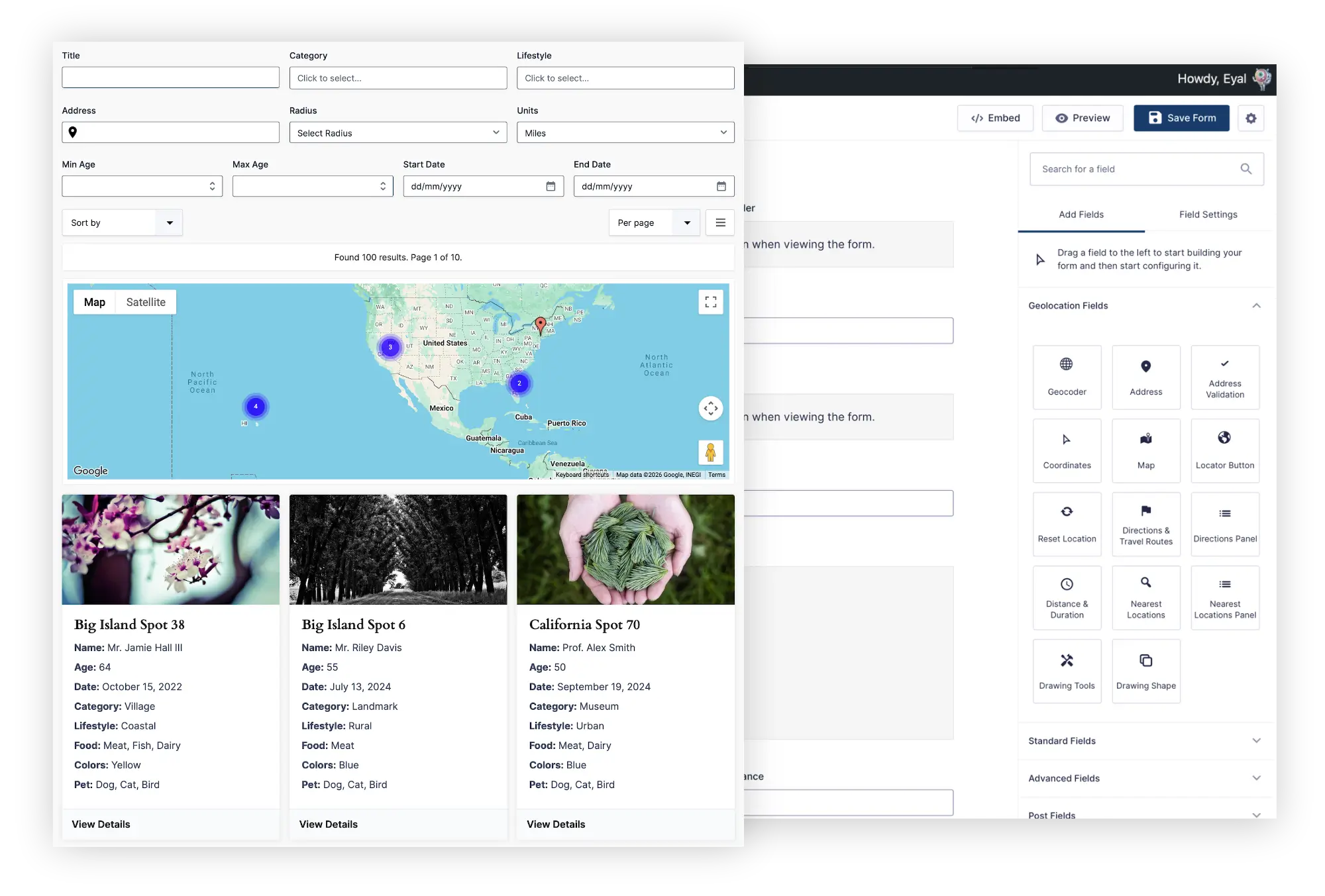
How a Gravity Search Directory Works
A directory uses two primary parts:
- Target Form: the Gravity Form containing the entries you want to display.
- Search: the configured frontend experience that retrieves, filters, and displays those entries.
The Search can include visitor-facing filter fields, but they are optional. You can build a conventional searchable directory, or display a predefined set of entries immediately with no visible search form.
One Target Form can power multiple Searches. For example, the same business-submission form could supply:
- A public directory of approved businesses
- A map containing one selected category
- A private list of entries associated with the current user
- An internal table for staff
Why Work Directly with Gravity Forms Entries?
Many directory systems require submitted form data to be converted or synchronized into a different content type. That can be appropriate for some projects, but it introduces another data model and another update path.
A Gravity Search directory keeps Gravity Forms as the underlying entry system:
- Existing entries remain available.
- The original form remains the data-collection workflow.
- Gravity Forms fields and entry metadata can participate in searches.
- Several frontend experiences can use the same Target Form.
- There is no required custom-post-type conversion merely to display results.
Gravity Search focuses on frontend search and display. If visitors must edit entries from the frontend, or if the directory needs membership and access-control rules, use a compatible solution for those separate responsibilities.
Step 1: Prepare the Target Form
Start with the Gravity Form that collects the directory records. It may already contain entries, or you can build it specifically for the new directory.
Include the information visitors will need to search or evaluate, such as:
- Name or title
- Category and services
- Description
- Contact information
- Images or uploaded files
- Status or approval field
- Address and coordinates when the directory uses maps or proximity
Use clear field labels and structured choices wherever possible. A dropdown containing consistent categories is easier to filter than several variations typed into a free-form text field.
If the directory will be public, decide which entries qualify for display. An approval or status field can support an administrator-defined filter that excludes pending, private, or incomplete records.
Step 2: Create a Search
Create a new Search and connect it to the Target Form. Search Settings define the data source, default filters, results layout, map, sorting, pagination, and individual entry display.
If the directory needs visitor controls, use the standard Gravity Forms builder to add the optional search fields. These fields filter the Target Form; they do not create new directory entries.
See Gravity Search Overview and Creating Your First Gravity Forms Search for the complete setup sequence.
Step 3: Add the Filters Visitors Actually Need
A useful directory does not need a filter for every stored field. Start with the decisions visitors make when narrowing the results.
Common filters include:
- Keyword or name
- Category or service
- City, region, or country
- Date or availability
- Numeric ranges
- User or creator information
- Entry metadata
- Address and radius
Map each Search field to the appropriate Target Form field and choose the intended comparison behavior. Keep the first version focused; additional filters can be added after observing how visitors use the directory.
Step 4: Choose the Results Layout
Gravity Search can display entries as cards, lists, grids, tables, or custom output. Choose the layout based on how visitors compare the records.
- Cards or grids: useful for businesses, members, properties, and visually rich listings.
- Lists: useful when entries need more description but still scan vertically.
- Tables: useful for structured records and side-by-side data comparison.
- Custom templates: useful when the result markup must follow a specific design.
Structured output lets you select fields without writing a complete template. Custom output can use supported merge tags and markup when a project requires more control.
Add sorting, results-per-page controls, pagination, or Load More behavior as appropriate. The goal is not to expose every setting; it is to help visitors identify the right entry quickly.
See the Search Results documentation.
Step 5: Add Maps and Proximity Search When Relevant
If Target Form entries contain geocoded locations, the directory can display matching records on an interactive map. Visitors can search from an address or current location, apply a radius, and sort results by distance.
Result maps can include markers, clustering, information windows, and synchronized list or card results. This is ideal for:
- Store and branch locators
- Service-provider directories
- Property and venue searches
- Dealer and distributor finders
- Location-aware member directories
A Target Form can contain multiple indexed locations per entry. Search Settings determine which location sources participate in a particular directory.
Existing entries may need their saved locations imported or geocoded before they appear in proximity results. See Understanding Location Data & Proximity Search.
Step 6: Create Individual Entry Details Pages
Search results usually show a concise summary. A dedicated details page can display the complete record, including selected fields, images, uploaded documents, contact information, maps, and custom content.
Configure one WordPress page as the destination for entry details, then choose structured output or a custom template in Search Settings.
Details pages are useful when:
- A business needs a complete profile
- A property includes several images and attributes
- A member listing includes a biography and contact details
- A customer portal exposes a complete record
- A map marker should link to more information
Only display fields appropriate for the intended audience. Gravity Forms entries may contain private administrative or personal information that should never appear publicly.
Step 7: Embed and Test the Directory
Add the configured Search to a WordPress page using the supported Gravity Forms block or shortcode. Search components can appear together or be placed separately when the page layout needs independent form, results, or map regions.
Before launching, test:
- Every visible filter and configured default filter
- Empty and no-results states
- Sorting and pagination
- Mobile result layouts
- Map markers and information windows
- Entry-details links and permissions
- Entries with missing or unusual values
- Several Searches that use the same Target Form
Directory Ideas You Can Build
- Business directory
- Store locator
- Member directory
- Customer portal
- Property or rental listings
- Employee or internal resource database
- Event and venue finder
- Dealer, branch, or service-provider locator
- Document and resource library
Frequently Asked Questions
Can I display existing Gravity Forms entries on the frontend?
Yes. Gravity Search connects to an existing Target Form and displays its qualifying entries as cards, lists, grids, tables, maps, or dedicated details pages.
Do I have to convert entries into custom post types?
No. Gravity Search works directly with Gravity Forms entries, although you can continue using other Gravity Forms and WordPress workflows when your project needs them.
Does every directory need a visible search form?
No. Search fields are optional. A Search can display all qualifying entries or an administrator-defined subset without visitor-facing controls.
Can I build multiple directories from one Gravity Form?
Yes. Several Searches can connect to the same Target Form and use different defaults, filters, layouts, maps, and details behavior.
Can users edit their entries from the frontend?
Gravity Search provides frontend search and display. Frontend editing requires WordPress dashboard access or a separate compatible editing solution.
Which package includes Gravity Search?
Gravity Search is available as a focused standalone package. All Access combines Gravity Search with the complete Gravity Geolocation Toolkit.
Turn Your Gravity Forms Entries into a Directory
Gravity Search lets you keep Gravity Forms at the center of your data-collection workflow while adding the frontend experience visitors need to search, filter, map, and explore the entries.
Explore Gravity Search, view the live demos, or compare Gravity Search and All Access.