
In this guide, you’ll learn:
- How to calculate road distance, travel time, or straight-line distance in Gravity Forms.
- How the Distance & Duration Field differs from the Directions Field.
- How to use the saved result in entries, notifications, exports, and calculations.
A distance calculation can turn an ordinary form into a delivery quote, service-area check, mileage estimator, or travel-time request. Gravity Geolocation’s Distance & Duration Field calculates and stores that information directly with a Gravity Forms entry.
It is the focused option for workflows that need distance and time data without displaying a complete route. The field is included with Gravity Directions, Gravity Geolocation Toolkit, and Geolocation + Search Bundle.
What does the Distance & Duration Field calculate?
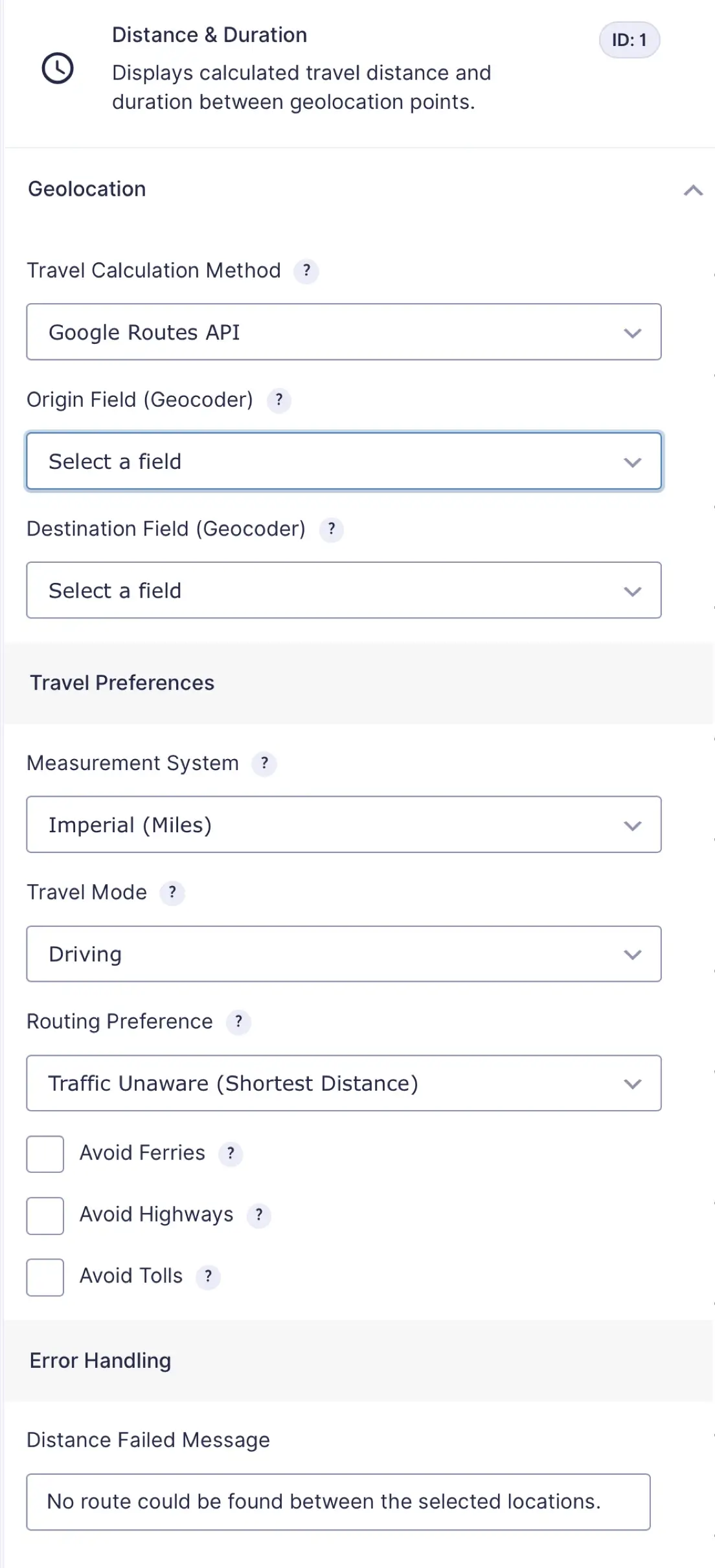
The field connects two Geocoder Fields: one origin and one destination. Once both fields contain valid coordinates, it can calculate:
- Road distance and estimated travel time with the Google Routes API.
- Straight-line distance with the Haversine method.
- Human-readable distance in miles or kilometers.
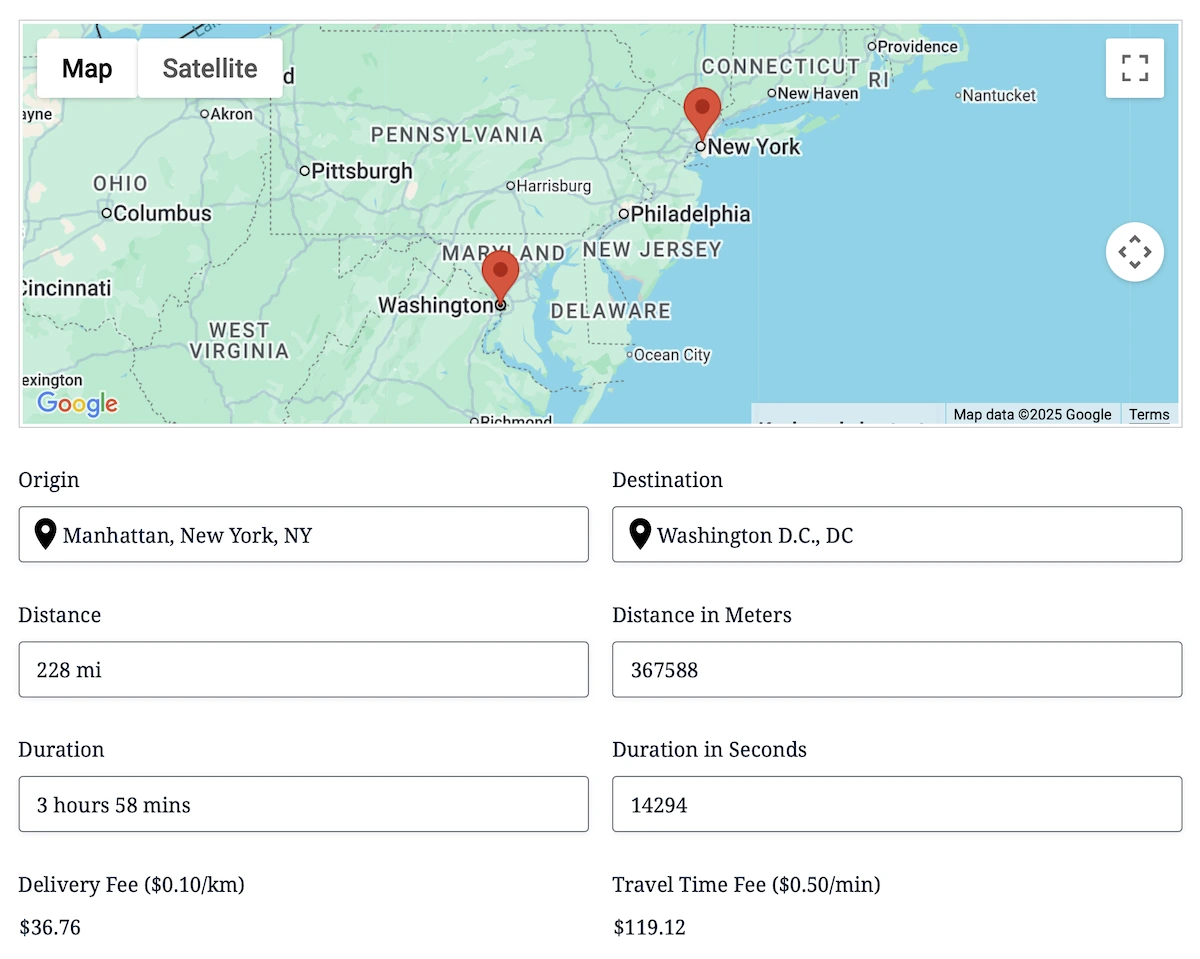
- Numeric distance, distance in meters, formatted duration, and duration in seconds for supported integrations.
The complete result is stored with the entry. The calculation field itself remains hidden on the frontend; when visitors should see a value, you can populate a supported Gravity Forms field with the desired distance or duration.
Distance & Duration Field versus Directions Field
| Capability | Distance & Duration Field | Directions Field |
|---|---|---|
| Road distance and travel time | Yes | Yes |
| Straight-line distance | Yes | Yes |
| Displays a route on a Map Field | No | Optional |
| Waypoints | No | Yes |
| Step-by-step Directions Panel | No | Optional with Google Routes API |
| Best fit | Saving or using distance and duration values. | Showing and saving a complete route experience. |
Choose the Distance & Duration Field when the values are the important output. Choose the Directions Field when visitors should see the route, use waypoints, or receive step-by-step instructions.
Common Gravity Forms distance-calculator use cases
Delivery and service pricing
Calculate the road distance between a business location and a customer address. Populate the numeric result into a supported Number Field, then use normal Gravity Forms calculation settings to determine a delivery or service fee.
Service-area eligibility
Compare the distance with your supported range and use Gravity Forms conditional logic around the visible populated field to show the appropriate next step.
Mileage and travel reimbursement
Save the distance between an origin and destination so it can be reviewed in the entry, exported, or included in notifications and approval workflows.
Appointment and event planning
Capture estimated travel time to a location without adding a route map or turn-by-turn panel to the form.
How to configure the calculation
- Add two location inputs, such as pickup and destination Address Fields.
- Add one Geocoder Field for each location and connect it to the appropriate input.
- Add a Distance & Duration Field.
- Select the origin and destination Geocoder Fields.
- Choose Google Routes API for a road journey or Straight-Line (Haversine) for direct geographic distance.
- Choose miles or kilometers and configure travel mode, routing preference, and restrictions when using a road route.
- Preview the form, select both locations, and submit a test entry.
- Open the entry and confirm that the expected distance, duration, origin, and destination were saved.
Road calculations require the Google Routes API. Straight-line calculations use the coordinates directly and do not follow roads or provide route instructions.
How to display or reuse the result
The Gravity Forms entry detail page and exports provide a readable result. Merge-tag modifiers can output a formatted summary, distance, duration, text, or the complete saved data for advanced integrations.
To show a specific value in the form, configure a supported Gravity Forms field as a Dynamic Geolocation Field, select Distance Field as its usage, and link it to the Distance & Duration Field. You can populate:
- Distance text or numeric distance.
- Distance in meters.
- Duration text or duration in seconds.
This separation keeps the route result stored in the dedicated geolocation field while making a chosen value available to Gravity Forms calculations, conditional logic, confirmations, or other supported workflows.
Frequently asked questions
Does the field display a map?
No. It calculates and stores distance and duration data. Use the Directions Field when you need a route drawn on a Map Field.
Can it calculate a straight-line distance?
Yes. Choose the Haversine method when you need direct geographic distance rather than a road route.
Why is the calculation field hidden?
It acts as a calculation and storage field. Populate a supported visible field when visitors need to see or interact with one of its values.
Why did the road calculation fail?
Confirm that both Geocoder Fields contain valid coordinates, the Google Routes API is enabled, the travel mode is supported between those points, and the selected route restrictions do not prevent a route.
Start calculating distance in Gravity Forms
Use the Distance & Duration Field when your workflow needs reliable, reusable distance or travel-time data without the additional route interface.
Read the complete Distance & Duration Field documentation, compare the Directions Field, or review current plans.