
Address autocomplete makes a Gravity Form faster to complete and gives you more useful location data than an unrestricted text box. As a visitor begins typing, Google-powered suggestions help them choose a recognized address. Gravity Geolocation can then geocode the selection, capture its coordinates and address components, and synchronize it with other location fields in the form.
This guide explains how to add autocomplete, connect it to the rest of your form, restrict suggestions when needed, and avoid confusing autocomplete with full address validation.
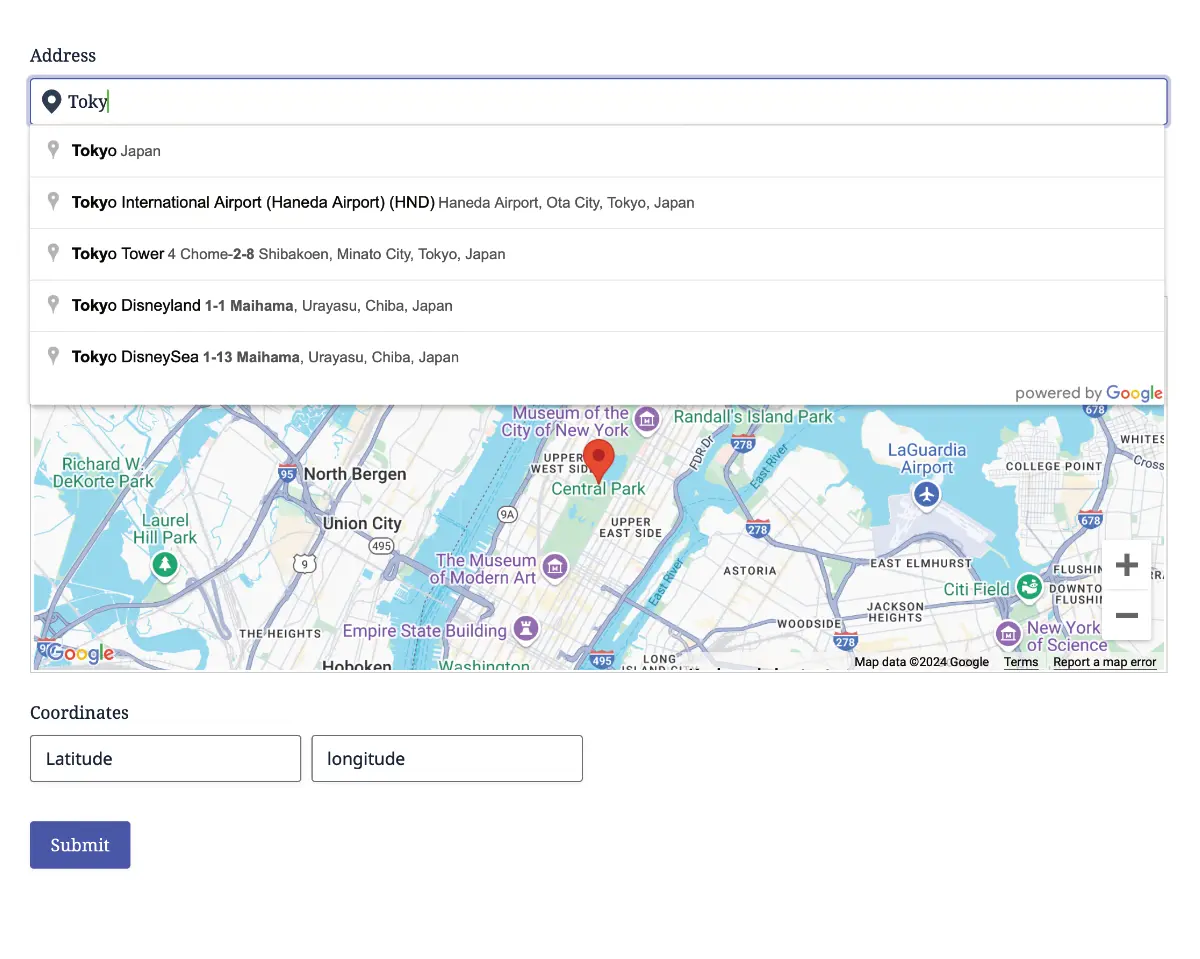
What Address Autocomplete Adds to Gravity Forms
A normal address input saves exactly what the visitor typed. Autocomplete adds an assisted selection workflow:
- The visitor starts entering a street, city, business, or other supported place.
- Google Places returns matching suggestions.
- The visitor selects the intended result.
- Gravity Geolocation geocodes the selection and synchronizes its location data.
Depending on the form, the selected place can provide a formatted address, individual address components, latitude and longitude, a place ID, and a position for a connected Map Field.
Autocomplete can reduce typing and ambiguity, but it is still an input aid. If you need to verify and standardize an address before submission, add the separate Address Validation workflow described later in this guide.
What You Need
- WordPress and Gravity Forms
- Gravity Location, Gravity Directions, Gravity Geolocation Toolkit, or Geolocation + Search Bundle
- A Google Maps API key with the required services enabled and correctly restricted
Gravity Location is the focused package for collecting addresses, coordinates, map-selected locations, and users’ current positions. The same Address and Geocoder fields are also included where required by Gravity Directions and the broader packages.
Step 1: Add a Geocoder Field
Open the Gravity Forms editor and add a Geocoder Field. The Geocoder acts as the location-data source that connects the Address Field with other geolocation fields.
The Geocoder Field is hidden from visitors by default. It stores and synchronizes the underlying location data without adding another visible field to the frontend. Give it a clear administrative label when the form contains more than one location, such as Customer Location, Pickup Location, or Property Location.
Forms can contain multiple independent geolocation groups. For example, an origin Geocoder can connect to one Address Field while a destination Geocoder connects to another.
Step 2: Add and Connect the Address Field
Add the Gravity Geolocation Address Field and select the Geocoder Field it should use. This connection allows the address, coordinates, and any linked Map Field to stay synchronized.
Gravity Geolocation uses the normal address inputs rather than placing an unrelated autocomplete box beside them. Visitors complete a familiar form while the plugin handles the geocoding workflow behind the scenes.
See the Address Field documentation and Geocoder Field documentation for the complete option list.
Step 3: Enable Address Autocomplete
In the Address Field settings, activate Address Autocomplete. Preview the form and begin typing an address to confirm that suggestions appear.
You can also configure the type of suggestions shown. Depending on the workflow, you may want complete addresses, establishments, regions, or cities rather than every available place type.
Examples include:
- Delivery form: prioritize complete street addresses.
- Business-location form: allow establishments and addresses.
- Service-region request: use broader city or region suggestions.
- Event submission: allow venues and other points of interest.
Step 4: Decide Whether Selection Is Required
Autocomplete can show suggestions while still allowing a visitor to keep manually typed text, or it can require the visitor to select a suggestion.
Requiring a selection is useful when the workflow depends on coordinates or structured place data. If someone types an address without choosing a suggestion, the text may look complete while the form has no confirmed place from which to derive the expected location values.
When selection is enforced, use a clear message such as:
Please select an address from the suggestions.
Do not describe this as address validation. It confirms that the visitor chose an autocomplete result; it does not perform the same analysis as the Google Address Validation API.
Step 5: Restrict the Suggestions
Autocomplete results can be restricted when a worldwide suggestion list would be unhelpful.
Country restrictions
Limit suggestions to the countries your organization serves. This reduces irrelevant results when cities or street names exist in several countries.
Proximity
Bias or constrain suggestions around configured coordinates and a radius. This is useful for a local business that mainly expects addresses near a store, office, or service region.
Area bounds
Limit results to a defined rectangular geographic area.
Visitor location
Use the detected page location when suggestions should be relevant to the visitor’s current area. Browser-based location access requires the visitor’s permission.
Restrictions should improve relevance without hiding legitimate customer addresses. Test locations near the edge of the service area as well as common central locations.
Step 6: Add a Locator Icon or Map
The Address Field can include an inline locator control that lets visitors populate the location from their current position. You can also add the standalone Locator Button when the design requires a separate control.
For visual confirmation, connect a Map Field to the same Geocoder. The marker moves when an autocomplete result is selected, and dragging the marker can update the connected address and coordinates.
This combination is useful when:
- The exact entrance or pickup point matters
- A street address covers a large property
- The visitor needs to correct the suggested position
- The form collects locations without a conventional postal address
The Map Field used here is a form input. It is different from the Single Entry Map and Mashup Map used to display saved Gravity Forms entries after submission.
Step 7: Use the Location Data Elsewhere
Dynamic Location Data can populate compatible standard Gravity Forms fields with selected address components and geographic values. Depending on the workflow, you might copy:
- City, state, postal code, or country
- Formatted address
- Latitude and longitude
- Place ID
- Individual street components
Those values can then participate in conditional logic, calculations, notifications, confirmations, merge tags, feeds, exports, and compatible third-party integrations.
Autocomplete or Address Validation?
Use autocomplete when the main goal is faster entry and geocoding. Use Gravity Address Validation when the workflow needs to review, standardize, or verify the completed address before submission.
Many forms benefit from both:
- Autocomplete helps the visitor select the intended location.
- Address Validation evaluates the completed address.
- The visitor reviews any recommended correction.
Read Address Autocomplete vs Address Validation for a detailed comparison.
Common Uses for Gravity Forms Address Autocomplete
- Delivery and pickup forms
- Booking and appointment requests
- Property and event submissions
- Store and branch searches
- Registration and profile forms
- Service quotes and field-work requests
- Origin and destination inputs for route calculators
Frequently Asked Questions
Can I add autocomplete to the Gravity Forms Address Field?
Yes. Gravity Geolocation adds autocomplete to the Address Field and connects it to a Geocoder Field for coordinates and synchronized location data.
Can I restrict suggestions to one country?
Yes. Configure country restrictions in the Address Field settings. Multiple supported countries can also be selected when the form serves more than one country.
Can users select their current location?
Yes. Enable the inline locator control or use a standalone Locator Button. Browser location detection requires visitor permission, and an IP-location provider can be configured for applicable fallback workflows.
Does autocomplete verify that an address is deliverable?
No. Autocomplete assists selection and provides structured place data, but it is not a replacement for the dedicated Address Validation workflow.
Which package should I choose?
Choose Gravity Location when your project mainly needs address autocomplete and location collection. Choose Gravity Geolocation Toolkit when you also need Address Validation, Nearest Locations, Drawing Tools, Gravity Maps, and the complete form-focused geolocation feature set. Bundle adds Gravity Search.
Add Location-Aware Fields to Gravity Forms
Gravity Location gives Gravity Forms dedicated Address, Geocoder, Map, Coordinates, Locator, Reset Location, and Dynamic Location Data fields in one focused package.
Explore Gravity Location, try the live demos, or compare packages.