
Gravity Geolocation 3.6 is focused on one goal: making powerful geolocation forms much faster and easier to build.
Until now, creating a complete location, distance, directions, or nearby-locations workflow often meant adding several fields, opening each field’s settings, and manually connecting everything in the correct order. Version 3.6 keeps the flexibility of Gravity Forms’ individual fields while introducing guided setup tools, visible field relationships, and smarter defaults.
You can now start with a complete working setup in a few clicks, then customize every generated field normally in the Gravity Forms editor.
Build complete geolocation workflows with Quick Setups
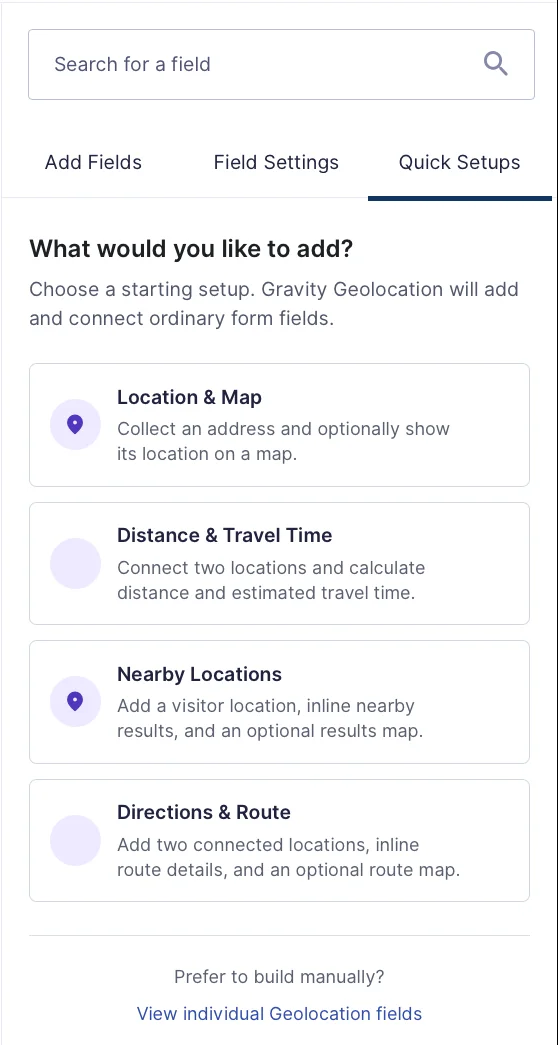
The new Quick Setups tab appears directly in the Gravity Forms builder. It can generate the fields required for four common workflows:
- Location & Map – an Address and its connected Geocoder, with an optional map and current-location button.
- Distance & Travel Time – connected origin and destination locations with routed distance and estimated travel time, or straight-line distance.
- Directions & Route – origin and destination locations, an optional route map, and configurable route details.
- Nearby Locations – a visitor location, a location source, nearest-location results, and an optional results map.
Quick Setups are intentionally lightweight. They do not create a separate managed “solution” that you have to maintain. They simply add and connect regular Gravity Forms fields. Once the setup is created, you can move, rename, remove, or configure those fields exactly as you normally would.
Feature availability depends on your installed package. Quick Setup choices remain visible; if a setup requires a field that is not included, Gravity Forms’ native upgrade dialog explains the available upgrade. Native templates are offered when their required fields are included in the installed package.
See how fields are connected directly in the builder
Geolocation fields often work together: an Address feeds a Geocoder, a Map displays one or more locations, and Directions connects an origin, destination, route map, and optional output panel. Gravity Geolocation 3.6 makes those relationships visible on each field card.
The new connection summary shows whether required relationships are connected, optional, missing, or broken. Expand it to see the connected field labels and field IDs, or follow a field link to move directly to that field in the builder. Reverse relationships also appear, so a Geocoder or Map can show which fields are using it.
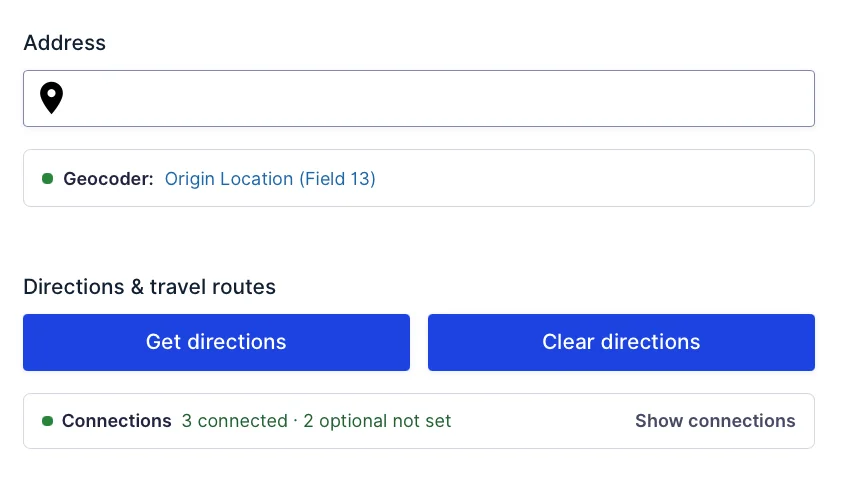
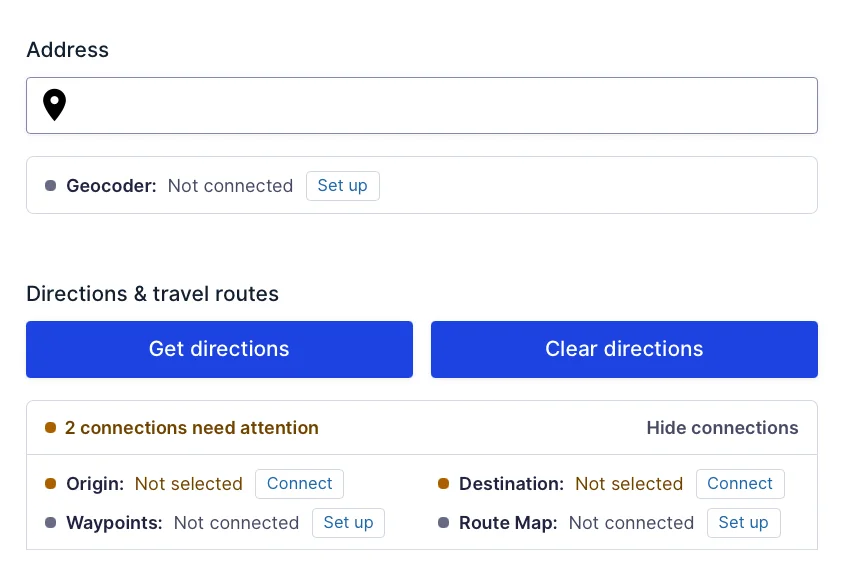
These indicators are guidance only. They do not prevent saving or publishing a form. Their purpose is to make complex forms easier to understand and troubleshoot.
Create and connect missing fields without leaving the current field
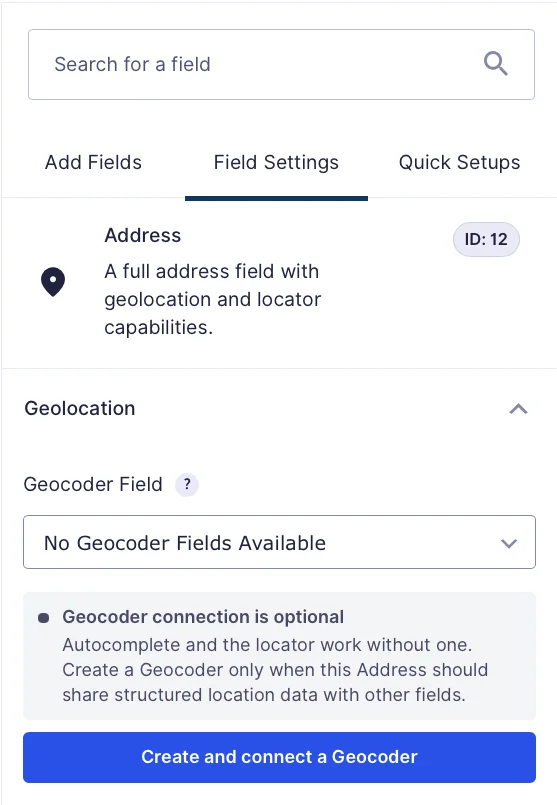
When a field needs a Geocoder, Map, Directions Panel, or Nearest Locations Panel, you can now create and connect it directly from the relevant setting.
The new field is placed next to the field you are configuring whenever possible, the relationship is selected automatically, and the editor remains focused on the same settings panel. An undo action is available immediately after creation.
If compatible fields already exist, Gravity Geolocation prioritizes selecting one of those fields instead of encouraging unnecessary duplicates.
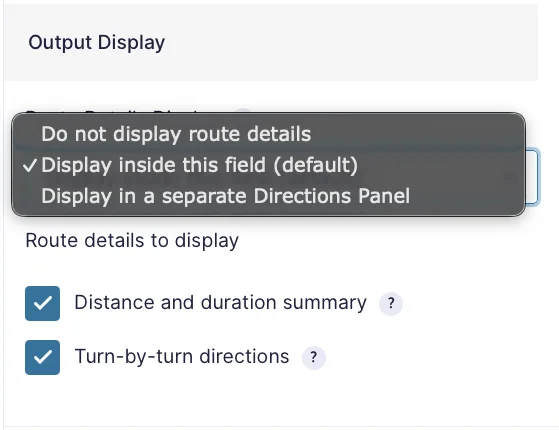
Display directions inside the Directions field
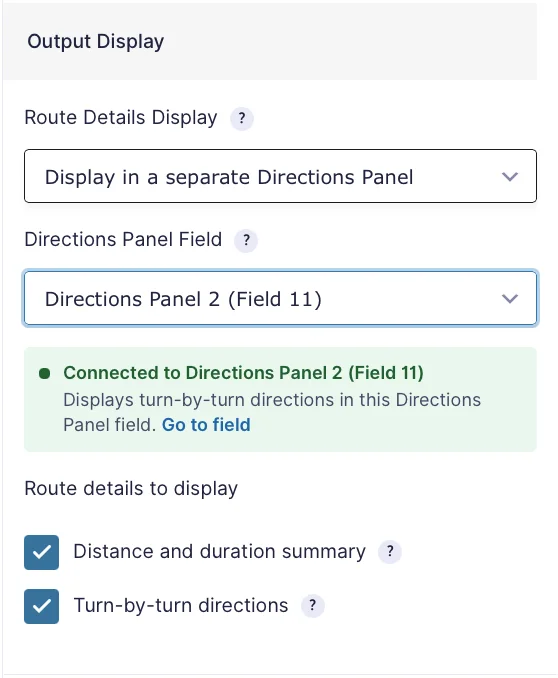
Directions no longer require a separate Directions Panel field just to show route information. Route details can now be displayed directly inside the Directions field or sent to a separate panel when you need more control over layout.
Distance and duration summaries and turn-by-turn directions are configured independently, so you can display either one or both. The same output supports manual buttons, automatic calculation, dynamically shown fields, clearing, AJAX-enabled forms, and route-map interaction.
New Directions fields calculate automatically when their connected locations change. Manual button calculation remains available, and existing forms keep their saved trigger settings.

More flexible Nearby Locations output
The Nearest Locations field now follows the same clearer output model. Results can appear inside the field or in a separate Nearest Locations Panel. Quick Setup can also configure either manually entered destinations or a database location source and optionally add a connected results map.
Use distance and duration in calculations
Calculated travel values are now available to Gravity Forms calculations as numeric distance and duration values. This makes it much easier to build delivery estimates, mileage charges, service-area pricing, and other travel-based calculations without creating custom synchronization code.
The Distance & Travel Time and Directions Quick Setups can optionally create a starter price field and calculation. It remains a normal Gravity Forms calculation that you can review and adapt to your own pricing rules.
Generated price calculations use meters and seconds internally, with explicit conversion for per-mile, per-kilometer, and per-minute rates. Display values can still use miles or kilometers and minutes, independently of those raw numeric inputs.
Fixed locations for stores, offices, and warehouses
Distance and Directions Quick Setups can use a visitor-entered location or a predefined location for either endpoint. This is useful when routes should always begin or end at a store, office, warehouse, clinic, or other fixed destination.
Starter map positions also keep newly generated route forms visually useful before a visitor selects their locations, without automatically triggering a route calculation.
Start from a complete Gravity Forms template
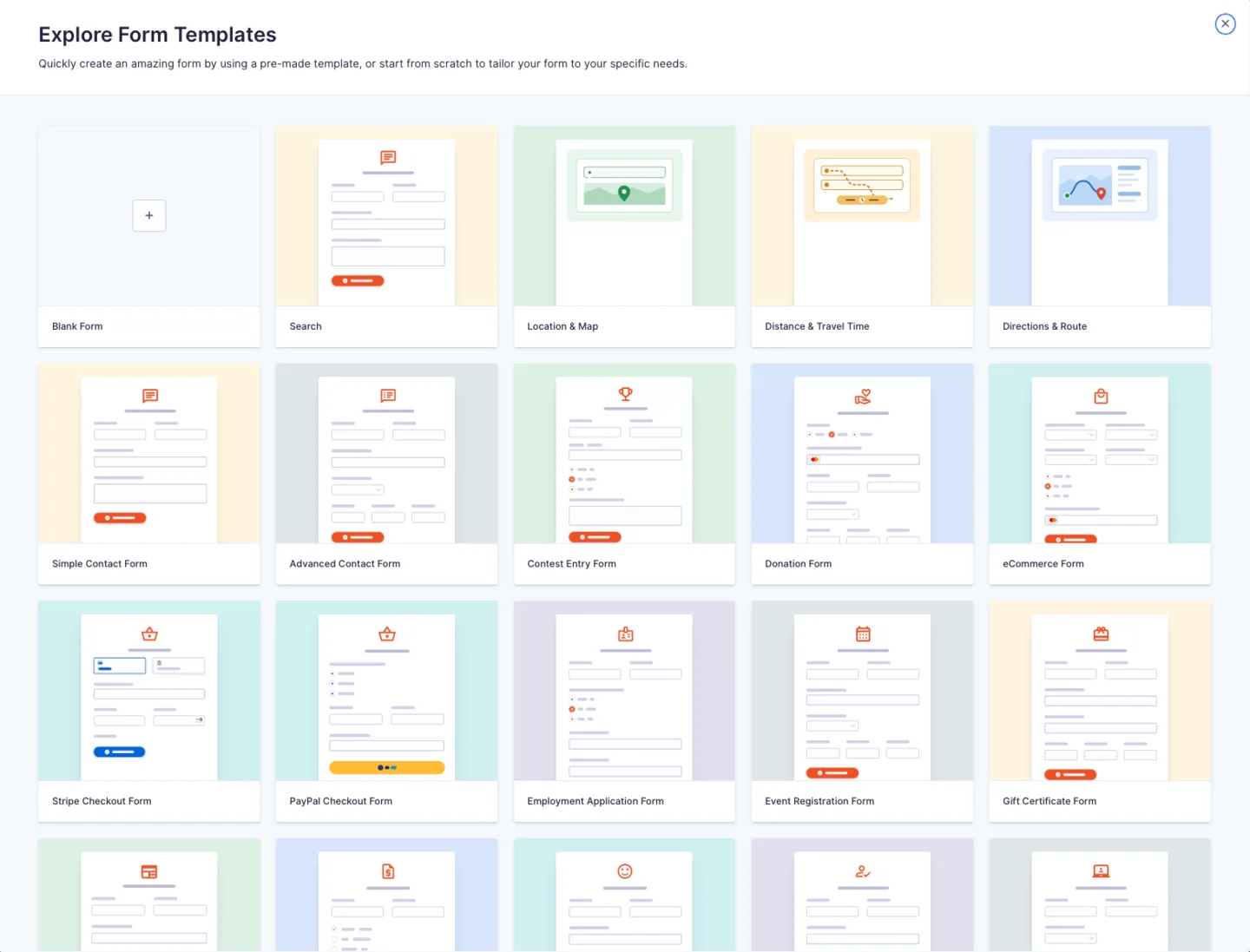
Gravity Geolocation 3.6 also adds native Gravity Forms templates for:
- Location & Map
- Distance & Travel Time
- Directions & Route
Select one when creating a new form and Gravity Forms will open a regular editable form with the required fields and relationships already configured.
Additional editor improvements
This release includes several smaller improvements that make the new workflow feel more reliable:
- Enhanced relationship selectors now load correctly on brand-new empty forms.
- The active Geolocation settings panel remains open after creating a connected field.
- New route and nearby-results maps inherit valid connected Geocoders when appropriate.
- Generated Geocoder fields can be positioned and reordered normally.
- Field labels and IDs make fields with similar names easier to distinguish.
Requirements and upgrading
Gravity Geolocation 3.6 requires Gravity Forms 2.10.3 or newer. As always, we recommend backing up your site and testing the update on a staging site when your forms contain custom code or complex integrations.
Existing Directions and Nearby fields with saved panel connections retain their legacy panel output when the new display settings have not yet been saved. Older saved Dynamic travel selections also remain supported; you do not need to rebuild those forms to use the new editor tools.
Enable Google Routes API for routed distance, travel time, directions, and route-based nearby calculations. Straight-line distance and proximity searches do not require Routes API. Address autocomplete uses Places API (New). Make sure the services required by your forms are enabled for the appropriate Google API keys.
Get started with Gravity Geolocation 3.6
Update Gravity Geolocation, open an existing form to review its connection summaries, or create a new form and select Quick Setups to build a complete workflow.
We would love to hear how the new builder experience works for your forms. If you find an edge case or have an idea for another useful Quick Setup, please let us know.